Send Recovery Email
A recovery email reminds a customer who left a checkout that their items are still waiting, with a link back to the cart so they can finish paying. You can send one from the Abandoned checkouts list by selecting the checkouts and choosing Send recovery emails, or from a single checkout with its Send recovery email button. The email sends straight away and the checkout moves to Contacted. This article walks through both ways to send a recovery email.
On this page
A recovery email reminds a customer who left a checkout that their items are still waiting, and gives them a link back to the cart so they can finish paying. You send it from an abandoned checkout, either for several checkouts at once from the list or for a single one from its detail page. This article walks through both ways.
You do this from Abandoned checkouts under Orders, which has at least one abandoned checkout to send to.
Before you begin
- Your role includes Edit orders.
- The checkout has a customer email on it, since that is where the recovery email goes.
- Open Orders > Abandoned in the admin sidebar.
What the recovery email does
The recovery email is the You left items at checkout message. It sends the customer a link back to the exact checkout they left, with their items still in it, so they can complete the purchase. Nothing else about the checkout changes: no order is created, no payment is taken, and the items are not reserved. All the email does is give the customer a way back.
Sending one moves the checkout to the Contacted status. That status is the point of the whole feature, because it is what separates the customers you have already chased from the ones still waiting for a nudge, and it is why the list carries a Not Contacted tab as well.
A checkout only moves to Recovered when the customer actually comes back and pays. Contacted means you have done your part; Recovered means it worked.
Where the action lives
An abandoned checkout opens with the actions at the top of the page, next to the checkout reference and its recovery status.
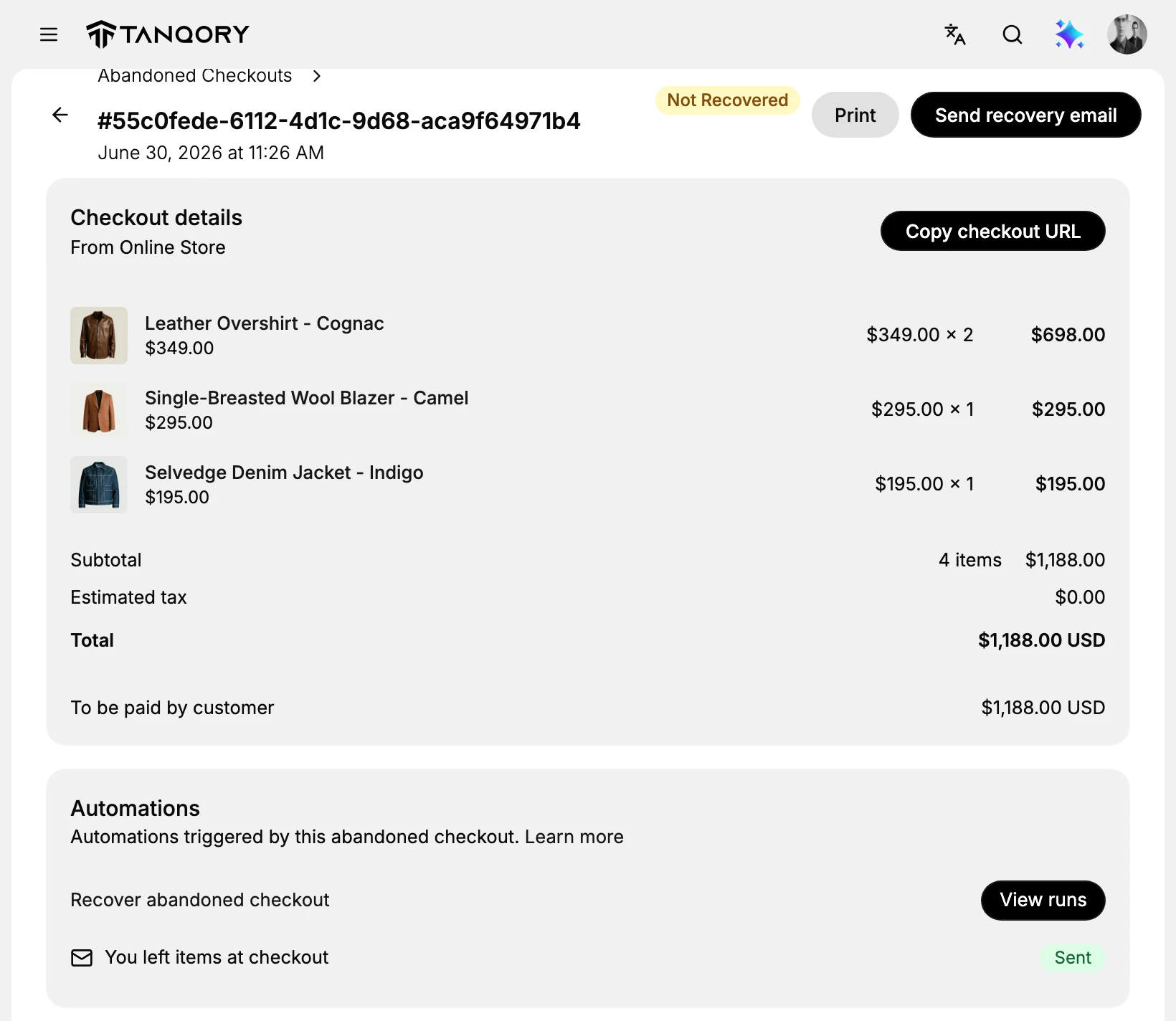
The badge next to the reference is the recovery state, so you can see whether this checkout has been won back before you decide to email again. Send recovery email sits at the top right, next to Print.
Below it, the Checkout details card shows exactly what the customer left behind, with the items, the quantities, and the total they would have paid. It is worth a glance before you send, because a checkout worth a few hundred is a different decision from one worth a few pounds. Copy checkout URL gives you the same link the email carries if you would rather send it yourself in a reply.
Send from the abandoned checkouts list
Use this to follow up on several checkouts at once.
1. Select the checkouts
On the Abandoned checkouts list, tick the checkbox on each checkout you want to email. You can select more than one.
2. Choose Send recovery emails
Select Send recovery emails. The emails are sent straight away, with no separate compose or preview step, and a message confirms how many were sent, for example "1 recovery emails sent". The checkouts move to Contacted.
Send from a single checkout
Use this when you are looking at one abandoned checkout.
1. Open the checkout
From the list, select a checkout to open its detail page.
2. Select Send recovery email
At the top of the page, select Send recovery email. It sends the same recovery email for this one checkout and moves it to Contacted.
After you send
Two things change, and both are worth checking.
First, the checkout moves under the Contacted tab on the list, so it drops out of your Not Contacted working set.
Second, the send is recorded on the checkout itself, in the Automations card. The card lists the automations triggered by this abandoned checkout, and the recovery email appears there as You left items at checkout with a Sent badge, alongside the Recover abandoned checkout automation and a View runs button for its history.
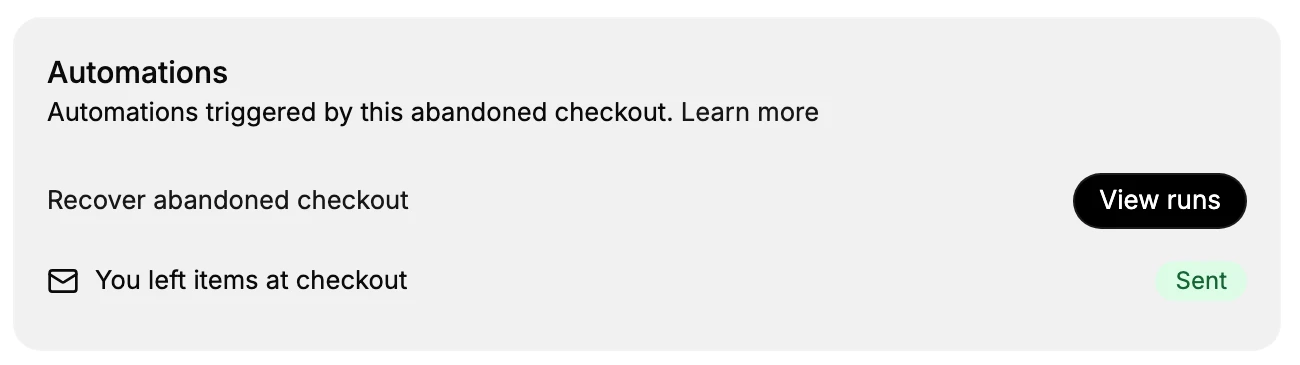
This card is the record to read before sending anything again. The Contacted status tells you someone was emailed, and the Automations card tells you which message went and when, which is what you need if a customer says they were chased twice or never heard from you at all.
If the customer comes back and pays, the checkout moves to Recovered, and the money shows up as a normal order.
Best practices
- Send the recovery email while the checkout is fresh, since a recent cart is more likely to be recovered.
- Check the Contacted tab and the Automations record before sending, so you do not contact the same customer repeatedly.
- Select only the checkouts you mean to email on the list, rather than the whole page.
Common mistakes
- Emailing a customer who has already been contacted, which the Contacted status and the Automations record would show.
- Expecting a compose window, when the recovery email sends immediately with no editing step.
Next steps
Related articles
Still stuck?
- Ask Tanqory AIAsk in your own words. It answers from these articles and links the ones it used.
- Ask in your adminThe assistant in your Tanqory admin answers and makes the change for you once you confirm.
- Contact TanqoryWrite to our privacy, security or legal teams, or talk to sales about a plan or a move.