What You Can Change by Editing an Order
Editing an order changes what is on it after it was placed, such as adding a product or a custom item, changing an item's quantity, or adding a shipping fee. When your changes raise the total, the order shows an amount to collect, which you can invoice to the customer. This article explains what editing can and cannot do, how the difference is settled, and when to edit an order rather than refund or cancel it, and it points to the step-by-step for the Edit page.
On this page
Editing an order changes what is on it after it was placed. You can add a product, add a one-off custom item, change an item's quantity, and add a shipping fee, all on the order's Edit page. When your changes raise the total, the order shows an amount to collect that you can invoice to the customer. This article explains what editing does and when to use it. Edit an Order has the step-by-step on the Edit page.
You open the Edit page with Edit order on the order, reached from Orders.
Before you begin
- Your role includes Edit orders.
- The order can still be edited. An order that is fulfilled or paid limits what you can change.
- Open Orders in the admin sidebar and open the order you want to work on.
What editing can change
On the Edit page you can make these changes to an order:
- Add a product from your catalog, or add a custom item for something that is not a product.
- Change the quantity of a line item with its quantity control.
- Add a shipping fee in the Payment card.
You also write a Reason for edit for your own records, and the Summary shows what changed before you apply it with Update order. Editing is for changing the items and charges on the order. To return money to the customer, issue a refund instead, and to stop the whole order, cancel it.
How the difference is settled
When an edit raises the order total, the Summary works out the difference for you. It shows the Updated total, how much is already Paid, and the Amount to collect, which is what the customer now owes. A Send invoice to customer option lets you email them a request for that amount.
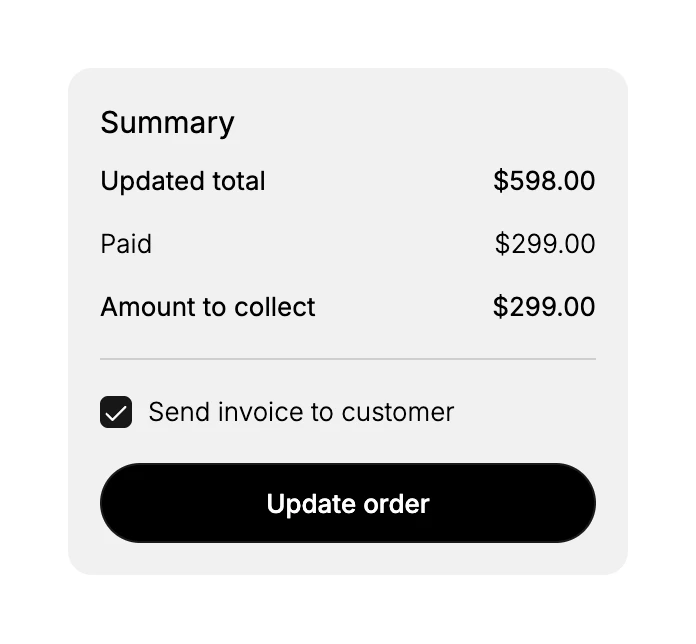
Nothing is charged or collected until you select Update order. Until you make a change, the Summary reads No changes and Update order stays inactive.
Edit, refund, or cancel
Editing is one of a few ways to change an order after it is placed. Use the one that matches what you need to do.
| Action | Use it when | What it does |
|---|---|---|
| Edit order | You need to change items, quantities, or add a shipping fee | Updates the order and, if the total goes up, shows an amount to collect you can invoice |
| Refund | You are returning money to the customer | Returns money to the original payment method and removes the refunded items |
| Cancel | You are stopping the whole order | Cancels the order rather than adjusting what is on it |
Best practices
- Write a clear reason for edit, since it is kept on the order for your team.
- Check the amount to collect in the Summary before you apply the edit, so you know what the customer will owe.
- Send the invoice when there is an amount to collect, so the customer knows to pay the difference.
Common mistakes
- Editing when you meant to refund, which changes the items instead of returning money. Issue a refund to return money.
- Applying an edit without checking the Summary, so you miss the amount to collect.
- Expecting the customer to be charged automatically, when a raised total shows an amount to collect that you invoice.
Next steps
Related articles
Still stuck?
- Ask Tanqory AIAsk in your own words. It answers from these articles and links the ones it used.
- Ask in your adminThe assistant in your Tanqory admin answers and makes the change for you once you confirm.
- Contact TanqoryWrite to our privacy, security or legal teams, or talk to sales about a plan or a move.