Collection Theme Template
The Theme template setting picks which storefront layout your theme uses to display a collection page. Every collection starts on Default collection, and any alternate templates your theme provides appear in the same menu.
On this page
Every collection page on your storefront is drawn by a theme template, which is the layout your theme uses to arrange the collection's title, image, and product grid. The Theme template setting on a collection is where you choose that layout. Each collection starts on Default collection, and if your theme defines other collection templates, they appear in the same menu for you to pick from.
You'll set this in the collection editor, which opens when you create or open a collection.
What the Theme template controls
The Theme template decides how a collection page looks on your storefront, not which products it contains. It is easy to mix these up, so keep them separate:
| Setting | What it decides | Where it lives |
|---|---|---|
| Collection type | Which products are in the collection (Manual, or Smart by conditions) | The Collection type card in the editor |
| Theme template | Which storefront layout renders the collection page | The Theme template card in the editor |
Changing the Theme template swaps the page layout; it never adds or removes products. To change membership, use the Collection type instead; Smart Collections and Create a Collection cover how.
Before you begin
- You have the Manage collections permission.
- If you want a layout other than the default, your theme provides an alternate collection template.
- Open Products > Collections, then create or open a collection to reach the editor.
Steps
1. Open a collection
On the Collections page, click Create Collection or open an existing collection. The collection editor opens.
2. Open the Theme template menu
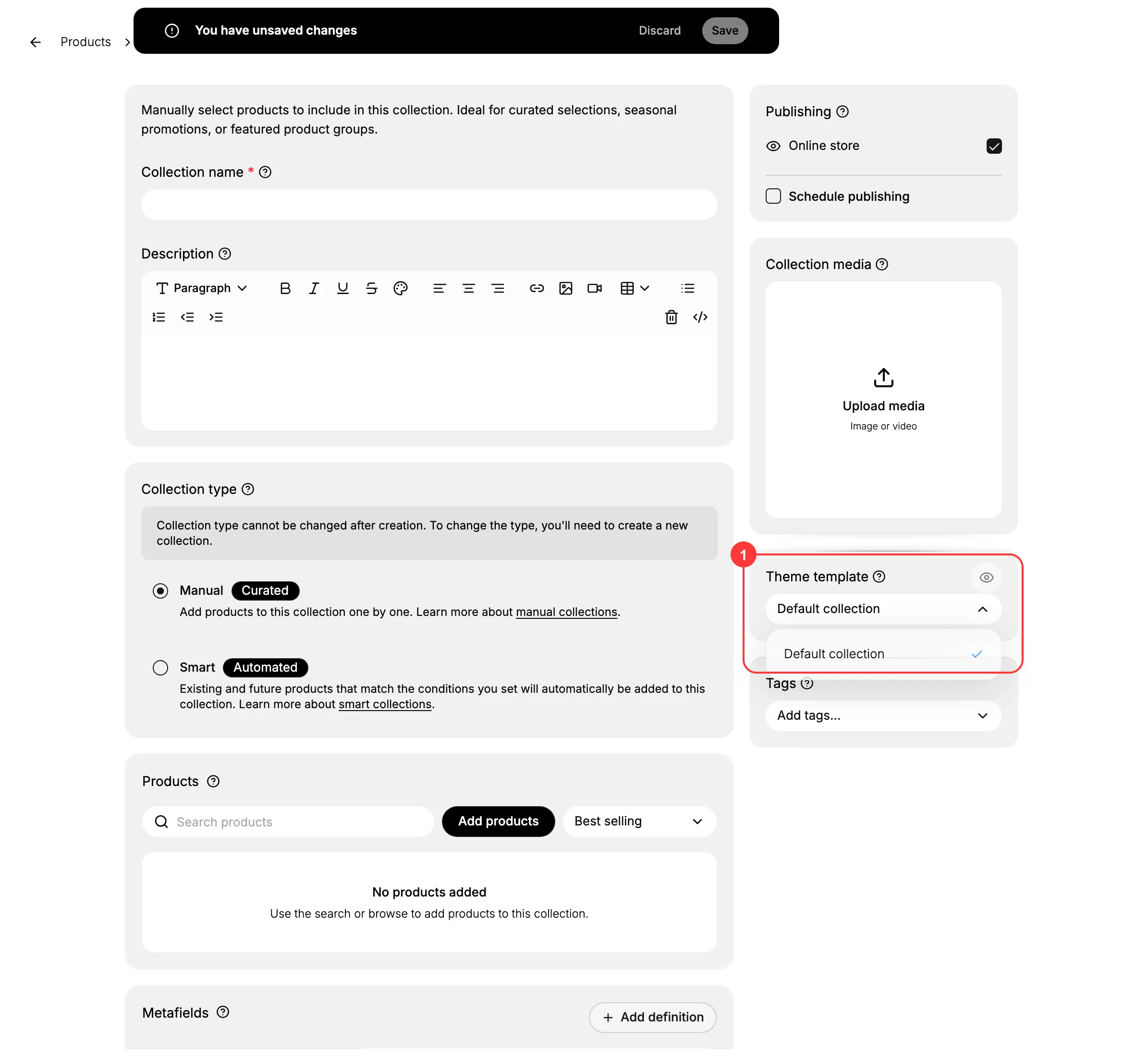
In the right column of the editor, find the Theme template card (1). It shows the current template, Default collection. Click it to open the menu of templates your theme provides.
3. Choose a template and save
Pick the template you want the collection page to use, then Save. On a store whose theme defines only the default, Default collection is the only option, and that is the layout every collection uses until the theme adds more.
If only Default collection is listed
The templates in this menu come from your theme, not from Tanqory. A theme that defines only one collection layout shows just Default collection, which is normal. Alternate collection templates appear here only after your theme includes them, so if you need a different layout, add the template to your theme first.
Verify the result
- The Theme template card shows the template you chose.
- The collection page on your storefront uses that layout.
Best practices
- Leave it on Default collection unless you have a reason to change it. The default is the layout your theme was built to use for collections.
- Match the template to the collection's purpose. If your theme offers a layout made for a campaign or a lookbook, use it for that kind of collection.
- Keep membership and layout separate. Set which products belong with the Collection type, and set how the page looks with the Theme template.
Common mistakes
- Expecting the Theme template to change which products show. It only changes the page layout; membership comes from the Collection type.
- Looking for preset collection types here. Tanqory has no built-in library of ready-made collections; you build the set yourself with a Manual or Smart collection.
Next steps
Related articles
Still stuck?
- Ask Tanqory AIAsk in your own words. It answers from these articles and links the ones it used.
- Ask in your adminThe assistant in your Tanqory admin answers and makes the change for you once you confirm.
- Contact TanqoryWrite to our privacy, security or legal teams, or talk to sales about a plan or a move.