Deactivate a Gift Card
Block a gift card so it can no longer be redeemed, for a lost, compromised, or wrongly issued card. The card and its history stay, but deactivation cannot be undone, so use it deliberately.
On this page
Deactivating a gift card blocks it from being used for purchases. The card and its transaction history stay in the admin, so you keep the record, but the remaining balance is lost and cannot be recovered, and the code stops working at checkout. Use it for a lost or compromised code, a card issued in error, or a card under a fraud or chargeback review. Deactivation cannot be undone, so confirm you have the right card first.
Before you begin
- You have the Manage gift cards permission.
- You have identified the exact card. Confirm the code before you act.
- Open Products and open Gift cards, then open the card's detail page.
Two ways to deactivate
- From the card's detail page - open the card and click Deactivate at the top-right.
- From the list - select one or more cards and click Deactivate in the bar that appears.
Both ask you to confirm in a Deactivate Gift Card dialog before anything changes.
What deactivation does
| It does | It does not |
|---|---|
| Block the card from being used for purchases | Let you reactivate it (there is no Reactivate action) |
| Forfeit the remaining balance, which cannot be recovered | Refund the balance to the customer |
| Set the status to Deactivated and log it in the history | Delete the card or its transaction history |
Steps
1. Open Products > Gift cards
Go to Products in the admin sidebar and open Gift cards. The Gift Cards list opens, showing every issued card with its code, status, and current balance. The Search gift cards box and the status tabs above the list are what you use in the next step to find the exact card.
2. Find the card
Use Search gift cards, or the status tabs above the list, to find the card. Confirm the code so you act on the right one.
3. Open the card or select it in the list
Open the card to deactivate it on its own, or tick its checkbox in the list to deactivate it with the bulk bar. You can select more than one card in the list.
4. Click Deactivate
On the detail page, click Deactivate (1) at the top-right. In the list, click Deactivate in the bar that appears after you select a card.

5. Confirm in the dialog
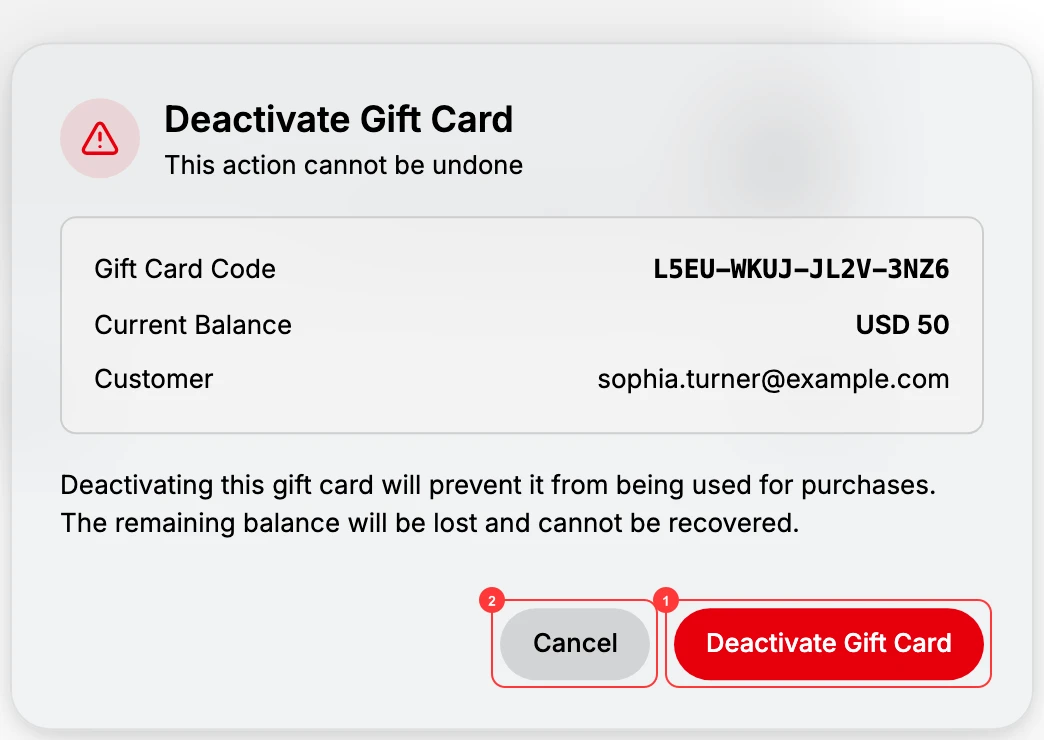
A Deactivate Gift Card dialog opens. It warns that the action cannot be undone and that the remaining balance will be lost and cannot be recovered. Click Deactivate Gift Card (1) to proceed, or Cancel (2) to stop. After you confirm, the status becomes Deactivated, a Gift card deactivated entry is added to the Transaction History, and the code no longer works at checkout.
6. Record the reason
Open the card and add a Notes entry or a Transaction History comment with why you deactivated it, so other staff have the context.
7. Reissue if the customer still needs the value
Because deactivation cannot be undone, if a customer still needs the value, create a new gift card for the remaining balance. See Send a Gift Card.
Verify the result
- The card's Status reads Deactivated.
- The code is rejected at checkout, and the remaining balance can no longer be used.
- The card and its Transaction History are still visible, with a Gift card deactivated entry.
Best practices
- Confirm the code first so you deactivate the right card.
- Log the reason in a note or a Transaction History comment.
- For a lost card, create a replacement for the remaining balance so the customer is not left empty-handed.
- Deactivate a problem card rather than leave it active.
Common mistakes
- Deactivating the wrong card. Confirm the code before you act.
- No note, which leaves no record of why the card was blocked.
- Expecting to undo it. There is no Reactivate action. To restore access, create a new card instead.
If something goes wrong
- Nothing to deactivate. The card may already be deactivated, or fully redeemed.
- The customer still needs the value. Create a new card for the remaining balance with Send a Gift Card.
- Permission denied. Your role lacks the Manage gift cards permission.
Next steps
Related articles
Still stuck?
- Ask Tanqory AIAsk in your own words. It answers from these articles and links the ones it used.
- Ask in your adminThe assistant in your Tanqory admin answers and makes the change for you once you confirm.
- Contact TanqoryWrite to our privacy, security or legal teams, or talk to sales about a plan or a move.