Send a Gift Card
Create a gift card in the admin and send it to a recipient by email. Use it for service goodwill, a refund given as store credit, comps, or gifting. The balance becomes a store liability, the same as a card a customer buys.
On this page
You can create a gift card from the admin without a customer buying one, and send it to a recipient by email. Use it for customer-service goodwill or compensation, a refund given as store credit, a press or staff comp, or gifting. The outstanding balance is a store liability, the same as a gift card a customer buys.
You'll work on the Gift cards page, reached from the admin sidebar.
What you set on the form
| Field | What it does |
|---|---|
| Gift Card Code | The code the customer redeems. One is filled in for you. Click Generate for a new one, or type your own (for example WELCOME50). |
| Initial Balance | The card's starting value, in the store currency (USD). |
| Expiration Date | Leave No expiration on, or turn it off to set a date when the card stops working. |
| Customer Name and Email | The customer account the card is linked to. |
| Recipient Name and Email | The person the card is for. |
| Send gift card email to recipient | A toggle in the Recipient Information section. Turn it on to email the card to the recipient when you save. It is off by default, so the card is created without sending unless you turn it on. |
| Notes | An internal note. Customers never see it. |
Before you begin
- You have the Manage gift cards permission.
- You have the recipient's email ready.
- Open Products > Gift cards in the admin sidebar, then select Create Gift Card.
Steps
1. Open the Gift cards page
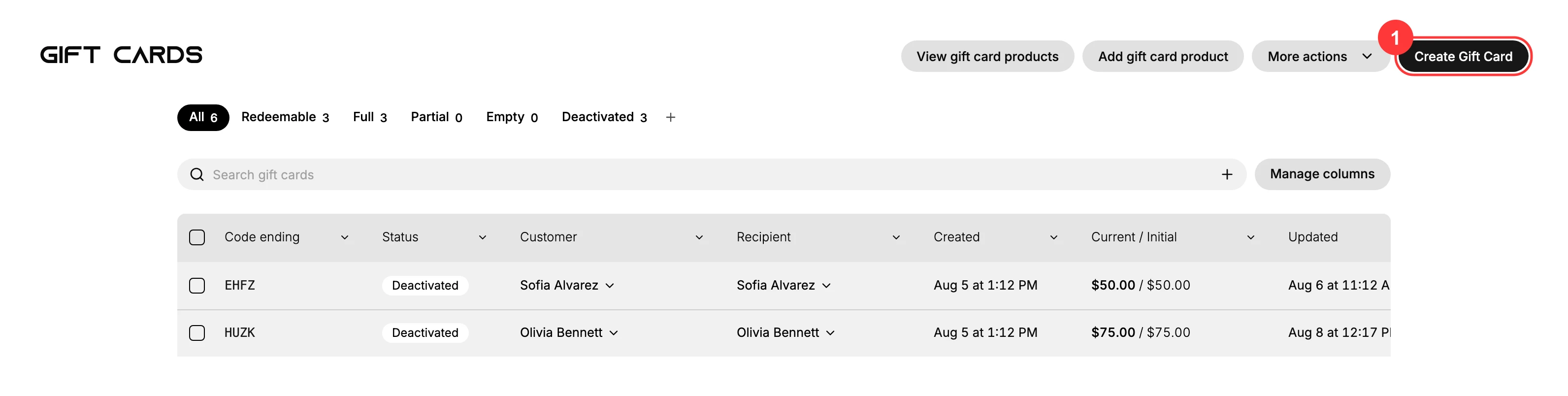
Open Gift cards from the admin sidebar. The Gift Cards list opens, with a Create Gift Card (1) button at the top-right.
2. Click Create Gift Card
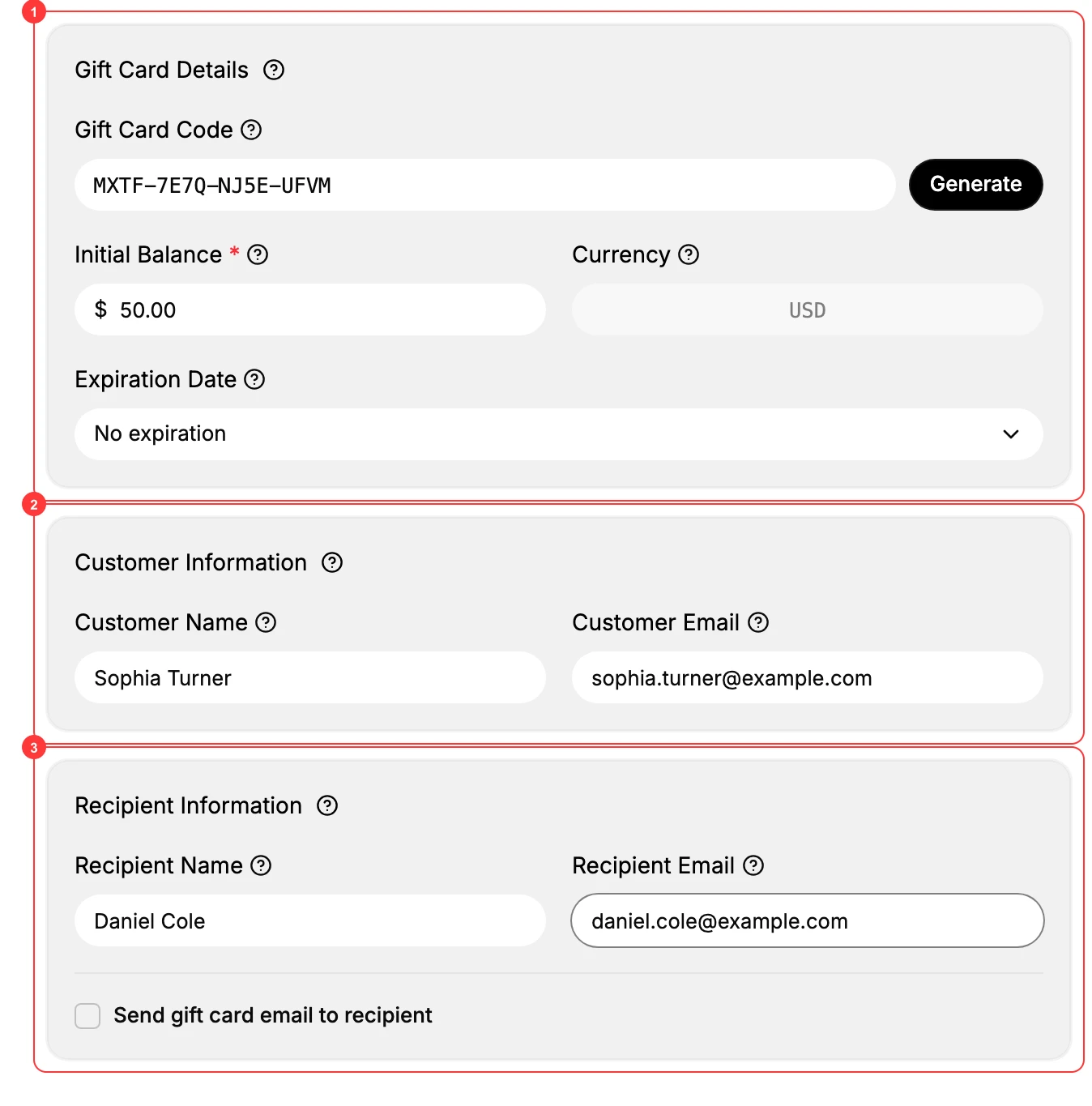
Click Create Gift Card. The new gift card form opens with three sections: Gift Card Details, Customer Information, and Recipient Information.
3. Set the Gift Card Details
In Gift Card Details (1), set the Initial Balance. A Gift Card Code is filled in for you - click Generate for a different one, or type your own. Leave No expiration on so the card never expires, or turn it off to set an Expiration Date.
4. Add the Customer and Recipient
Under Customer Information (2), enter the customer's name and email. This is the account the card is linked to. Under Recipient Information (3), enter the name and email of the person the card is for.
5. Decide whether to email it now
In the Recipient Information (3) section, turn on Send gift card email to recipient to email the card to the recipient when you save. It is off by default, so if you leave it off the card is created but no email is sent. You can always email it later from the card with Send gift card.
6. Add an internal note
Use Add notes to record why the card was issued, for example the support case or the campaign. This note is internal and customers never see it.
7. Save
Click Save. Tanqory shows Gift card issued successfully and opens the new card's detail page with the status Active. If you turned on Send gift card email to recipient, the email goes out now. Its Transaction History records that the card was created.
Verify the result
- The new card appears in the Gift Cards list, with its Status, Customer, Recipient, and balance.
- If you turned on Send gift card email to recipient, the recipient receives the email.
- The code is redeemable at checkout.
- The outstanding balance shows as a store liability.
Best practices
- Add a note with the reason on every card, such as the support case number, the campaign, or the comp approval.
- Get approval for high-value cards before you issue them.
- Tag the customer so you can track repeat comp requests.
- Tell the customer the amount in the same channel they reached you on.
Common mistakes
- Leaving Send gift card email to recipient off when you meant to send it, so the card is created but the recipient never gets it. Use Send gift card on the card to email it.
- No internal note, which leaves a gap in the record for the next staff member.
- A wrong recipient email, so the card never arrives. Check it before you save.
- Expecting to edit the balance later. An issued card cannot be edited. If the value is wrong, deactivate the card and create a new one.
If something goes wrong
- The recipient never got the card. Open the card and use Send gift card to email it again, and confirm the Recipient email is correct.
- Wrong amount or code. You cannot edit an issued card. Deactivate it and create a new one.
- Permission denied. Your role lacks the Manage gift cards permission.
Next steps
Related articles
Still stuck?
- Ask Tanqory AIAsk in your own words. It answers from these articles and links the ones it used.
- Ask in your adminThe assistant in your Tanqory admin answers and makes the change for you once you confirm.
- Contact TanqoryWrite to our privacy, security or legal teams, or talk to sales about a plan or a move.