Gift Cards
Sell gift cards as a product with set denominations, or issue a single card directly to a customer with its own code and balance.
On this page
A gift card carries a redeemable balance your customers can spend at checkout. In Tanqory you work with gift cards from their own Gift Cards page under Products, where you can sell them as a product or issue a single card by hand.
Before you begin
- You have the Manage gift cards permission.
- You have decided your denominations, currency, and expiry policy.
- Open Products and open Gift Cards.
Two ways to use gift cards
The Gift Cards page gives you two starting points, for two different needs.
| Action | What it does | Use when |
|---|---|---|
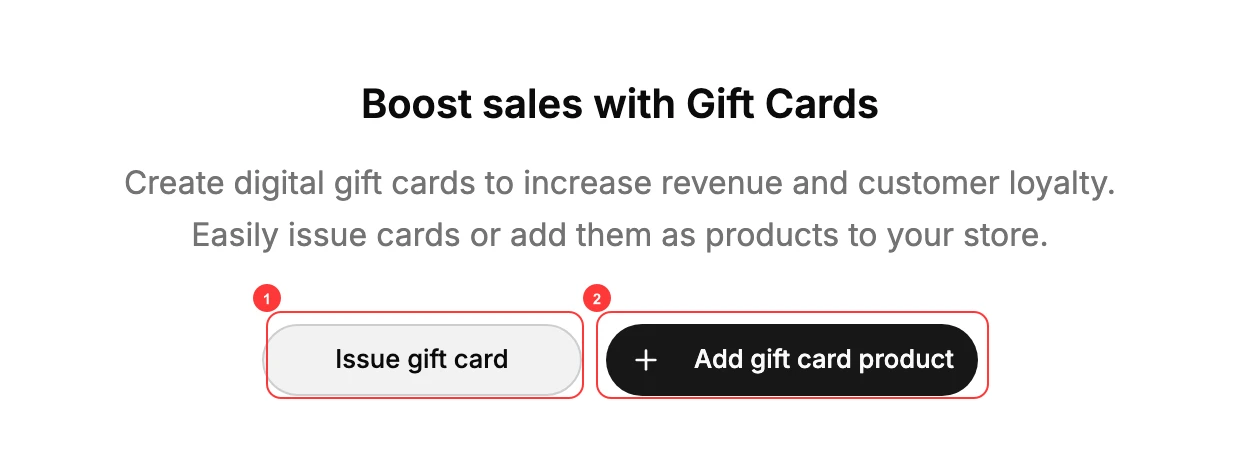
| Add gift card product | Creates a sellable product with one or more denominations (for example $100 / $200 / $500). Customers buy it like any product. | You want shoppers to purchase gift cards from your store. |
| Issue gift card | Creates a single card directly, with its own code, initial balance, and optional recipient. | You want to hand a card to a specific person - a refund, a promo, a VIP gift. |
Expiry and compliance
A gift card's outstanding balance is money you still owe the holder, so treat it as a liability until it is redeemed. Whether you may set an expiration date or fees depends on where you sell - many regions restrict or forbid them. Decide your expiry and fee policy with legal counsel before you launch; don't guess.
Steps
1. Open Products then Gift Cards
Go to Products > Gift Cards. The page offers two actions: Issue gift card (1) to send a single card directly, and Add gift card product (2) to sell gift cards in your store.
2. Add a gift card product
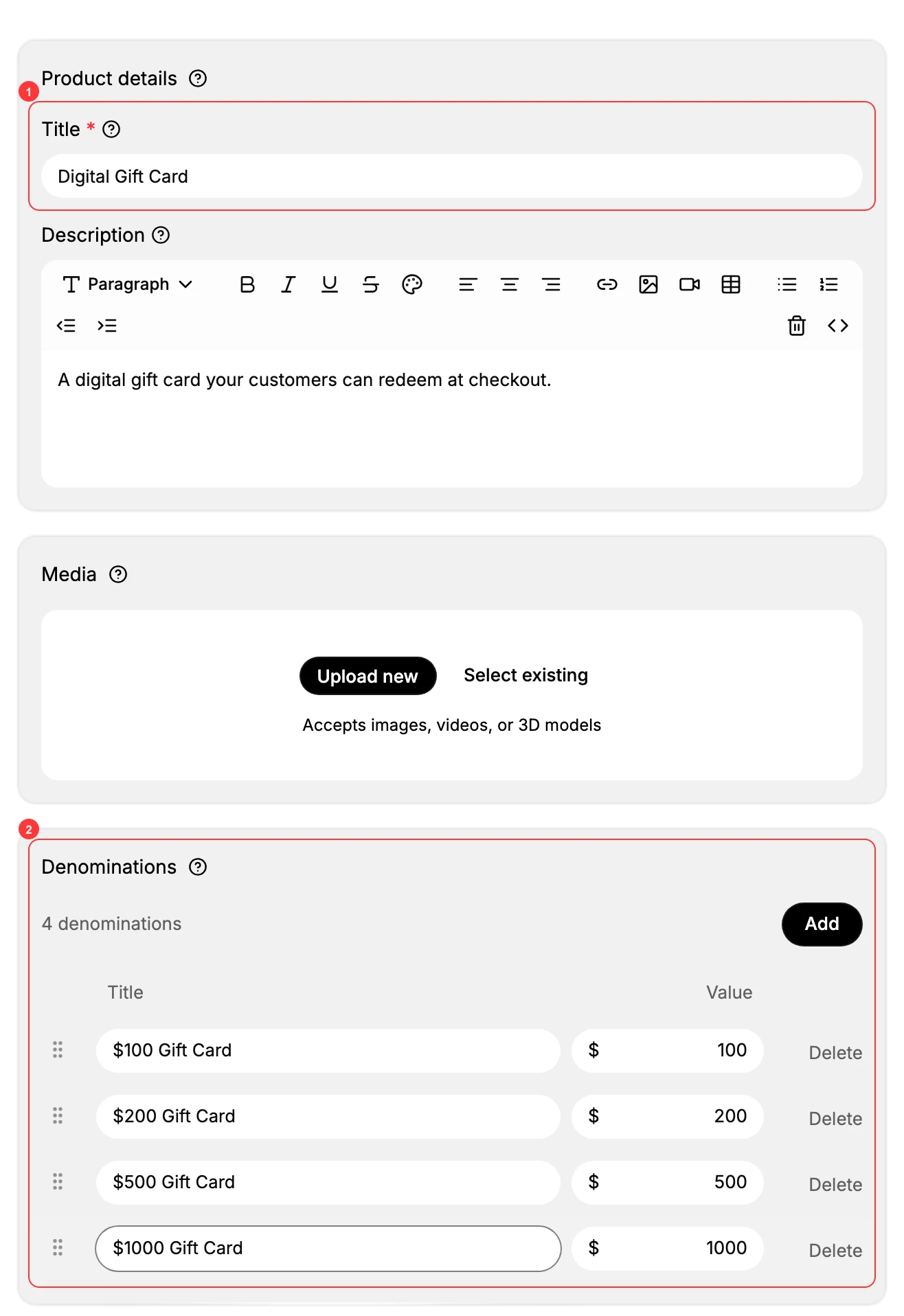
Click Add gift card product. Give it a Title (1) (for example Digital Gift Card), then set the Denominations (2) - the fixed values customers can buy, each with a title and a value. Add a description and media if you want, then Save.
3. Or issue a gift card directly
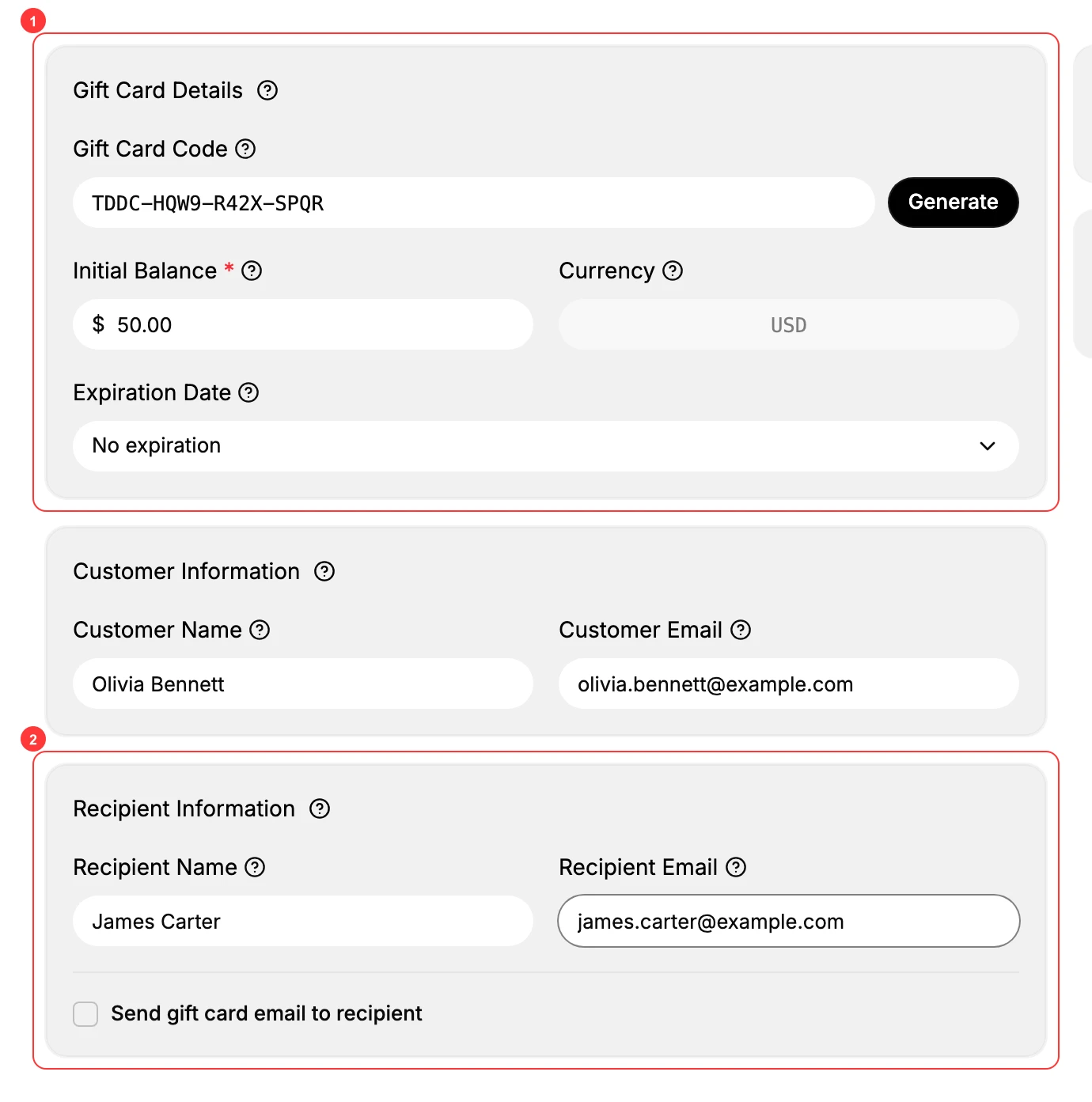
To hand someone a card instead of selling one, click Issue gift card. Under Gift Card Details (1), a Gift Card Code is generated automatically - edit it or click Generate for a new one - then set the Initial Balance, currency, and an optional expiration date. Under Recipient Information (2), enter who the card is sent to. Then Save.
4. Find the gift card product in Products
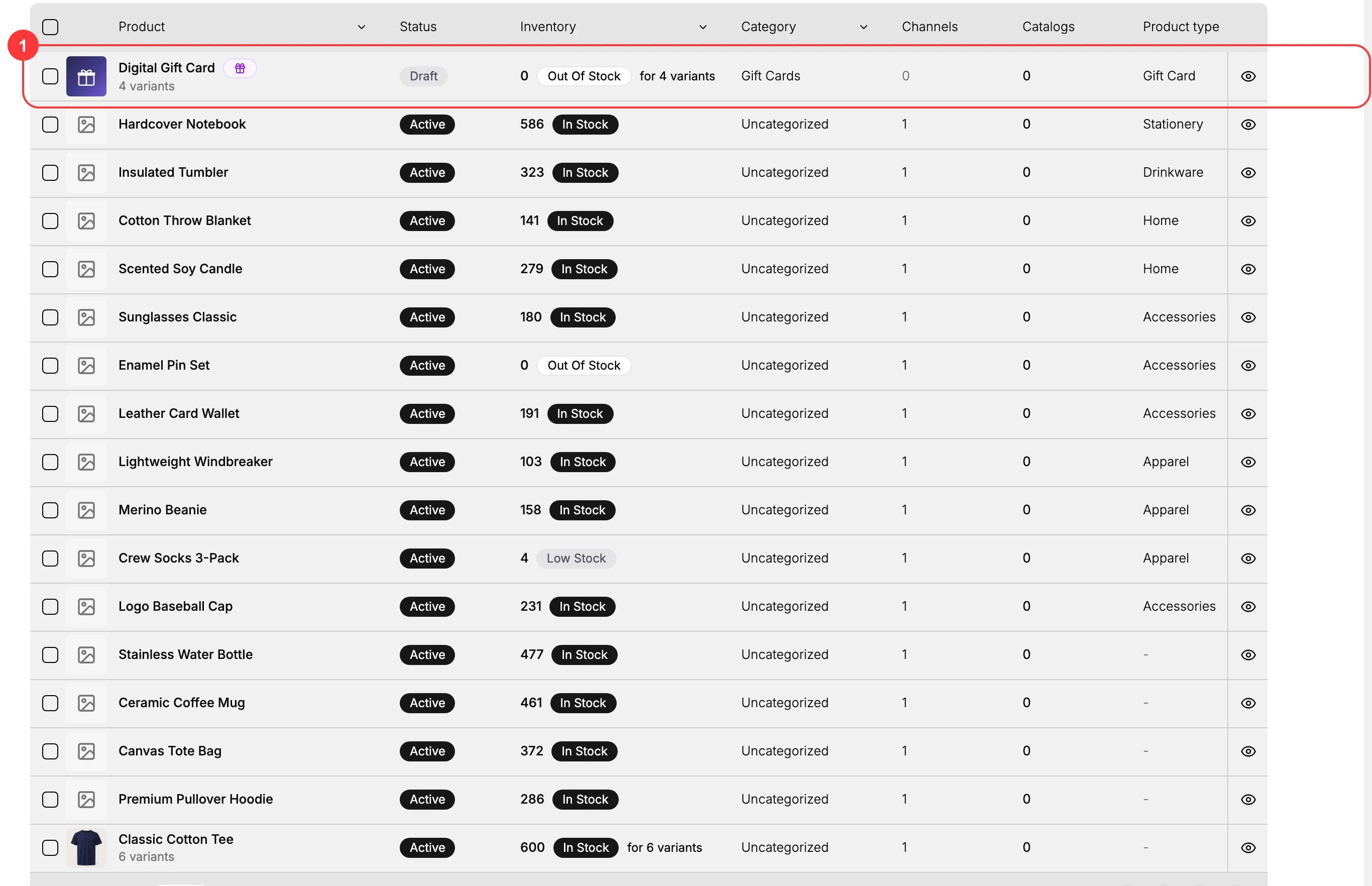
A gift card product joins the rest of your catalog. In Products it shows with its image and the product type Gift Card (1), alongside your store's other products like Classic Cotton Tee. Open it any time to edit its denominations or change its status from Draft to Active.
Verify the result
- The gift card product appears in Products with the product type Gift Card.
- Set its status to Active so customers can buy it.
- An issued card has a code and an initial balance, ready to redeem.
- The balance reduces as the card is spent at checkout.
Best practices
- Match denominations to your price points so a gift card covers a typical order.
- Set status to Active once the product is ready - it starts as Draft.
- Decide expiry with legal counsel - many regions restrict or forbid it.
- Track outstanding balances as a liability for your accounting.
Common mistakes
- Leaving the product on Draft - customers can't buy a gift card that isn't Active.
- Setting an expiry that breaks local law - leads to refunds and complaints.
- Charging sales tax at sale time - tax usually applies at redemption, not purchase; check your jurisdiction.
- Forgetting outstanding balance is a liability until it is redeemed.
If something goes wrong
- Customers can't find the gift card - confirm its status is Active, not Draft.
- A code is rejected - check the card's balance and expiration date.
- Permission denied - your role lacks the Manage gift cards permission.
Next steps
Related articles
Still stuck?
- Ask Tanqory AIAsk in your own words. It answers from these articles and links the ones it used.
- Ask in your adminThe assistant in your Tanqory admin answers and makes the change for you once you confirm.
- Contact TanqoryWrite to our privacy, security or legal teams, or talk to sales about a plan or a move.