Gift Card Details Page
What the detail page of a single gift card shows - code, status, balance, recipient, dates, customer, notes, and transaction history - and the Deactivate and Send actions.
On this page
The gift card detail page is the full view of one issued gift card. It shows the code, current status and balance, who the card is for, the dates, the customer it is linked to, internal notes, and a transaction history. From the top of the page you can Deactivate the card or Send it to the recipient again.
You'll work on the Gift cards page, on the card you want to open.
What is on the page
| Section | What it shows |
|---|---|
| Code | The gift card code, shown in full as the page title (for example THANKYOU100). |
| Status | Whether the card is Active (can be redeemed) or deactivated (cannot). |
| Balance | The amount left over the original value, with a bar and the percent remaining. |
| Recipient | The name and email the card was sent to. |
| Expiration date | When the card stops working, or Never expires if no date was set. |
| Issue and usage dates | When the card was issued, and any later usage. |
| Customer | The customer account linked to the card. |
| Notes | Internal staff notes. Customers never see these. |
| Transaction History | A dated log of events, plus a staff-only comment box. |
Before you begin
- You have the Manage gift cards permission to use the Deactivate and Send actions.
- Open Products > Gift cards, then open the card whose details you want to view.
Steps
1. Open the gift card
Go to Products in the admin sidebar, open Gift cards, and click the card you want in the list. Its detail page opens with the card's code as the title, the Deactivate and Send actions in the header, and the balance, recipient, dates, customer, notes, and history laid out below.
2. Read the header
The full gift card code appears as the page title. The two actions sit in the top-right: Deactivate (1) and Send gift card (2).
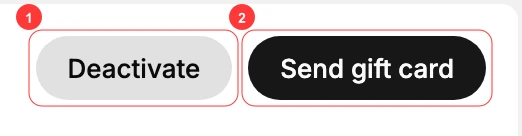
- Deactivate (1) turns the card off so it can no longer be redeemed. Use it if a card is lost or issued in error.
- Send gift card (2) emails the card to the recipient again, which is useful if they never received it.
3. Review the card details
The body of the page is a set of cards, each covering one part of the gift card.
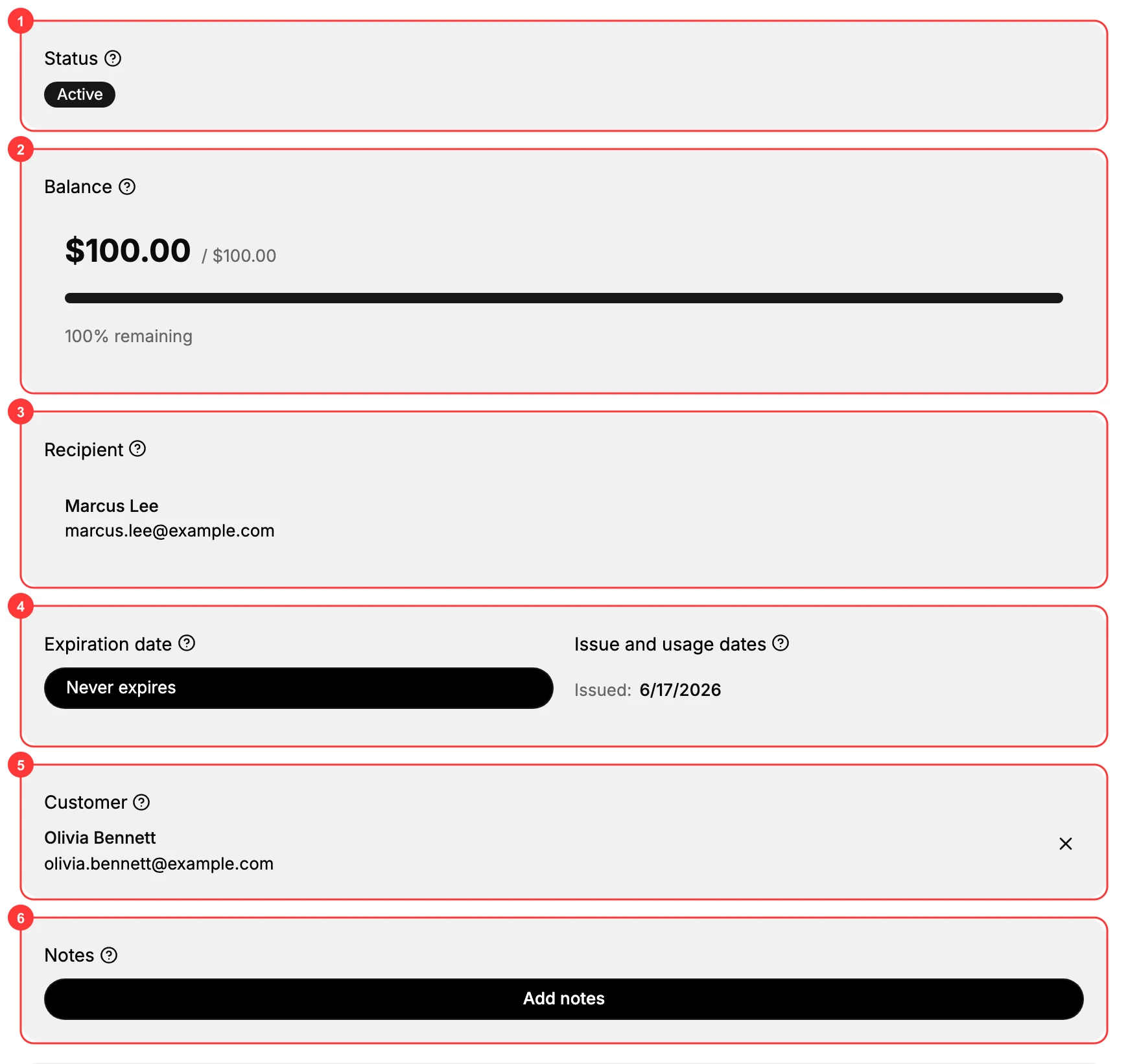
- Status (1) shows Active while the card can be redeemed. A deactivated card shows here too, so this is the quickest way to tell if a card still works.
- Balance (2) shows the amount left over the original value (for example $100.00 / $100.00), with a bar and the percent remaining, so you can confirm how much a customer can still spend.
- Recipient (3) is the name and email the card was sent to.
- Expiration and usage dates (4) combine the Expiration date (or Never expires) with the Issue and usage dates, so you can see when the card starts, ends, and was last used.
- Customer (5) is the customer account linked to the card, which links the card to that person's record.
- Notes (6) holds internal staff notes. Use Add notes to record why the card was issued or actioned. Customers never see this.
4. Check the Transaction History
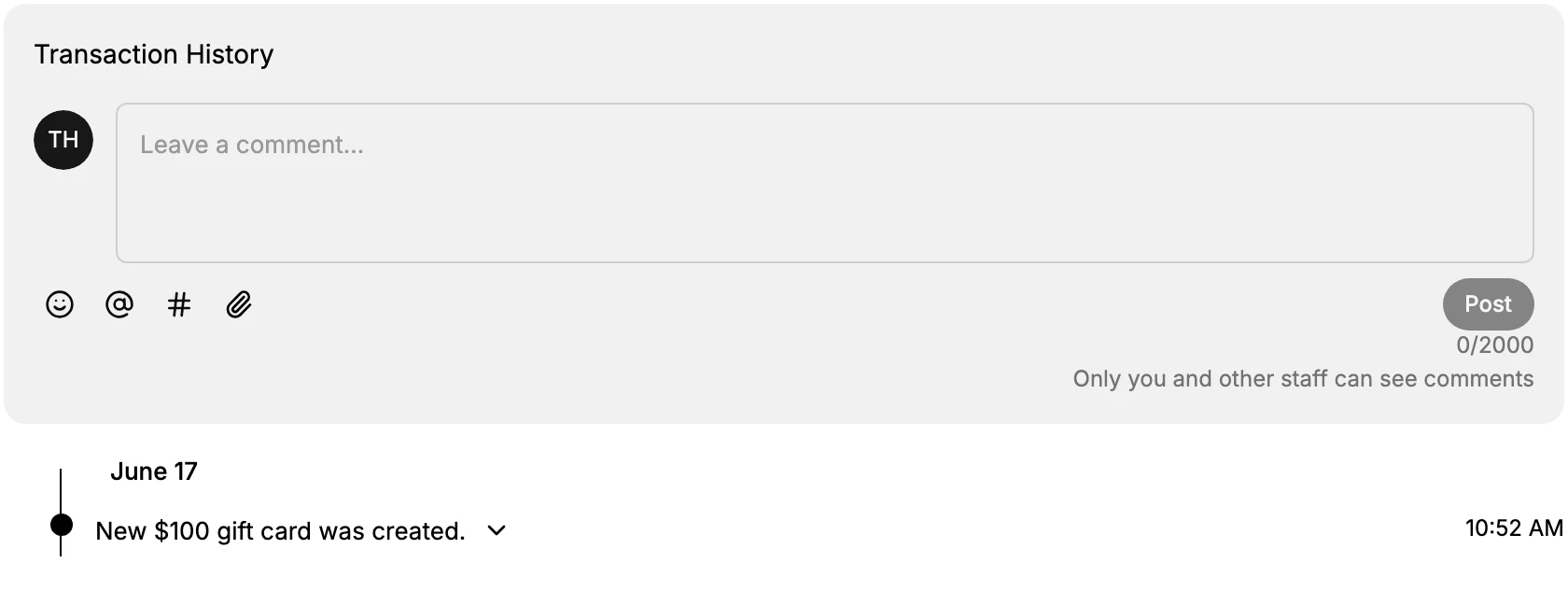
The Transaction History at the bottom is a dated log of what happened to the card, for example when it was created. It also has a staff-only comment box, marked Only you and other staff can see comments, for leaving an internal note on the timeline.
5. Take action if needed
Use Deactivate to stop a problem card, or Send gift card to email it to the recipient again. Leave a note in the comment box so other staff know what you did.
Verify the result
- The Balance matches what the customer expects.
- The Status reads the way you intended after any action.
- The Transaction History records the events and any note you left.
Best practices
- Check the Balance and Transaction History first when a customer reports a problem, before changing anything.
- Leave a comment for every action so the next staff member has the context.
- Deactivate rather than ignore a card that is lost or wrong, so it cannot be misused.
Common mistakes
- Acting on the wrong card. Confirm the code at the top before you deactivate or resend.
- No internal note, which leaves a gap in the history for the next person.
- Reading the balance as the original value. The page shows amount left over original, so check both numbers.
If something goes wrong
- A customer says the balance is wrong. Compare the Balance with the Transaction History; the difference is usually a redemption they forgot.
- The recipient never got the card. Use Send gift card to email it again, and confirm the Recipient email is correct.
- Permission denied. Your role lacks the Manage gift cards permission.
Next steps
Related articles
Still stuck?
- Ask Tanqory AIAsk in your own words. It answers from these articles and links the ones it used.
- Ask in your adminThe assistant in your Tanqory admin answers and makes the change for you once you confirm.
- Contact TanqoryWrite to our privacy, security or legal teams, or talk to sales about a plan or a move.