Bulk Actions on Gift Cards
Act on several gift cards at once from the Gift Cards list. Select the cards, then deactivate them or send them to their recipients in one step.
On this page
When you need to act on many gift cards at once, select them in the Gift Cards list and use the bulk bar that appears. Tanqory has two bulk actions: Deactivate and Send Gift Cards. Use them to block a batch of leaked or compromised codes, or to email a set of cards to their recipients again.
You'll work under the Gift cards page in the admin sidebar.
The two bulk actions
| Action | What it does |
|---|---|
| Deactivate | Blocks the selected cards from being used for purchases. Their remaining balances are lost and cannot be recovered, and the action cannot be undone. |
| Send Gift Cards | Emails the selected cards to their recipients. |
Tanqory does not offer a bulk export or a bulk expiry change, so those are not part of this flow.
Before you begin
- You have the Manage gift cards permission.
- You have narrowed the list to the exact cards you mean to act on. This matters most before Deactivate, which cannot be undone.
- Open Products > Gift cards in the admin sidebar.
Steps
1. Open Gift cards
Go to Gift cards. The Gift Cards list opens.
2. Narrow the list first
Use Search gift cards and the status tabs above the list (All, Redeemable, Full, Partial, Empty, Deactivated) so that only the cards you mean to act on are in front of you.
3. Select the cards
Tick the checkbox on each card, or the checkbox in the header row to select every card on the page. A bar appears showing how many cards are selected (1), with the bulk actions.

4. Choose Deactivate or Send Gift Cards
- Deactivate (2) blocks the selected cards from being used for purchases. Their remaining balances are lost and cannot be recovered, and the action cannot be undone.
- Send Gift Cards (3) emails the selected cards to their recipients.
5. Confirm
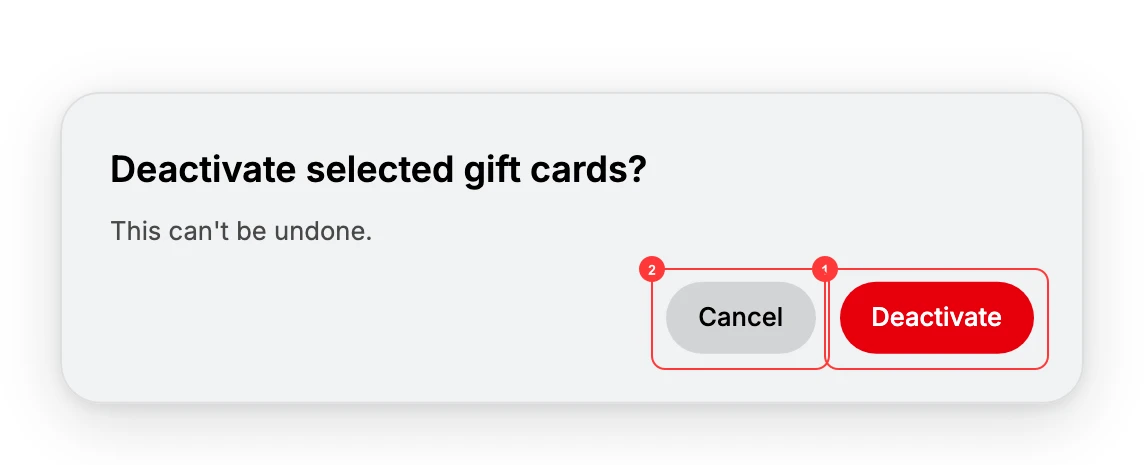
For Deactivate, a Deactivate selected gift cards? dialog opens and warns the change can't be undone. Click Deactivate (1) to proceed, or Cancel (2) to stop.
6. Verify
Open or scan a sample card to confirm the action applied. Deactivated cards show the Deactivated status, and the count you acted on matches the number you selected.
Verify the result
- A sample card reflects the action.
- Deactivated cards show the Deactivated status in the list.
- The number of cards acted on matches what you selected.
Best practices
- Filter to the exact set first, especially before Deactivate.
- Record why in your own operations notes, since a bulk Deactivate cannot be undone.
- Test on a small selection before acting on a large one.
- Tell affected customers when you resend their cards.
Common mistakes
- Selecting too broadly before Deactivate, which cannot be undone.
- Using the header checkbox by accident and selecting every card on the page.
- Expecting a bulk export or a bulk expiry change. Those are not available.
If something goes wrong
- You need to undo a bulk Deactivate. There is no reactivate. Create new cards for the affected balances with Send a Gift Card.
- Permission denied. Your role lacks the Manage gift cards permission.
Next steps
Related articles
Still stuck?
- Ask Tanqory AIAsk in your own words. It answers from these articles and links the ones it used.
- Ask in your adminThe assistant in your Tanqory admin answers and makes the change for you once you confirm.
- Contact TanqoryWrite to our privacy, security or legal teams, or talk to sales about a plan or a move.