Edit Product Options
Rename an option, reorder options and their values, add or remove values, or delete an option entirely. This article also explains how each of those changes reshapes the variant set, so you know what happens to prices and stock before you save.
On this page
Options are the axes that define a product's variants, such as Size, Color, and Material. A product can have up to three of them, and Tanqory creates one variant for every combination of their values. Editing an option therefore doesn't just change a label: it reshapes the set of variants shoppers can buy.
This article covers editing options on a product that already has them: renaming, reordering, adding or removing values, and deleting an option. Product Variants starts options from scratch. You'll work under Products in the admin sidebar, in the Variants section of the product editor.
How options map to variants
Every value you add or remove changes the variant count, because variants are the cross-product of all option values:
| Options & values | Variants generated |
|---|---|
| Size: S / M / L | 3 |
| Size: S / M / L + Color: Navy / Black | 6 |
| Size: S / M / L + Color: Navy / Black + Material: Cotton / Linen | 12 |
So adding one value to an option that is combined with others adds a whole row of variants, not just one, which is worth checking before you edit a live product.
Before you begin
- You have the Edit products permission.
- You have considered the variant impact shown in the table above. Adding values creates new variants, and removing a value or an option removes the variants built from it.
- Open Products in the admin sidebar, open the product, and scroll to its Variants section.
Steps
1. Open the product and go to Variants
Open the product from Products in the admin sidebar and scroll to the Variants section (it sits after Shipping, before Search engine listing). Each existing option appears as a collapsed row with a drag handle and its name.
2. Open the option you want to edit
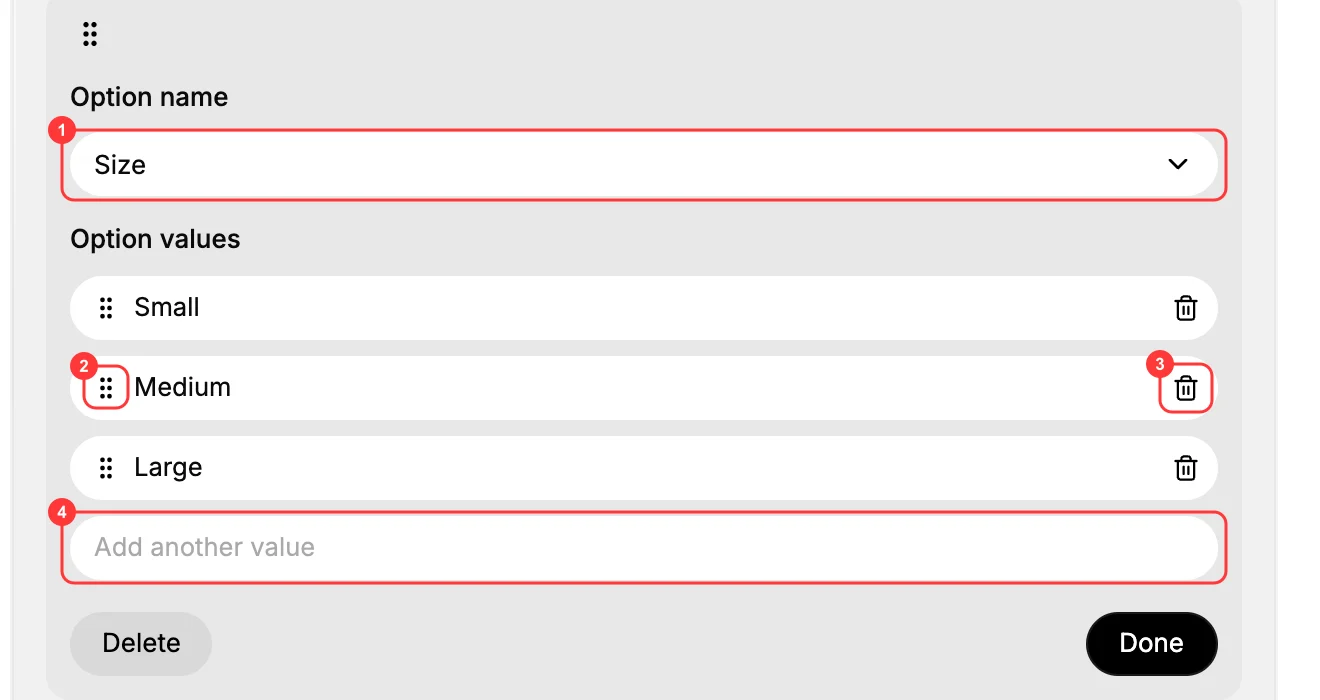
Select the option's row to expand its editor. You'll see the Option name picker (1) at the top and the Option values list below, where each value has a drag handle to reorder it (2), a trash icon to delete it (3), and an Add another value field to add one (4).
3. Rename the option
The Option name is a picker rather than a free-text field. To change it, open Select option type and choose a different standard type: Size, Color, Material, Style, Pattern, Weight, Length, Width, Height, Flavor, or Scent. Because the names are standardized, the storefront filter label stays consistent with your other products.
4. Add, remove, or reorder values
In Option values:
- Add. Type the new value into the Add another value field and press Enter. New combinations become new variants.
- Remove. Click the trash icon on a value's row. The variants built from that value are removed with it.
- Reorder. Drag a value by its drag handle. The order here is the order shoppers see in the storefront variant picker, so arrange them logically, for example Small, then Medium, then Large, rather than alphabetically.
(These three controls are badged 2, 3, and 4 on the option-editor screenshot above.)
5. Reorder the options themselves
When a product has more than one option, drag an entire option block by the drag handle at its top left to change which axis appears first in the picker (for example, lead with Color instead of Size).
6. Delete an option
To remove an axis completely, open the option and select Delete. This collapses the variants built on that axis, which is a destructive change, so confirm it is what you want before saving.
7. Save
Click Done to collapse the option you edited, then Save in the floating bar at the top of the editor. Until you save, the You have unsaved changes banner stays in the header and the storefront keeps the previous variant set.
What changes when you edit options
- Adding a value generates new variants. Give each one a price and, if you track stock, a SKU and inventory count before relying on it.
- Removing a value or an option removes the variants built from it. Shoppers can no longer buy those combinations.
- Reordering options or values is purely presentational. It changes the order in the storefront picker, not which variants exist.
Best practices
- Plan options at creation. The fewer live edits you make to a selling product, the fewer surprises in inventory and reporting.
- Adding values is safer than removing. Removing deletes purchasable variants; adding only extends the grid.
- Keep to three options at most. Three is the maximum, and the variant count multiplies with each axis.
- Re-check new variants. After adding values, fill in price (and SKU/inventory if tracked) so new combinations aren't sold misconfigured.
Common mistakes
- Removing a value on a live product without warning. The variants built from it disappear from the storefront.
- Leaving new variants unpriced. Added values create variants that need their own price and stock.
- Using three options when two would do, which multiplies the variants for no benefit and makes them harder to manage.
- Editing without saving. The unsaved changes banner means the storefront has not updated yet.
If something goes wrong
- You cannot type an option name. Option name is a picker, labeled Select option type, rather than a text box, so choose a type from the list.
- A new combination is not on the storefront. Confirm you added the value, selected Done, and Saved; an option with no values generates nothing.
- Wrong option order in the picker. Drag the option blocks into the order you want, then save.
- Permission denied. Your role is missing the Edit products permission. Ask an admin to grant it.
Next steps
Related articles
Still stuck?
- Ask Tanqory AIAsk in your own words. It answers from these articles and links the ones it used.
- Ask in your adminThe assistant in your Tanqory admin answers and makes the change for you once you confirm.
- Contact TanqoryWrite to our privacy, security or legal teams, or talk to sales about a plan or a move.