Timezone
Your personal timezone decides which clock your own screen shows times in, and the page says what it is for: your activity log. It is separate from the store timezone, which is the one the whole team reads orders against. Changing yours moves nothing for anybody else, which makes it the safe one to correct when only your screen looks wrong.
On this page
Your timezone setting decides which clock your own timestamps are shown in. The page states what it is for in one line: it is used for your personal activity log, and it ensures the times you see match your local time.
The other timezone, and which one you want
Tanqory has a second timezone setting with nearly the same name, and picking the wrong one is the usual mistake.
| Which | Where it is set | Who it affects |
|---|---|---|
| Your timezone | Your profile, the card on this page | Only you |
| The store timezone | Settings, then General, under Store defaults | Everyone, and the times on the store's records |
The quickest way to tell which page you are on is the line at the foot of each: this one sends you to store settings for the store's clock, and the store one sends you back here for your own. On the store used to write this they were set three hours apart, which is what independent really means.
Before you begin
- You are logged in to the account you want to change. This setting only ever applies to your own.
Changing it
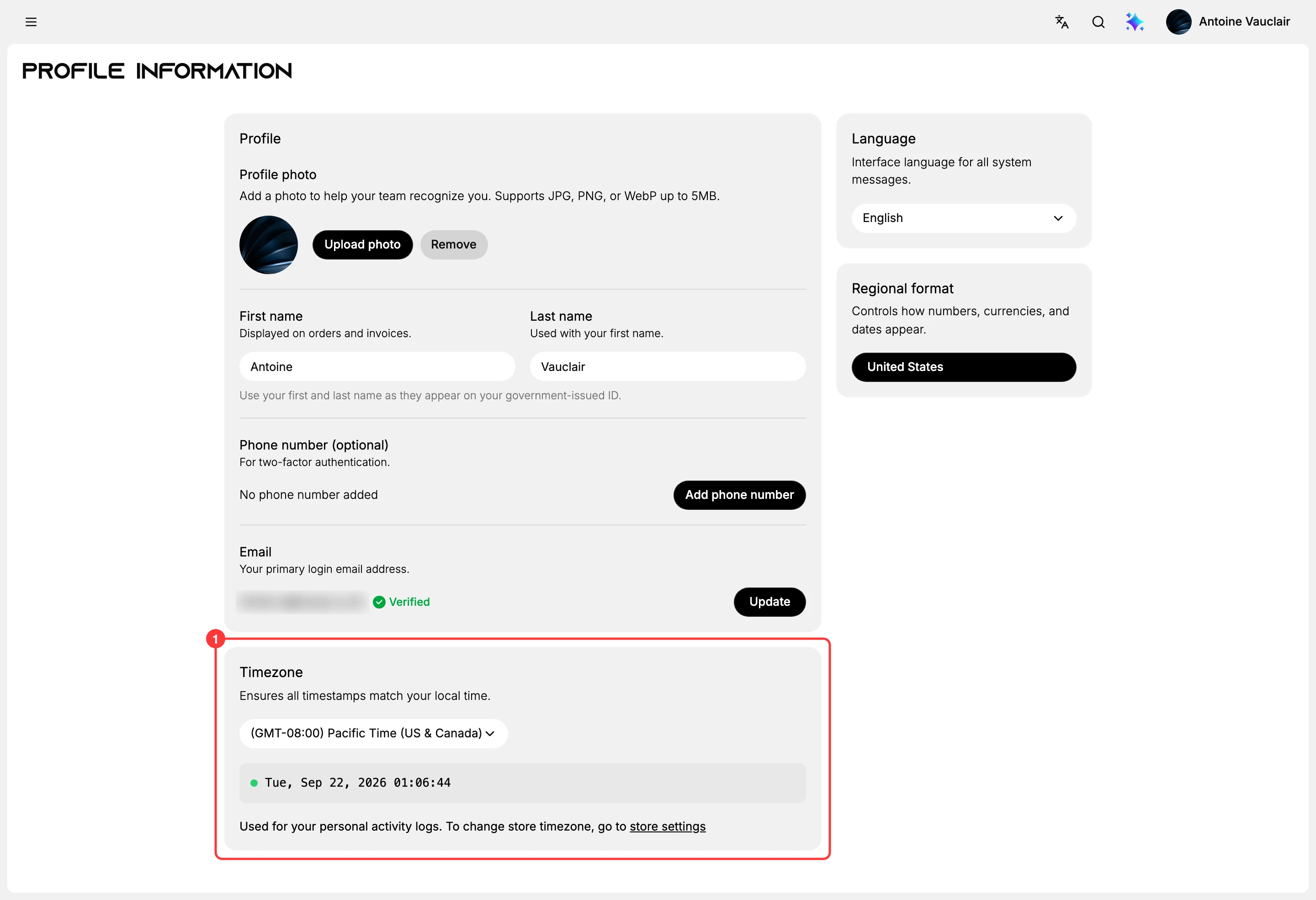
- Open your profile. Select the profile picture at the top right of the admin, then Your profile. The Timezone card (1) is below the Profile card.
- Open the selector and choose your zone. The list runs from GMT-12:00 upwards and names a place beside each GMT number, so it reads as a line of clocks rather than an alphabet of countries.
- Check the time shown underneath. A live clock sits below the selector. If it matches the watch on your wrist, you have the right one, and that is a surer check than reading the GMT number.
- Select Save. A black bar reading You have unsaved changes appears at the top as soon as you choose, carrying Discard and Save. Nothing is kept until you press Save, and the selector shows your new choice either way, so leaving without saving quietly puts the old zone back.
Best practices
- Set it to where you are, not where the store is. Change the store's clock only when the business itself has moved.
- Set it before you go looking through your activity log. The entries are read against this zone, so a wrong one shifts every line by the same amount, which is the kind of error that hides rather than announces itself.
If something goes wrong
- Times look wrong to you but right to your colleagues. That is this setting. Theirs is correct because each profile carries its own.
- Times look wrong to everybody. That is the store timezone, under Settings and General, not this one.
- Your change went back to what it was. It was never saved. The selector keeps showing the new value until the page is loaded again, so this usually turns up later rather than at the time.
- You cannot find your zone. The list is ordered by GMT number rather than alphabetically, so work down from the number instead of hunting for the city name.
Next steps
Related articles
Still stuck?
- Ask Tanqory AIAsk in your own words. It answers from these articles and links the ones it used.
- Ask in your adminThe assistant in your Tanqory admin answers and makes the change for you once you confirm.
- Contact TanqoryWrite to our privacy, security or legal teams, or talk to sales about a plan or a move.