Tag a Customer
The controls for tagging, one record at a time and in bulk. It covers the Tags card low on a customer record, the selector that searches and creates in the same field, the chip that takes a tag off again, and the bar above the customer list that tags every row you ticked in one action. Tags are written the moment you tick them, with no save step anywhere.
On this page
A tag is a short label you put on a customer so a group has a name. This article is the controls: where tags live on a record, how to apply one, create one, take one off, and how to do the same to a whole group from the customer list. You need the Edit customer tags permission for any of it, since a tag is stored on the customer record.
Customer Tags covers what to tag in the first place and how to keep the set from sprawling.
Steps
1. Find the Tags card
Go to Customers, open the customer you are tagging, and scroll to Tags, which sits low on the record, under Store credit and above Metafields.
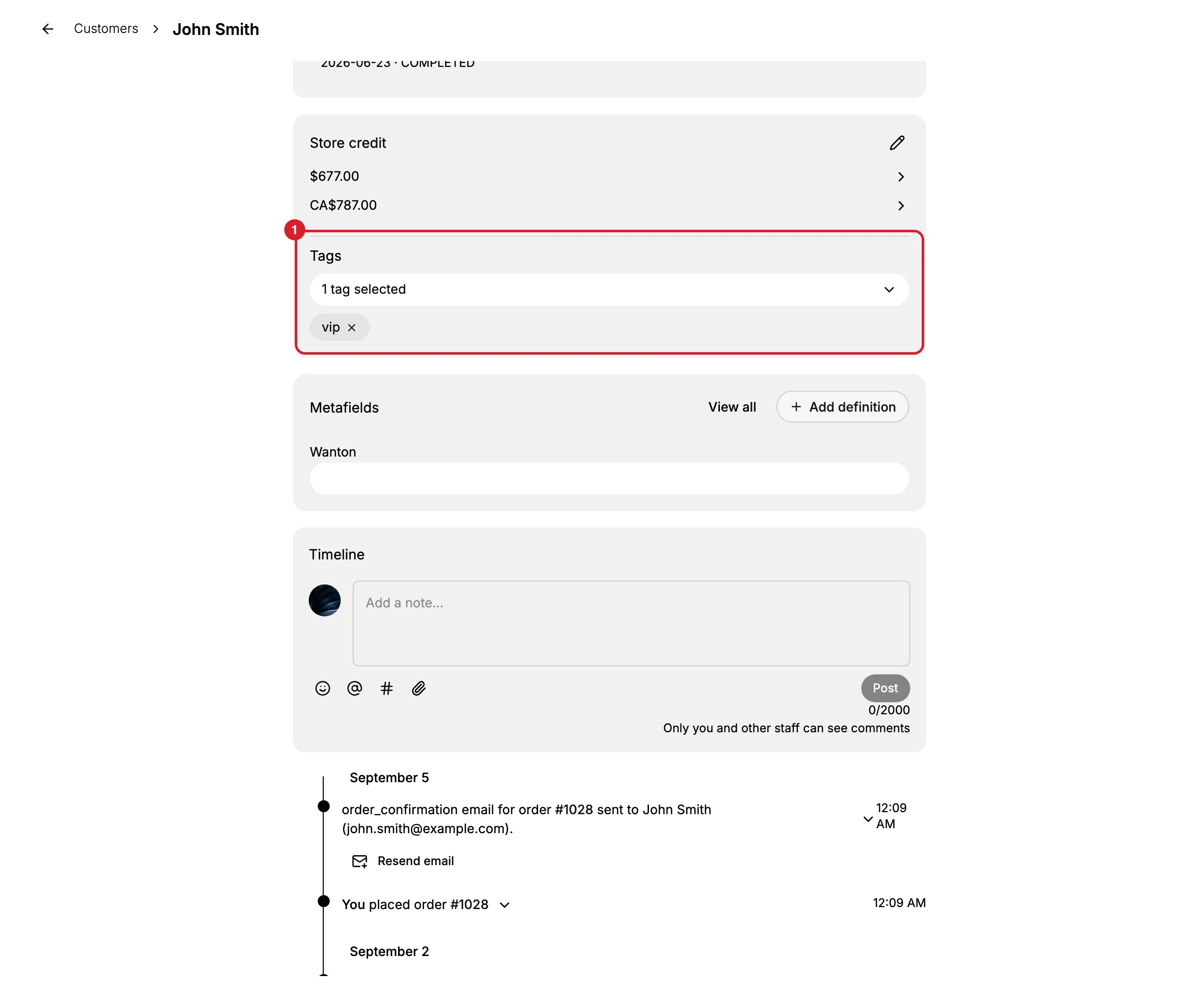
That is where it sits on the page. Close up, the card reads:
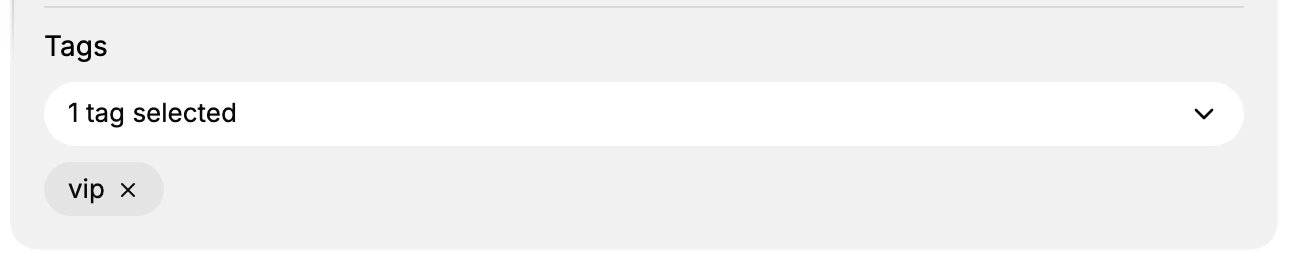
The card holds two things: a control that counts what is applied, reading 1 tag selected in the picture, and the applied tags themselves as chips, each carrying a small cross.
2. Open the selector
Selecting that control opens the selector, which is where the rest of these steps happen.
It has three parts: a field labelled Search or create tags, a checkbox list of every tag the store already has with the applied ones ticked, and View all tags at the foot. That list belongs to the store rather than to this customer, so it holds the same names whichever record you opened.
3. Apply a tag the store already has
Tick it in the list. On a long list, type part of the name in the field first to narrow what is shown.
There is no save step. The count above changes as you tick, the chip appears on the card, and the record is updated at that moment. Reload the page and the tag is still there, which is the difference between this card and the settings pages that hold a change until you press Save.
4. Create one that does not exist yet
Type the new name into the same field. The field both searches and creates, which is what its label means.
Check the list before you commit to a new name. A tag that differs from an existing one by a letter or a plural does not join that group. It starts a second one, and nothing warns you.
5. Take a tag off
Either untick it in the selector, or use the cross on its chip on the card. Both take effect at once, with no save step and no confirmation, and both remove it from this customer only. The tag itself stays in the store's list for everyone else.
Since there is nothing to confirm and nothing to discard, the way back from a mistake is to put the tag on again.
6. Tag many customers at once
Tagging a group one record at a time is slow, and the customer list has a route that does the whole group in one action. Tick the rows you want and a bar appears above the table that is not there otherwise.
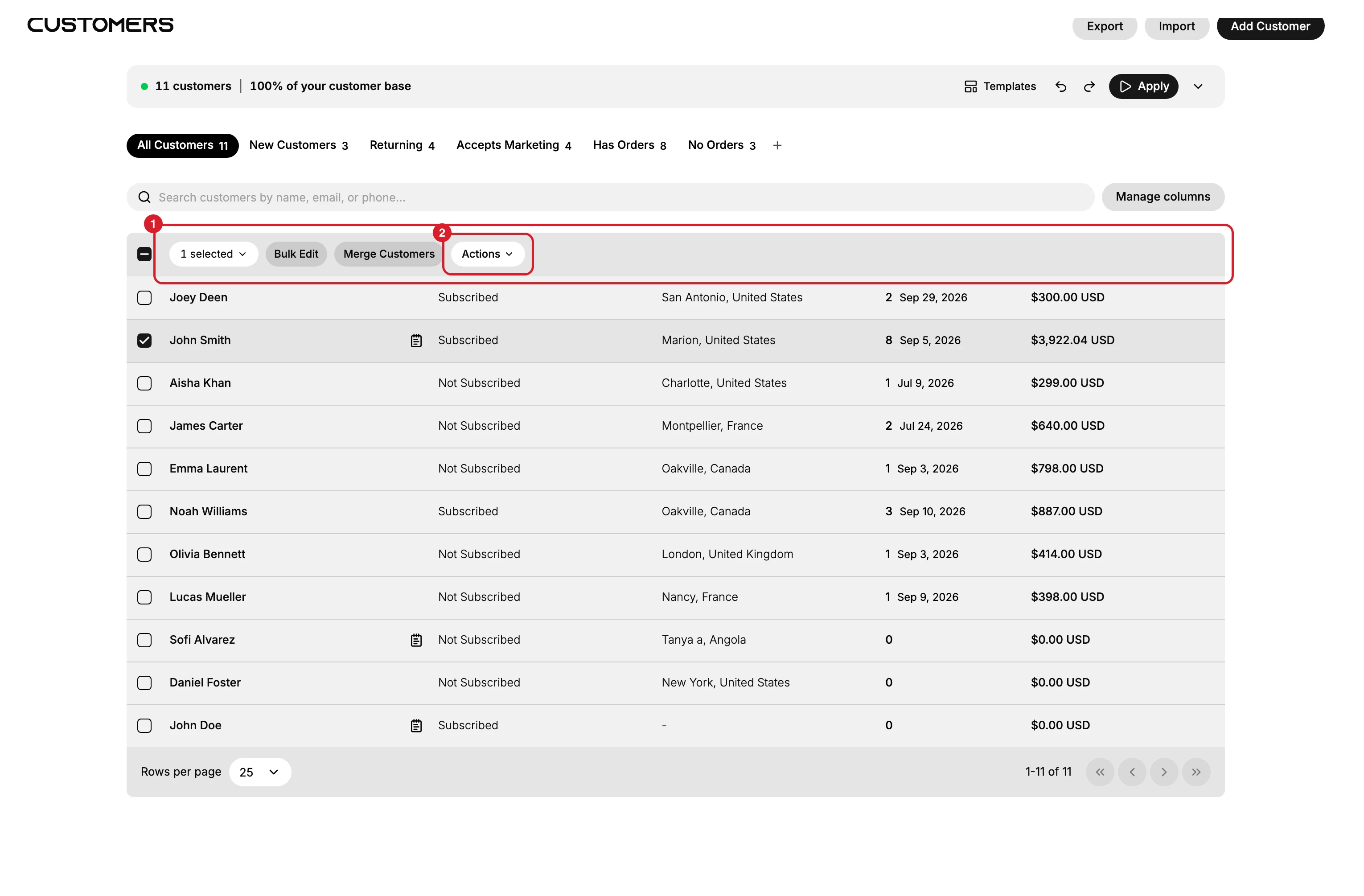
Tagging lives behind Actions (2), the last control on that bar, alongside Bulk Edit and Merge Customers. Take it, then Add Tags.
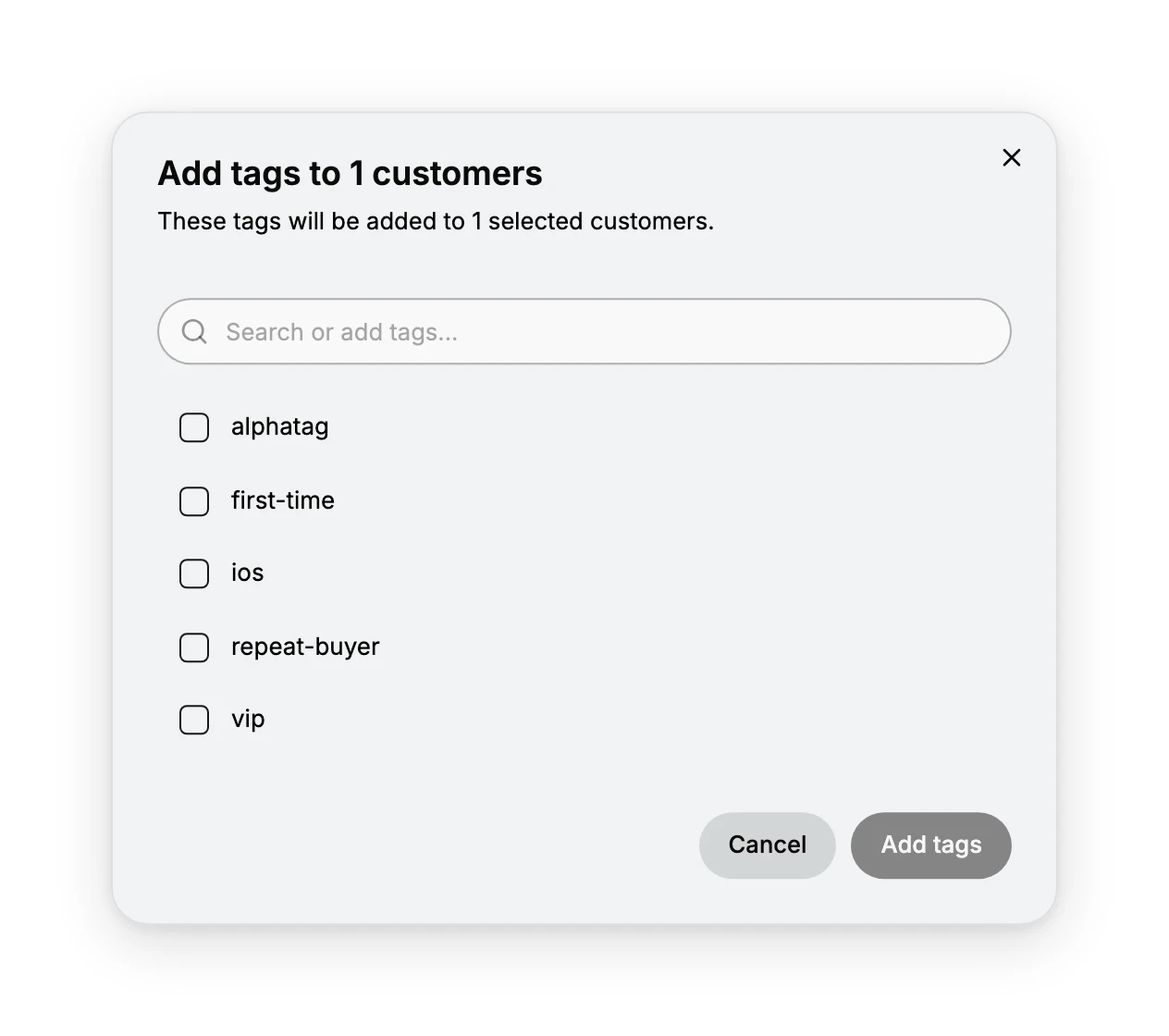
The dialog names the number it is about to change, in its heading and again underneath, which is the number worth reading before you finish. Its field is labelled Search or add tags, and the same checkbox list of existing tags sits below it. Add tags applies them to everyone you ticked.
Remove Tags sits next to Add Tags in the same menu and works the other way.
Where to look at tags
There are three questions you might be asking, and they have three different answers.
| What you want to see | Where to look |
|---|---|
| The tags on one customer | The Tags card on their record |
| Who is tagged, across the store | A segment holding the condition tags CONTAINS and the tag name |
| Every tag the store has | The checkbox list inside the selector, or inside the bulk Add Tags dialog |
Two of those rows need a word of explanation. No page in the admin lists the store's tags, which is why the selector is the closest thing to one. The middle row is a segment rather than the customer list because the list shows no tags at all. Manage columns offers twenty columns and none of them is Tags, and the search box matches name, email and phone, so typing a tag name there returns nothing.
A segment is a saved rule that picks out part of your customer list, and it can hold the condition tags CONTAINS with the tag name. That is what turns the label you just applied into a group you can email or export, and it keeps collecting the people you tag later. Customer Segments covers building one.
Next steps
Related articles
Still stuck?
- Ask Tanqory AIAsk in your own words. It answers from these articles and links the ones it used.
- Ask in your adminThe assistant in your Tanqory admin answers and makes the change for you once you confirm.
- Contact TanqoryWrite to our privacy, security or legal teams, or talk to sales about a plan or a move.