Export Discounts to CSV
The Export button on the Discounts page downloads your discounts as a CSV file. You choose whether to export the current page or all discounts, and whether to use a spreadsheet-ready CSV or a plain CSV, then download the file for your records or for use outside the admin.
On this page
The Discounts page can download your discount data as a CSV file, which is useful for keeping a record, sharing the list with someone who does not use the admin, or reviewing your discounts in a spreadsheet. You start the export from the Export button in the page header, and a dialog lets you choose exactly what to download and in which format before the file is created.
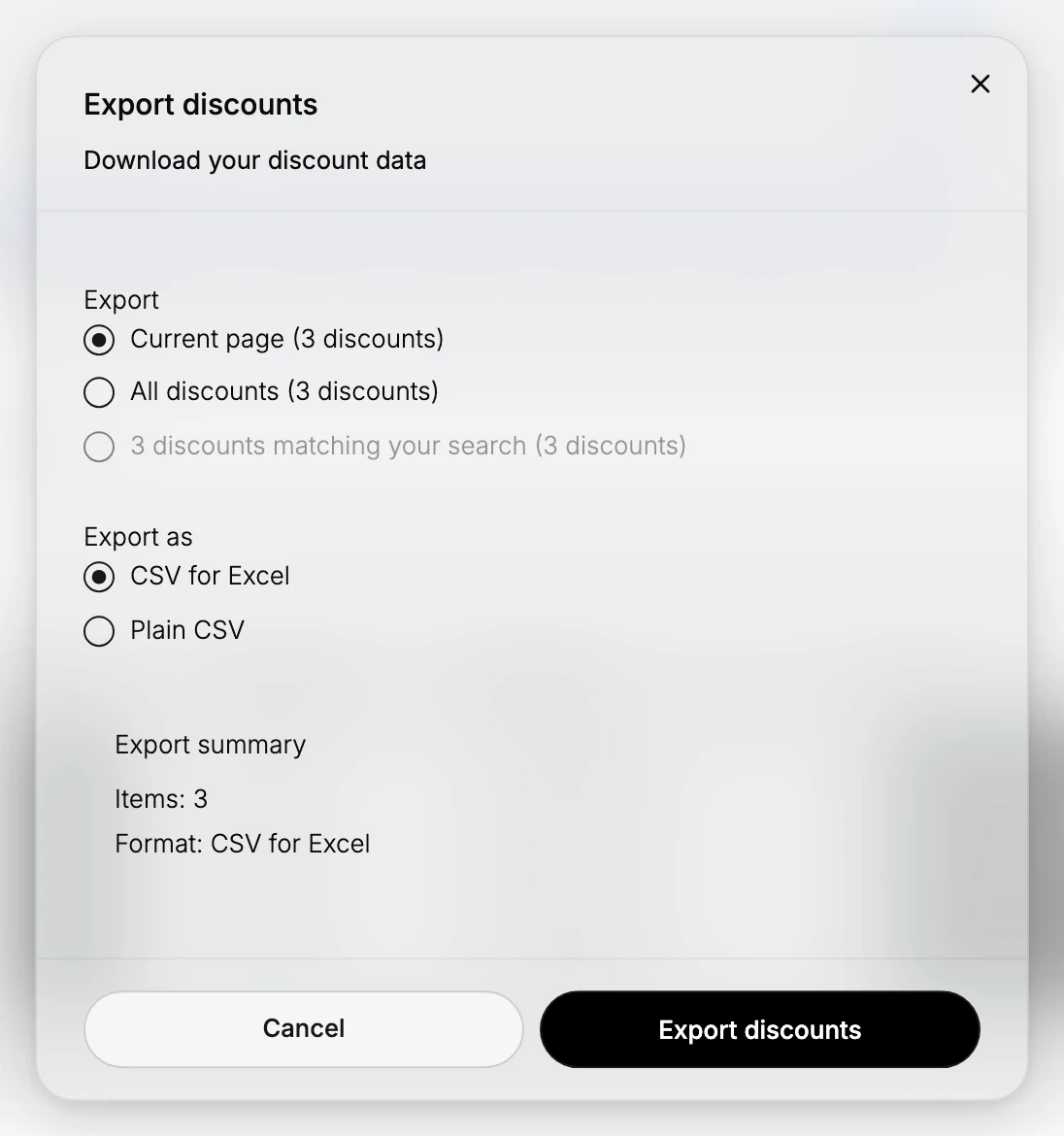
In the dialog you pick the scope, such as the current page or all discounts, and the format, either a CSV made for opening in a spreadsheet or a plain CSV. A short summary confirms how many items and which format you are about to export, so you can check it before you download.
Export options
| Choice | Options |
|---|---|
| Export (scope) | Current page, All discounts, or the discounts matching your search |
| Export as (format) | CSV for Excel, or Plain CSV |
| Export summary | Confirms the number of items and the chosen format |
Before you begin
- Your role includes Edit discounts.
- Open Discounts in the admin sidebar, where Export sits in the page header.
Steps
1. Open Discounts and click Export
Open Discounts and click Export in the page header. The Export discounts dialog opens. See Discount Management.
2. Choose what to export and the format
In the dialog, under Export, choose Current page, All discounts, or the discounts matching your search. Under Export as, choose CSV for Excel if you will open it in a spreadsheet, or Plain CSV for a plain file. The Export summary confirms the number of items and the format, so you can check your choices before downloading.
3. Download the file
Click Export discounts. Exports of up to 1,000 discounts download right away as a CSV. Larger exports run in the background: the dialog tells you, the file is emailed to you, and it is also listed in Exports and imports so you can download it there. Open the file in a spreadsheet or keep it as a record. Click Cancel if you decide not to export.
Verify the result
- A CSV file downloads with the number of items shown in the export summary. For more than 1,000 discounts, the file arrives by email and appears in Exports and imports instead.
- The file contains the discounts for the scope you chose, such as all discounts or just the current page.
Best practices
- Choose All discounts for a full record, and the current page or a search when you only need part of the list.
- Use CSV for Excel when you will open it in a spreadsheet, so the columns line up as expected.
- Export before a large cleanup, so you have a copy of the discounts in case you need their details later.
Common mistakes
- Exporting the current page when you meant all discounts, so the file is missing the discounts on other pages.
- Expecting the file to change discounts, when an export only downloads a copy and does not change anything in the store.
Next steps
Related articles
Still stuck?
- Ask Tanqory AIAsk in your own words. It answers from these articles and links the ones it used.
- Ask in your adminThe assistant in your Tanqory admin answers and makes the change for you once you confirm.
- Contact TanqoryWrite to our privacy, security or legal teams, or talk to sales about a plan or a move.