Low Stock Threshold
A product is called low when its available quantity is between 1 and 10, and that number is fixed for every product in the store. What the rule measures, why it reads available rather than on hand, and why ten units is not the same warning for a fast seller as for a slow one.
On this page
Low stock is not something you configure in Tanqory. The threshold is built in, identical for every product and every location, and the whole rule fits in one line: a product is low when its available quantity is between 1 and 10.
There is no per-product field to set, which is worth knowing before you go looking for one. What this article covers is what the rule actually measures, and why that choice of number matters more than it looks.
The rule
A product counts as low stock while its available quantity sits above zero and at or below ten, written in the admin as 0 < available <= 10. At zero it stops being low and becomes out of stock, which is counted separately.
The measure is available, not on hand. Committed and unavailable units have already been spoken for, by an order or by your own decision to hold them back, so they cannot save you from running out. A product with fifty on hand and forty-two of them committed is low, correctly, because eight is all anyone can buy.
Before you begin
- Your role includes View products, since stock is held on the product.
- Your products have Track quantity turned on. An untracked product has no available count, so the rule has nothing to measure and it never appears as low.
- Open Products > Inventory, where both controls that use the rule live.
Where the rule surfaces
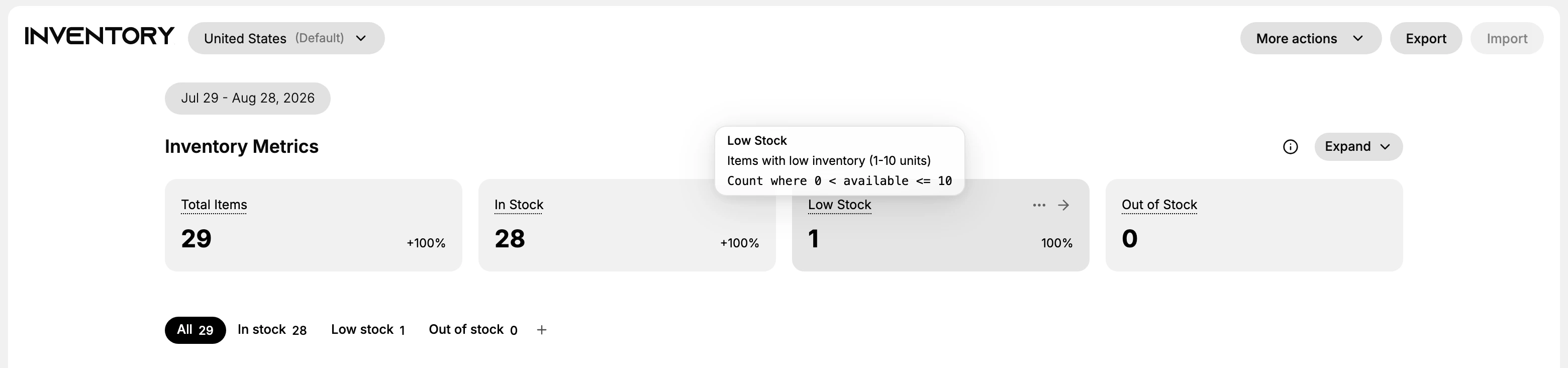
The Low Stock card at the top of the Inventory page counts the products currently in that range, and resting the pointer on it shows the rule itself, written out as the count of products where available is above zero and no more than ten. The Low stock filter turns that count into the list, which is where you can do something about it.
Both read the same rule, so the card and the filter always agree. Low Stock covers working through that list.
Ten units is not the same amount of warning for every product
Because the threshold is fixed, it gives you a different amount of time depending on how fast a product sells. Ten units of something that sells twice a month is months of warning. Ten units of your best seller might be two days, which is less than most suppliers need.
You cannot change the number, so the adjustment has to be yours: check the list more often than your slowest product needs, and reorder your fast movers as soon as they appear rather than when they get near zero. For products where the supplier lead time is long, appearing on this list is already late.
Replenish with a purchase order when you need to buy stock, or a transfer when you hold the units at another location. If the count looks wrong rather than low, count the shelf and correct it before ordering anything.
Verify the result
- The Low Stock card shows the current count of products in the 1 to 10 range.
- The Low stock filter lists exactly those products.
Best practices
- Check the Low Stock count on a regular schedule so replenishment starts before items reach zero.
- Reorder high-demand products earlier, since 10 units may sell through faster than the supplier can restock.
- Pair this with regular counts so the available figure the rule reads stays accurate.
Common mistakes
- Expecting a per-product threshold field. The rule is built in and the same for every product.
- Reading on hand instead of available. The low-stock rule uses available.
- Treating out of stock and low stock as the same. A product at 0 available is out of stock, not low stock.
If something goes wrong
- A product you expected is missing from the list. Check Track quantity is on, and read available rather than on hand.
- A product at zero is not in the list. Zero is out of stock, which the rule treats as a separate state.
- You are looking for a threshold field. There is not one. The rule is fixed at ten available units for every product and location.
Next steps
Related articles
Still stuck?
- Ask Tanqory AIAsk in your own words. It answers from these articles and links the ones it used.
- Ask in your adminThe assistant in your Tanqory admin answers and makes the change for you once you confirm.
- Contact TanqoryWrite to our privacy, security or legal teams, or talk to sales about a plan or a move.