Bulk Place Orders On Hold
Putting an order on hold pauses its fulfillment so it is not packed or shipped until you release it, which is useful while you wait on stock, confirm a payment, or review an order. On the Orders list you can place several orders on hold at once by selecting them, choosing On hold from the Mark as menu, and picking a hold reason in the window that opens. The reason is for your team and is not shown to the customer. This article walks through placing orders on hold in one action.
On this page
Placing an order on hold pauses its fulfillment so it is not packed or shipped until you release it, which helps while you wait on stock, confirm a payment, or review an order. On the Orders list you can place several orders on hold at once by selecting them, choosing On hold from the Mark as menu, and picking a hold reason in the window that opens. The reason is for your team and is not shown to the customer. This article walks through it.
You do this on the Orders list, reached from Orders.
The bulk action bar
Selecting one or more orders on the list shows a bulk action bar along the top with actions that apply to all the selected orders. The Mark as menu on that bar sets the fulfillment status, and sits alongside Print, Create shipping labels, and Capture payment.
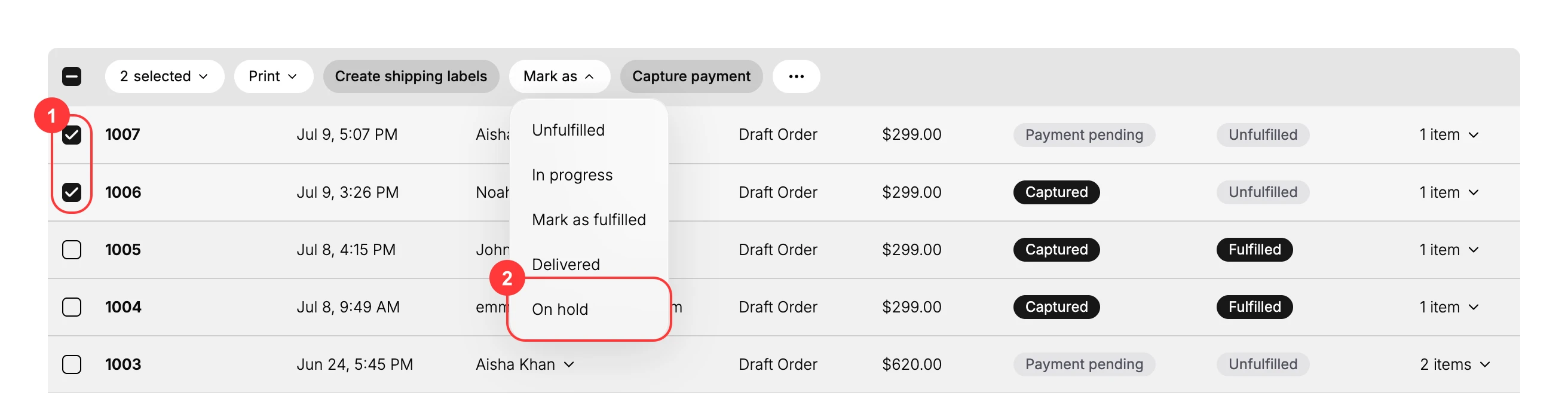
The Mark as menu lists Unfulfilled, In progress, Mark as fulfilled, Delivered, and On hold. Choosing On hold opens a window where you set the hold reason.
Before you begin
- Your role includes Edit orders.
- Open Orders and select the orders you want to pause.
Steps
1. Open the Orders list
Go to Orders to open the list of orders.
2. Select the orders
Tick the checkbox at the start of each order's row (1) to select it. The checkbox in the header row selects every order on the page at once. As soon as one order is selected, the bulk action bar appears.
3. Open the Mark as menu
In the bulk action bar, select Mark as. A menu opens with the fulfillment statuses.
4. Choose On hold
Select On hold (2). A window opens where you choose the hold reason.
5. Choose a hold reason and confirm
In the window, open Hold reason and select the reason for holding the orders. The note below the field says only you and your staff can see this reason. Select Mark as on hold to confirm, or Cancel to stop. The Mark as on hold button becomes active once a reason is chosen.
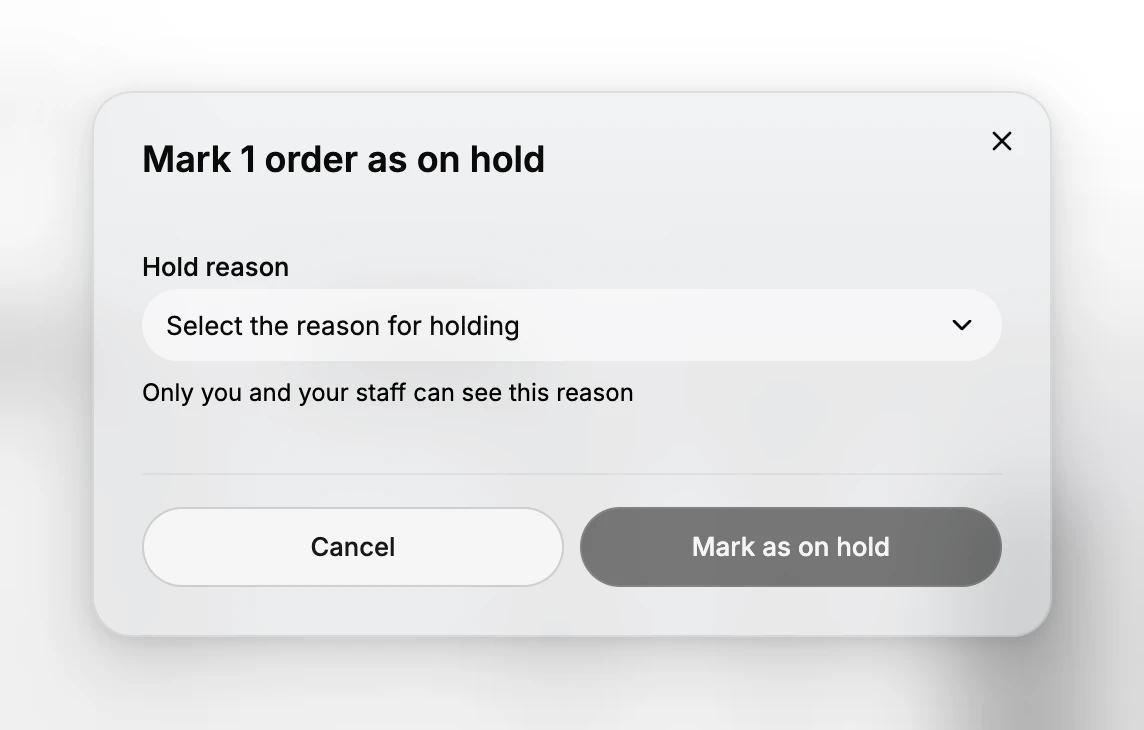
What happens when you confirm
Each selected order moves to the On hold status, which pauses its fulfillment so it is not packed or shipped until you take it off hold. The hold reason is recorded for your team and is not shown to the customer. When you are ready to fulfill the order again, set it back with the Mark as menu, for example to In progress or Unfulfilled.
Best practices
- Pick the hold reason that fits, so anyone opening the order later can tell why it was paused.
- Take orders off hold as soon as the blocker clears, so they do not sit paused longer than needed.
- Select only the orders that are actually blocked, rather than the whole page.
Common mistakes
- Leaving orders on hold after the reason is resolved, so they never ship.
- Selecting the wrong orders, for example putting orders on hold that were ready to fulfill.
- Expecting the customer to see the hold reason, which is internal to your team only.
Next steps
Related articles
Still stuck?
- Ask Tanqory AIAsk in your own words. It answers from these articles and links the ones it used.
- Ask in your adminThe assistant in your Tanqory admin answers and makes the change for you once you confirm.
- Contact TanqoryWrite to our privacy, security or legal teams, or talk to sales about a plan or a move.