Configure Webhook Notifications
A companion to Webhooks that goes deeper on each setting in the Add webhook dialog: choosing an event from the grouped catalog, the JSON or XML format, the endpoint URL, the API version, and verifying requests with the signing secret.
On this page
A webhook sends your store's event data to an external URL the moment the event happens, so an outside system stays in sync without asking for updates. This companion goes setting by setting through the Add webhook dialog so you can choose each one deliberately. Webhooks gives the short version and says where the feature lives. You reach the dialog from Settings, then Notifications, then Webhooks, and selecting Create webhook.
What each setting controls
| Setting | What it controls |
|---|---|
| Event | The single store event that triggers this webhook, chosen from a grouped catalog |
| Format | Whether the data is sent as JSON or XML |
| URL | The HTTPS endpoint the data is sent to |
| Webhook API version | The payload structure the data follows |
| Webhook signing secret | A value, generated after your first webhook, used to verify the requests came from your store |
Before you begin
- Your role includes General settings.
- You have a reachable HTTPS endpoint ready to receive the data.
- Open Settings > Notifications in the admin sidebar. Webhooks are configured from the notifications settings.
Fill in the Add webhook dialog
From the admin, open Settings, then Notifications, then Webhooks, and select Create webhook. The Add webhook dialog opens with the four settings to fill in, in order: Event, Format, URL, and Webhook API version, with Cancel and Save at the bottom.
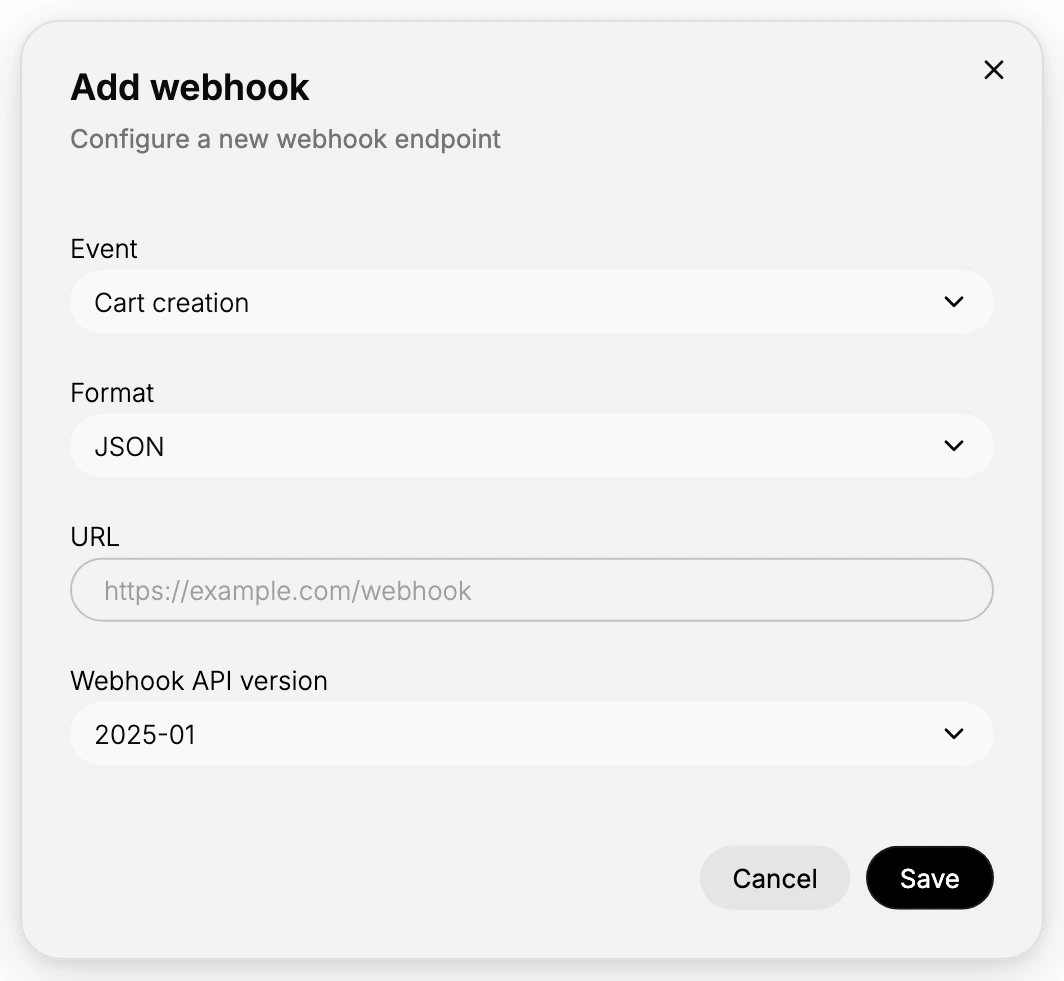
- Choose the event from the grouped catalog. The Event list is organized into groups by resource, so you can find the one you need quickly. The groups cover Cart, Checkout, Collection, Customer, Discount, Draft order, Fulfillment, Inventory, Location, Market, Order, Product, Refund, Shop, Theme, and Transaction events, and within each group you pick the specific action, such as a creation, an update, or a deletion. One webhook listens for one event, so if your integration reacts to several events, create a separate webhook for each. Subscribing to only the events you actually handle keeps your endpoint from receiving data it would ignore.
- Choose the format. Format sets how the data is encoded, either JSON or XML. Pick the one your endpoint is built to read. JSON is the common choice for most modern services, so use it unless your receiving system specifically expects XML.
- Enter the endpoint URL. In URL, enter the address the data is sent to, an HTTPS endpoint on your own service that is ready to accept the request. Because the data is delivered the instant the event occurs, the endpoint should be online and answer quickly rather than doing slow work before it responds. Point the webhook at a stable address you control, not a temporary or personal one.
- Pick the Webhook API version. Webhook API version sets the structure of the payload your endpoint receives. The choices are the dated versions 2025-01, 2024-10, 2024-07, and 2024-04, plus unstable. Choose a dated version and keep it fixed, so your endpoint keeps reading the payload the same way, and move to a newer version only after you have updated your endpoint to match it. The unstable option tracks the latest changes and is meant for testing, not for a production integration you rely on.
- Save and verify with the signing secret. Select Save to create the webhook. Once your first webhook exists, the Webhook signing secret on the Webhooks page is generated. Your endpoint should use it to verify each incoming request before acting on it, which confirms the data genuinely came from your store and blocks anyone else from sending fake events to your URL.
Best practices
- One event per webhook. Each webhook listens for a single event, so create one per event your integration handles rather than trying to cover several at once.
- Send only what you use. Subscribe to the events you actually process so your endpoint is not sent data it will discard.
- Pin a dated API version. Keep the version fixed so the payload structure stays predictable, and upgrade only after your endpoint is ready for the new one.
- Always verify the signing secret. Checking the signature on each request confirms it came from your store rather than an impostor.
- Answer quickly. Return a success response promptly and do any heavy processing afterward, so delivery is not held up.
If something goes wrong
- Your endpoint is not receiving data. Confirm the URL is correct, uses HTTPS, and points to an endpoint that is reachable and returns a success response.
- The payload does not parse. Check that the Format matches what your endpoint reads and that your endpoint is built for the selected API version.
- You are not sure a request is genuine. Verify it against the Webhook signing secret before acting on it.
- You cannot create a webhook. Your role may not allow managing settings. Ask an owner or admin.
Next steps
Related articles
Still stuck?
- Ask Tanqory AIAsk in your own words. It answers from these articles and links the ones it used.
- Ask in your adminThe assistant in your Tanqory admin answers and makes the change for you once you confirm.
- Contact TanqoryWrite to our privacy, security or legal teams, or talk to sales about a plan or a move.