Saved Discount Views
On the Discounts page you can save the way you have filtered the list as a named view, so you can return to it without setting the filters again. You add one with the plus next to the status tabs, which opens a Create new view dialog where you name it and save it.
On this page
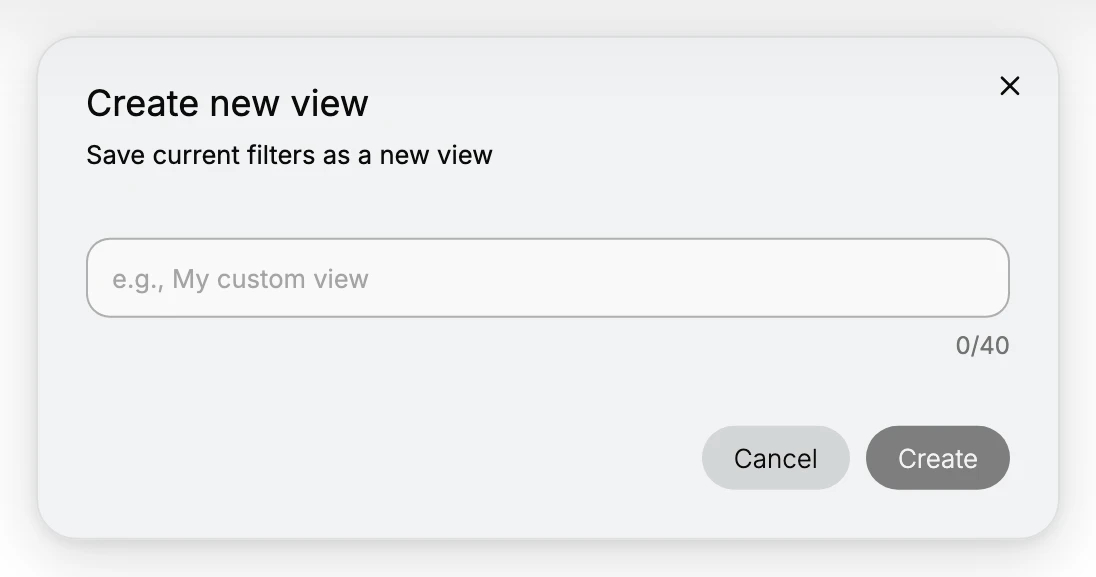
The Discounts page lets you save the way you have filtered the list as a named view, so you do not have to set the same filters again next time. Next to the status tabs across the top of the list is a plus control, and selecting it opens the Create new view dialog, described as "Save current filters as a new view". You give the view a name and create it, and it is kept so you can come back to those filters later.
This is useful when you return to the same set of discounts often, such as a particular status, because a saved view holds that filtering for you. You set the filters once, save them as a view, and then go straight to it rather than filtering the list each time.
Before you begin
- Your role includes Edit discounts.
- You know the filters you want to save, such as a status tab.
- Open Discounts in the admin sidebar to open the discounts list.
Steps
1. Filter the list the way you want to save it
On Discounts, set the list to the filtering you want to keep, for example a status tab such as Active, or a search. The view saves the current filters, so set them before you save. See Discount Management.
2. Open Create new view and name it
Select the plus next to the status tabs. The Create new view dialog opens with the note "Save current filters as a new view" and a name box that allows up to 40 characters. Type a clear name, such as Active codes, so you can tell what the view holds. A clear name makes the saved view easy to recognize later.
3. Create the view
Click Create to save the view, or Cancel to close without saving. Once created, the view keeps the filters you set, so you can return to that filtered list without setting the filters again.
Verify the result
- After you create a view, it is saved with the name you gave it.
- Returning to the view shows the list with the filters you saved.
- The name you entered is what identifies the view.
Best practices
- Give the view a clear name, so you can tell what it holds later.
- Save views for lists you open often, so you do not filter the list from scratch each time.
- Set the filters before you save, since the view keeps the filtering that is applied when you create it.
Common mistakes
- Saving a view before setting the filters, so it does not hold the filtering you wanted.
- Using a vague name, so it is hard to tell later what the view is for.
If something goes wrong
- The view does not show the list you expected. The filters at the time you saved it are what it holds, so create a new view with the right filters set.
- You cannot name the view. The name box allows up to 40 characters; a shorter name will fit.
- You cannot create a view. Your role may not have permission to manage discounts.
Next steps
Related articles
Still stuck?
- Ask Tanqory AIAsk in your own words. It answers from these articles and links the ones it used.
- Ask in your adminThe assistant in your Tanqory admin answers and makes the change for you once you confirm.
- Contact TanqoryWrite to our privacy, security or legal teams, or talk to sales about a plan or a move.