Filter and Organize the Markets List
The Markets list has tools to find a market quickly: status tabs narrow the list to Active, Inactive, or Suspended, a search box finds a market or region, Sort by orders the list, and Columns choose which details are shown. This helps when you run more than a few markets.
On this page
The Markets list gives you a few tools to find and organize your markets, which helps once you run more than a handful. Status tabs above the list narrow it to markets in a given state, a search box finds a market or the region it covers, Sort by changes the order, and Columns choose which details each row shows. Together they let you get to the market you want without scrolling a long list. You use them on the Markets page, above and around the list.
Before you begin
- You have at least one market. The filters and sort controls appear around the list, so an empty Markets list gives them nothing to act on.
- Your role includes View markets.
- Open Markets in the left navigation to reach the list.
The list tools
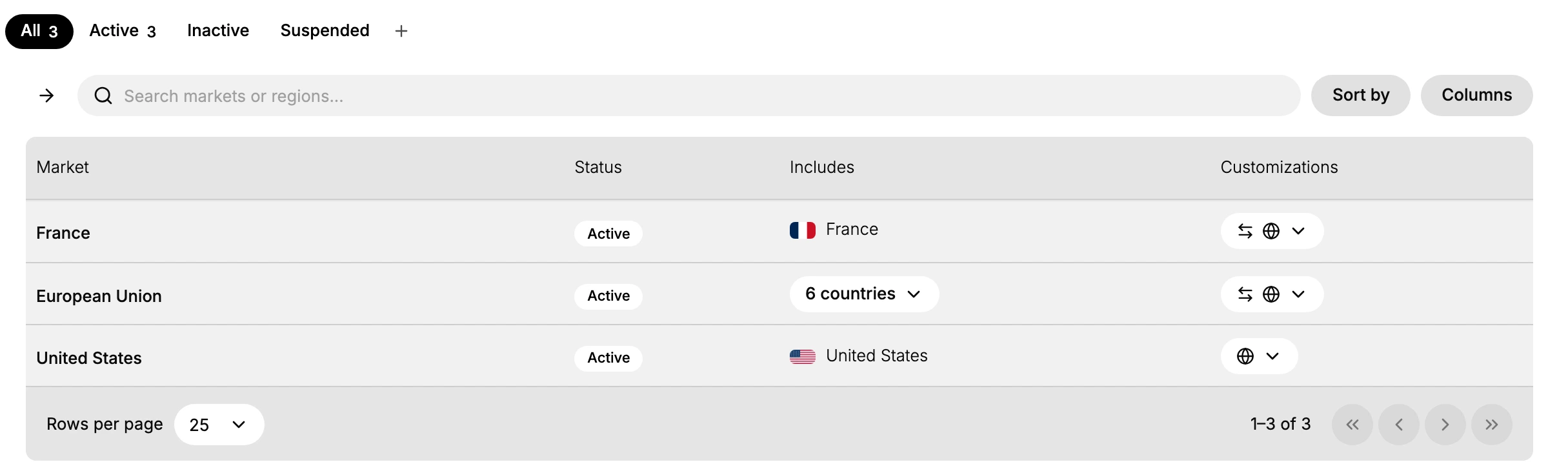
Above the list are the status tabs and, below them, a search box with Sort by and Columns to its right. The list itself has columns for each market, and a rows-per-page control with paging beneath it.
| Tool | What it does |
|---|---|
| Status tabs | Narrow the list to All, Active, Inactive, or Suspended markets |
| Search | Find a market by its name or a region it covers |
| Sort by | Change the order the markets are listed in |
| Columns | Choose which columns each market row shows |
| Rows per page | Set how many markets show per page, with paging for the rest |
Filtering by status
The tabs above the list are All, Active, Inactive, and Suspended, and selecting one shows only markets in that state. All shows every market, with a count next to each tab. Use these to focus on, say, only your Active markets when you have others that are Inactive or Suspended.
Searching
The Search markets or regions box finds a market by its name or by a region it covers, so typing a country narrows the list to markets that include it. This is the fastest way to reach one market when you have many.
Sorting
Sort by changes the order of the list. Its options are:
- Name (A, Z) and Name (Z, A) to order markets by name
- Date added (newest first) and Date added (oldest first) to order them by when they were created
Choosing columns
Columns opens a Manage columns panel where you turn each column on or off with its eye control. The columns are Market, Status, Includes, and Customizations; Market is always visible, and the rest can be shown or hidden to suit what you want to see.
Best practices
- Filter by status first. Use the tabs to cut the list down before searching or sorting.
- Search by region. Typing a country finds every market that includes it, which is quicker than reading names.
- Sort for long lists. Order by name or date added to make a long list easier to scan.
- Hide columns you do not need. Turn off a column in Columns to keep the list focused.
If something goes wrong
- A market is missing from the list. Check the status tab you are on, since it may be under a different state, and clear the search box.
- You cannot find a market by name. Try searching a region it covers instead, since search matches regions too.
- A column you want is not shown. Open Columns and turn it on with its eye control.
- You cannot see markets at all. Your role may not allow viewing markets. Ask an owner or admin.
Next steps
Related articles
Still stuck?
- Ask Tanqory AIAsk in your own words. It answers from these articles and links the ones it used.
- Ask in your adminThe assistant in your Tanqory admin answers and makes the change for you once you confirm.
- Contact TanqoryWrite to our privacy, security or legal teams, or talk to sales about a plan or a move.