Market Info Panel
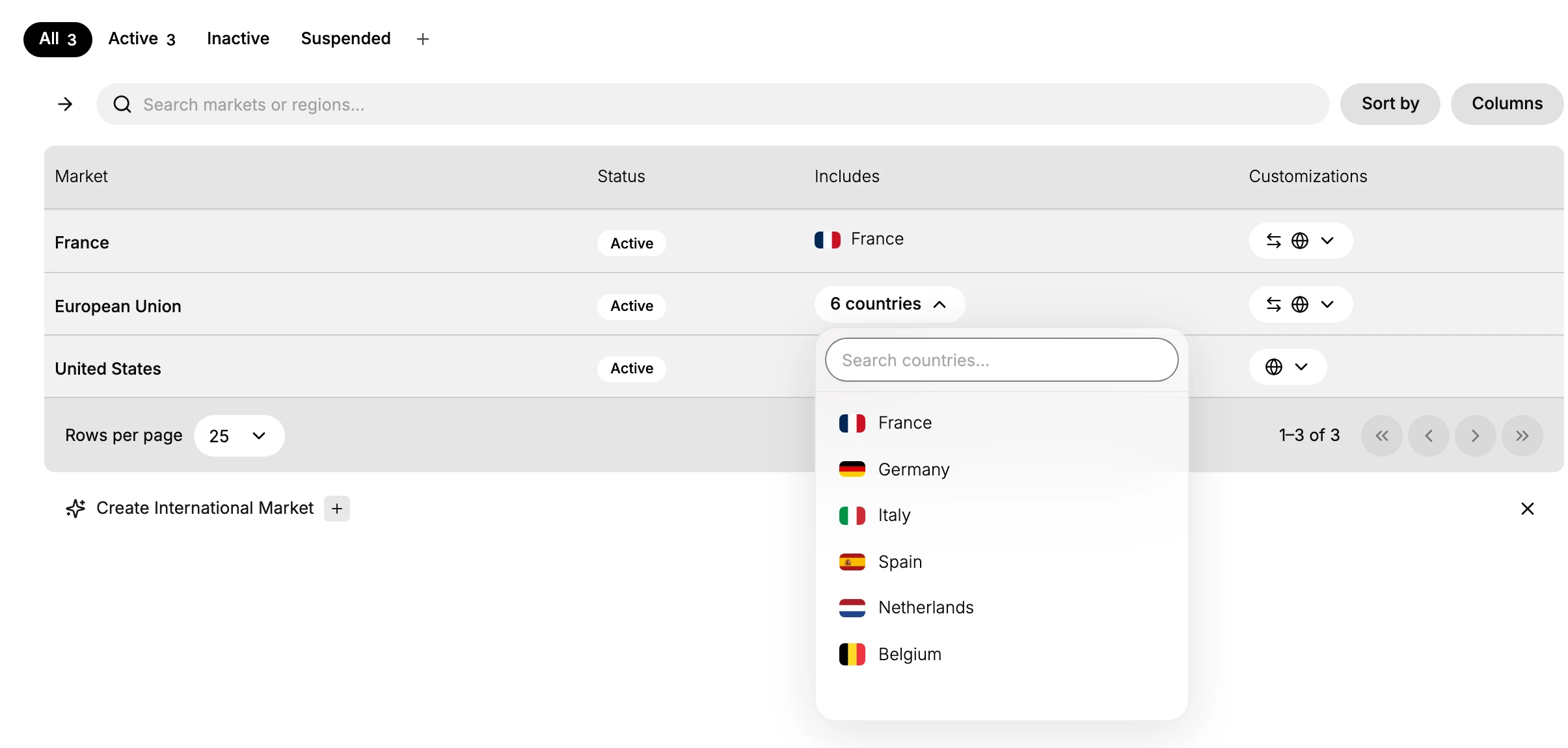
From the Markets list, you can open a small panel on a market to see its details without leaving the list. Selecting a market's Includes opens a panel that lists the regions it covers, with a search box to find one quickly. It is a fast way to check what a market covers.
On this page
The market info panel is a quick way to check a market's details straight from the Markets list, without opening its full page. When a market covers several regions, its Includes column shows a count, and selecting it opens a small panel that lists those regions. This lets you confirm what a market covers, or find a specific region in it, with a glance rather than a click into the market. You use it on the Markets list, from a market's Includes column.
What the panel shows
Selecting a market's Includes opens a panel listing the regions the market covers, each with its flag and name, and a search box to find one in a longer list.
| Part | What it is |
|---|---|
| Region list | The regions the market covers, each with its flag and name |
| Search countries | Find a region in the list without scrolling |
Before you begin
- In your admin, select Markets in the left navigation to open the Markets list.
- You have at least one market that covers several regions, so its Includes column shows a count you can open.
Opening and using the panel
On the Markets list, find the market you want to check, then in its Includes column select the region summary, such as a count of countries. The panel opens beneath it, listing the market's regions. For a market with many regions, type in the Search countries box to find one quickly. Selecting elsewhere closes the panel. Because this happens in the list, you can check one market and move to the next without opening any market's page.
Tip: The Includes panel is read-only. To add or remove regions, open the market and use the edit control on its Includes row.
Best practices
- Use it to confirm coverage. Open the panel to see exactly which regions a market covers before making changes.
- Search in long lists. For a market with many regions, use the search box instead of scrolling.
- Compare markets from the list. Check each market's regions in turn without leaving the Markets page.
- Open the market for changes. The panel is for viewing; to change the regions, open the market and edit its Includes.
If something goes wrong
- No panel opens. A market that covers a single region may show it directly instead of a panel; open the market to see more.
- You cannot find a region. Use the Search countries box, since a market can cover many regions.
- You want to change the regions. The panel only shows them; open the market and use its Includes control to edit.
- You cannot see markets. Your role may not allow viewing markets. Ask an owner or admin.
Next steps
Related articles
Still stuck?
- Ask Tanqory AIAsk in your own words. It answers from these articles and links the ones it used.
- Ask in your adminThe assistant in your Tanqory admin answers and makes the change for you once you confirm.
- Contact TanqoryWrite to our privacy, security or legal teams, or talk to sales about a plan or a move.