Market Conditions
A market's conditions define which buyers it applies to, by the regions it includes. You set them in the Market conditions dialog, where Includes is either All or Specific, and you choose the regions the market covers. The conditions are what decide who is served by the market.
On this page
A market's conditions are what define who the market applies to. Rather than a market covering everyone, its conditions set the regions it includes, so buyers in those places are served by that market and its settings. Understanding conditions helps you shape a market to exactly the buyers you mean it for. You set them in the Market conditions dialog, opened from a market's Includes control.
Before you begin
- In your admin, select Markets in the left navigation, then select a market to open its page.
- You know which regions this market should apply to.
What conditions are
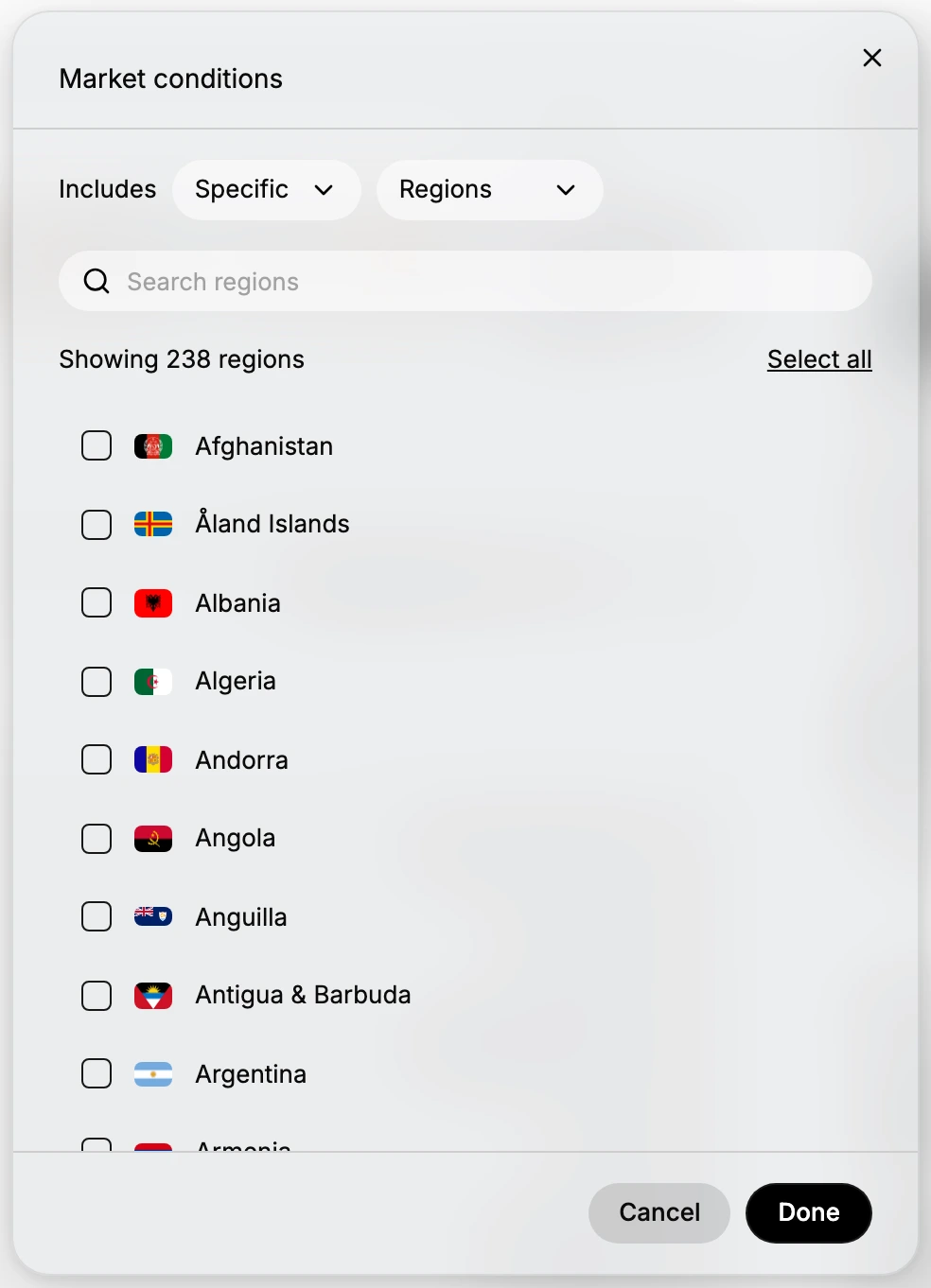
Conditions describe which regions belong to a market. In the Market conditions dialog, the Includes setting is the heart of this: it says whether the market applies to All regions or to Specific ones, and when it is Specific, you choose exactly which regions from the list. The conditions are the rule that decides who falls into the market.
The parts of a condition
The dialog builds the condition from a few controls, so you can make it as broad or as narrow as you need.
| Part | What it does |
|---|---|
| Includes: All / Specific | Whether the market covers all regions, or only the ones you pick |
| Regions | The type the condition is built from, shown as Regions |
| Search regions | Find a region by name in the long list |
| Select all | Include every listed region at once |
| Region checkboxes | Tick the regions the market should include |
How conditions shape a market
Because conditions set the regions, they decide which buyers the market serves and, through the market, what those buyers get, such as its currency and catalog. A narrow condition, like a single region, targets one place; a broad one covers many. Setting the conditions well is how you make sure the right buyers are matched to the right market.
Set a market's conditions
In Markets, open a market, then in the Includes row select the edit control to open the Market conditions dialog. Set Includes to All to cover every region, or to Specific to choose particular regions - choosing Specific reveals the region list. With Specific set, tick the regions the market should cover, using the Search regions box to find them or Select all to include them all; the condition is the set of regions you tick. Select Done to apply the conditions to the market, so it then applies to the regions you set, or Cancel to leave the conditions unchanged.
Best practices
- Match the condition to your intent. Use Specific to target chosen regions, or All when a market should cover everything.
- Keep conditions clear. Include only the regions the market is meant for, so buyers are matched correctly.
- Use search to build precisely. Find each region by name rather than scrolling the long list.
- Review after changing. Check the market's settings, so the regions in the condition inherit what you expect.
If something goes wrong
- The region list is not shown. Set Includes to Specific; All does not need a region list.
- A region is hard to find. Use the Search regions box, since the list of regions is long.
- The wrong buyers are served. Review the conditions so the market includes only the regions you intend.
- You cannot change the conditions. Your role may not allow managing markets. Ask an owner or admin.
Next steps
Related articles
marker rather than altering the real colours. US demo context; no Thailand
data. -->
Still stuck?
- Ask Tanqory AIAsk in your own words. It answers from these articles and links the ones it used.
- Ask in your adminThe assistant in your Tanqory admin answers and makes the change for you once you confirm.
- Contact TanqoryWrite to our privacy, security or legal teams, or talk to sales about a plan or a move.