Use Local Currencies Per Market
The Use local currencies option sets a market to each buyer's own currency, shown automatically as their local currency. You set it from the market's Currency dropdown, where it is the recommended option. This suits a market that covers several countries, so buyers see prices in money they recognize.
On this page
Use local currencies is the option that sets a market to each buyer's own currency rather than one fixed currency for everyone. In the Currency dropdown it is described as automatically showing prices in the customer's local currency, so a buyer in a market that covers several countries sees prices in the money they use rather than a foreign one. It is shown as the recommended option in the dropdown. You turn it on from the market's Currency setting, where the dropdown offers Use local currencies alongside single currencies such as Euro or US Dollar.
Before you begin
- In your admin, select Markets in the left navigation, then select a market to open its page.
- You have a market with its regions set, since the currency applies to the countries the market covers. See Add Regions to a Market.
What Use local currencies does
Opening the market's Currency dropdown shows Use local currencies at the top, under Recommended, described as automatically showing prices in the customer's local currency. A tick marks it when it is the current choice.
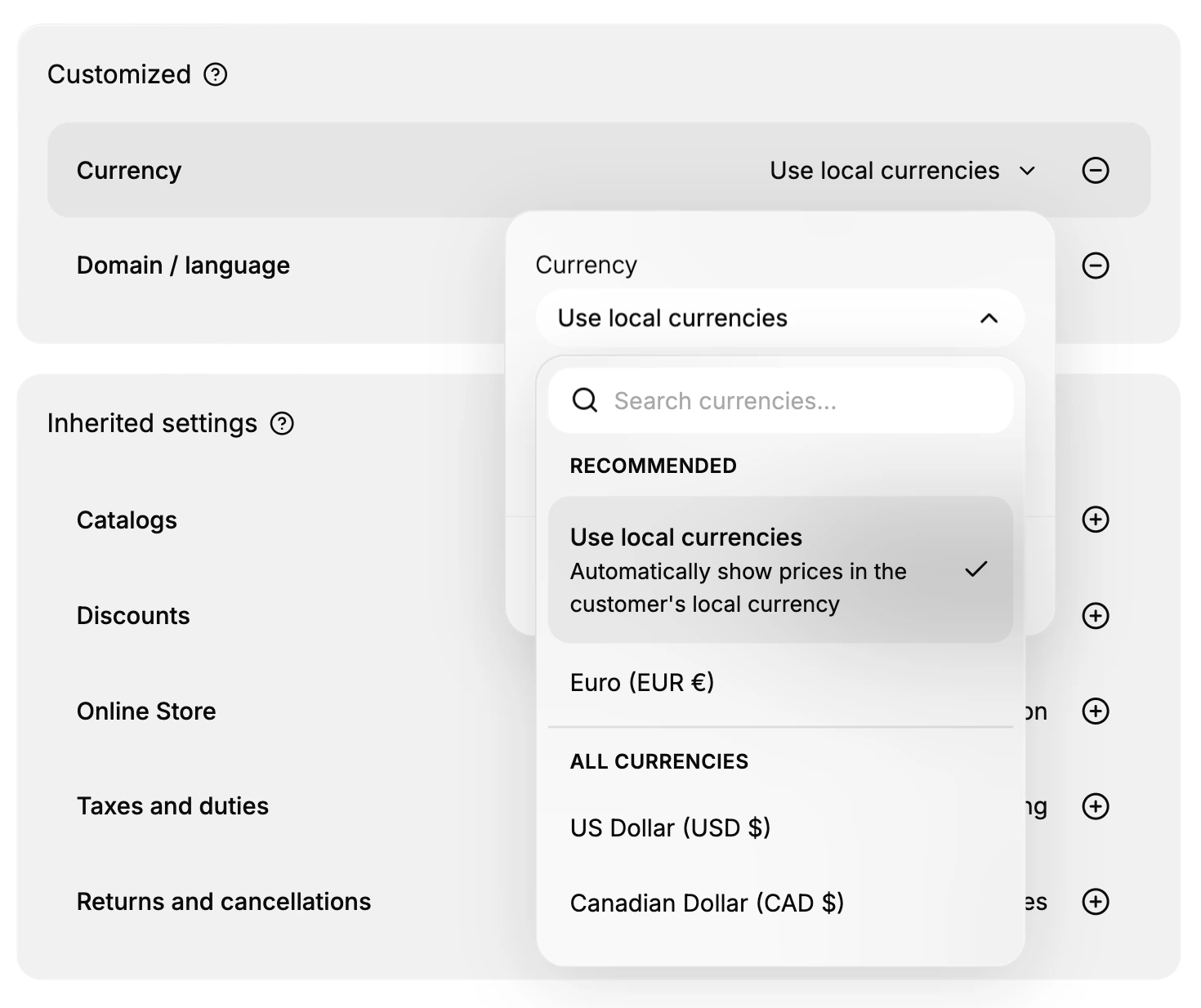
| Part | What it is |
|---|---|
| Use local currencies | Sets the market to each buyer's own local currency, shown automatically |
| Recommended | The group this option sits in, marking it as the suggested choice |
| Search currencies | Find a currency in the list instead of scrolling |
| All currencies | The single currencies you can pick instead, such as US Dollar |
Turning it on
To use local currencies for a market, open the market and select its Currency setting under Inherited settings, then open the Currency dropdown. Choose Use local currencies at the top of the list, so the market is set to each buyer's own local currency. The option is grouped under Recommended, so it is already highlighted as the suggested choice. Selecting Done applies it to the market.
Local currencies versus a single currency
Use local currencies fits a market that spans more than one country, since each buyer sees their own local currency. Choosing a single currency from the same dropdown instead sets the market to that one currency for everyone in it, which fits a market meant to use a set currency. Pick local currencies when a market covers several countries with different currencies, and a single currency when you want one currency across the whole market.
Tip: Reach for Use local currencies when a market spans several countries so each buyer pays in their own currency. If the market should charge one set currency for everyone, pick that single currency from the same dropdown instead.
Rounding local prices
When a market uses local currencies, converted prices can land on awkward amounts. The market's Price rounding option, in the same Currency setting, tidies these to cleaner figures. How prices are set and shown is covered in Set a Market's Currency and Market Currency Formatting.
Best practices
- Use local currencies for multi-country markets. Buyers seeing their own currency trust prices more than a foreign one.
- Set the market's regions first. The currency applies to the countries the market covers, so add its regions beforehand.
- Round converted prices. Turn on Price rounding so local prices do not look like odd converted amounts.
- Review after changing. Confirm the market's Currency shows Use local currencies once you have applied it.
If something goes wrong
- Buyers see one fixed currency. Open the market's Currency dropdown and choose Use local currencies.
- A buyer's currency looks wrong. Check the market's regions, since local currencies follow the countries the market covers.
- Prices show awkward converted amounts. Turn on Price rounding to tidy them.
- You cannot change the currency. Your role may not allow managing markets. Ask an owner or admin.
Next steps
Related articles
Still stuck?
- Ask Tanqory AIAsk in your own words. It answers from these articles and links the ones it used.
- Ask in your adminThe assistant in your Tanqory admin answers and makes the change for you once you confirm.
- Contact TanqoryWrite to our privacy, security or legal teams, or talk to sales about a plan or a move.