Market Metafields
Metafields add your own custom fields to a market for data the built-in settings do not cover. You add a definition from the market's Metafields card, giving it a name, a type, and a few options. This lets a market hold extra data, which your storefront can read through the API.
On this page
Metafields let you store your own custom data on a market, beyond the settings the market already has. You start by adding a metafield definition, which names the field and sets what kind of data it holds; once defined, the market can carry that data, which your storefront can read through the API. This is how you attach information a market needs that the standard settings do not cover. You manage them on the market's page, in the Metafields card.
Before you begin
- In your admin, select Markets in the left navigation, then select a market to open its page, and find the Metafields card near the bottom.
- You know what custom data the market needs to hold, since a definition sets the field's name and type.
The Metafields card
At the bottom of a market's page, the Metafields card holds the market's metafield definitions. Until you add one, it shows a message that there are no definitions yet, with a View all link and an Add definition button.
Adding a definition
Selecting Add definition opens the Add Market metafield definition dialog, where you set up the field.
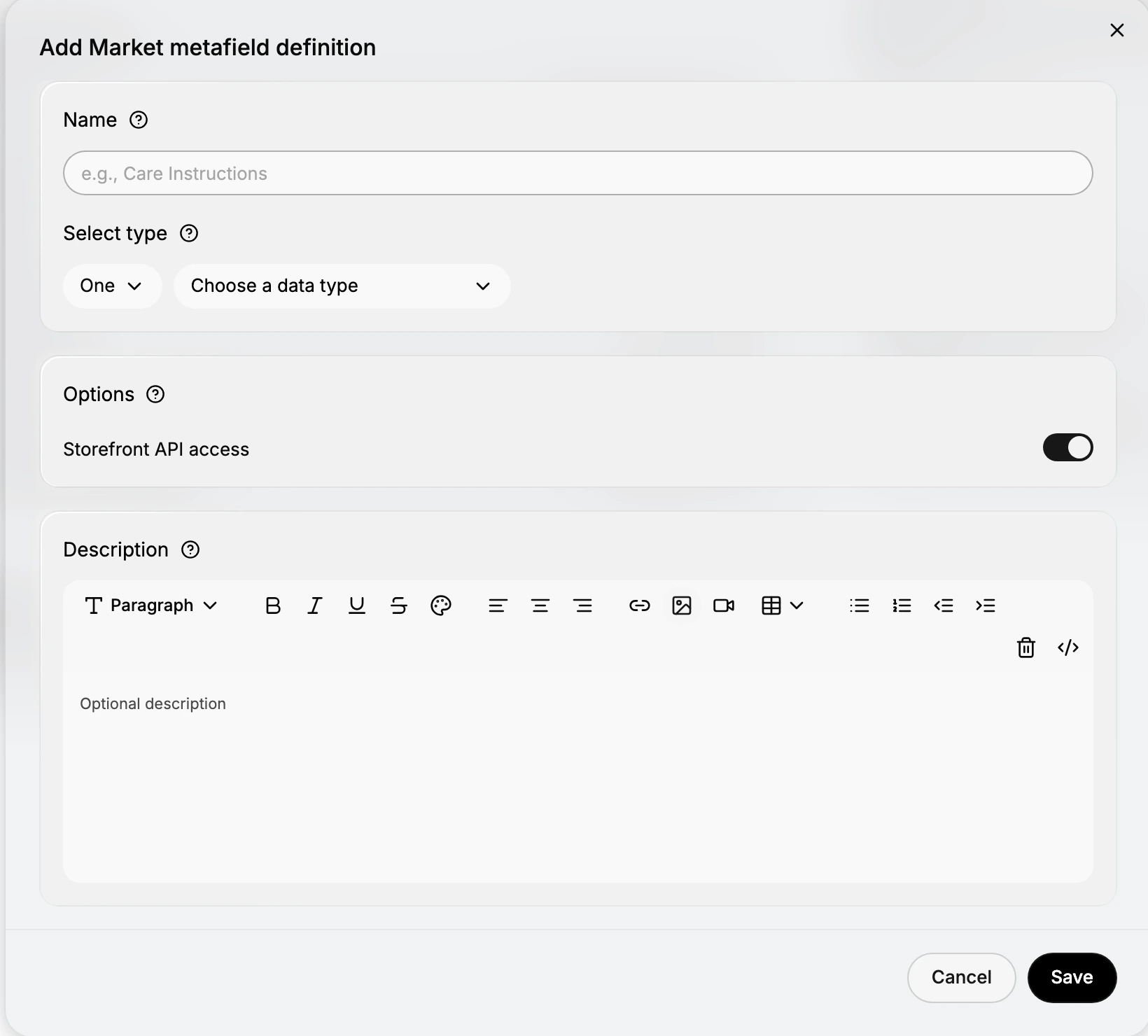
| Field | What it is |
|---|---|
| Name | What the field is called, such as Care Instructions |
| Select type | The kind of data the field holds, chosen from Choose a data type |
| Storefront API access | Whether the field's value is available to your storefront through the API |
| Description | An optional note describing what the field is for |
| Cancel / Save | Discard the definition, or save it to the market |
Filling in the definition
Give the field a Name so you can recognize it, such as Care Instructions. Under Select type, choose the data type the field holds from Choose a data type, which sets what kind of value it accepts. In Options, the Storefront API access toggle controls whether your storefront can read the field's value through the API. The Description is optional and just notes what the field is for. When the definition is set, select Save to add it to the market, or Cancel to discard it.
Using a metafield
Once a definition is saved, it appears in the market's Metafields card, and the market can hold a value for that field. When Storefront API access is on, your storefront can then read the value through the API and use it to show data specific to that market. To see all of a market's definitions, use the View all link on the Metafields card.
Tip: Turn on Storefront API access only for fields your storefront actually needs to read. Leave it off for internal notes, so a market's data is not exposed through the API unless you intend it to be.
Best practices
- Name fields clearly. A clear name like Care Instructions makes a definition easy to recognize later.
- Match the type to the data. Choose the data type that fits the value the field will hold, so the data stays consistent.
- Turn on Storefront API access only when needed. Leave it off for internal fields your storefront does not need to read.
- Describe the field. A short Description helps anyone else on your team understand what the field is for.
If something goes wrong
- Your definition did not save. Make sure you gave it a Name and a data type, then select Save rather than Cancel.
- Your storefront cannot read a field. Check that Storefront API access is on for that definition.
- You cannot find a definition. Use the View all link on the market's Metafields card to see them all.
- You cannot add a definition. Your role may not allow managing markets. Ask an owner or admin.
Next steps
Related articles
Still stuck?
- Ask Tanqory AIAsk in your own words. It answers from these articles and links the ones it used.
- Ask in your adminThe assistant in your Tanqory admin answers and makes the change for you once you confirm.
- Contact TanqoryWrite to our privacy, security or legal teams, or talk to sales about a plan or a move.