Set a Market's Taxes and Duties
A market can set whether it collects sales tax and duties, and how tax is shown to buyers. You open its Taxes and duties setting to find Sales tax, a Duties toggle, and a Tax display choice. This lets a market handle tax the way its regions need.
On this page
A market's Taxes and duties setting controls whether the market collects tax on its orders and how that tax is shown to buyers, so a market can match how tax works in the regions it covers. It brings together three things: whether the market collects sales tax, whether it collects duties, and how tax appears in prices. Getting this right means buyers in a market are charged and shown tax the way you intend. You open it from the market's Taxes and duties setting under Inherited settings.
Before you begin
- In your admin, select Markets in the left navigation, then select a market to open its page.
- You have a market with its regions set, since tax handling depends on the countries the market covers. See Add Regions to a Market.
- You understand your tax obligations for those regions, since collecting tax is a decision for your business.
The Taxes and duties panel
Selecting a market's Taxes and duties setting opens a panel with Sales tax, a Duties toggle, and a Tax display choice, plus Cancel and Done.
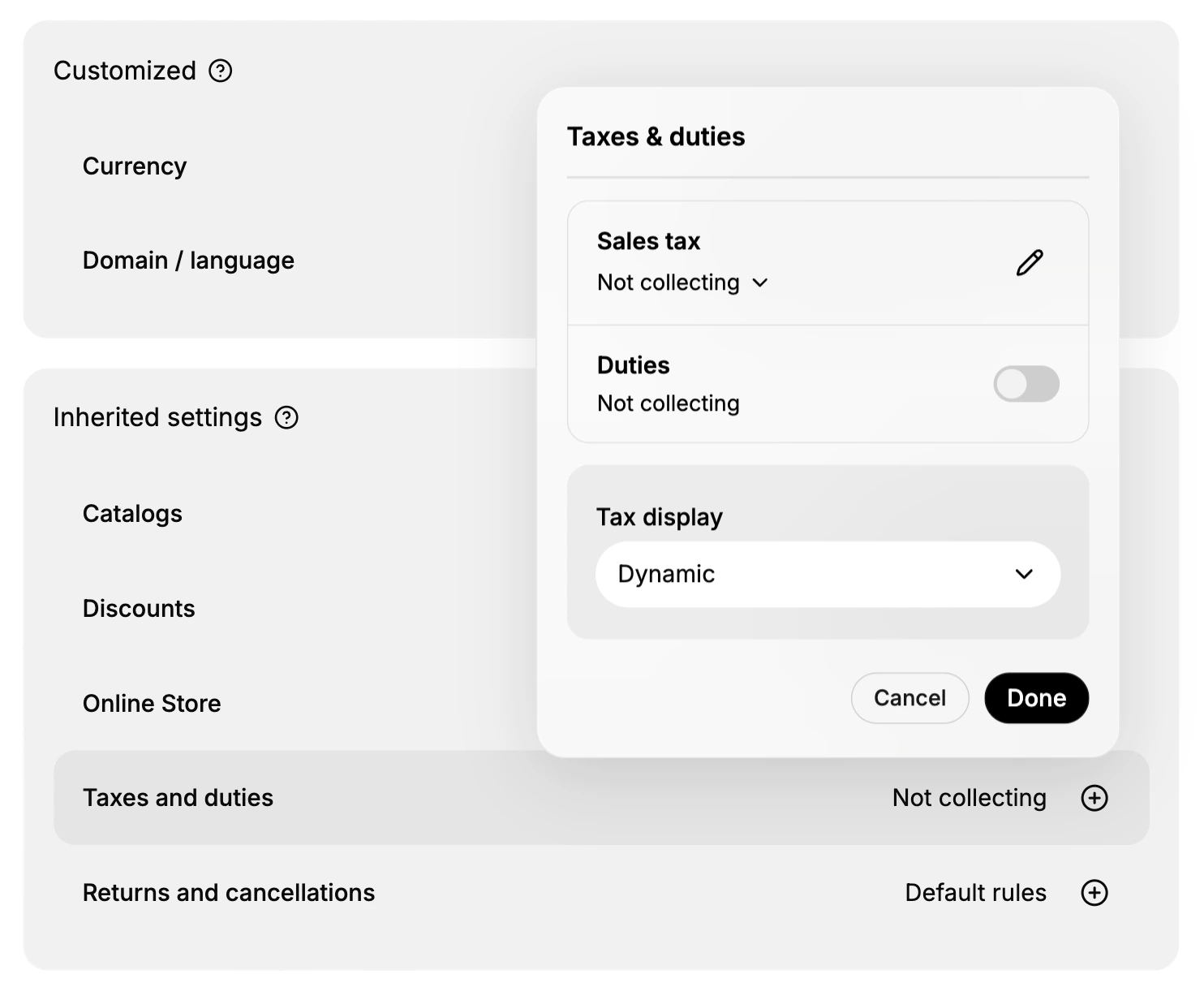
| Part | What it is |
|---|---|
| Sales tax | Whether the market collects sales tax, shown here as Not collecting |
| Duties | A toggle for whether the market collects duties, off here as Not collecting |
| Tax display | How tax is shown in prices, set here to Dynamic |
| Cancel / Done | Discard the change, or apply it to the market |
Sales tax and duties
Sales tax shows whether the market collects sales tax, shown here as Not collecting, with an edit control to change how it is handled. Duties is a toggle for whether the market collects duties on its orders, off here so the market is Not collecting duties. Turn each on only when the market needs to collect that tax for the regions it covers.
Important: Whether to collect sales tax or duties is a legal decision for your business. Turn collection on only for the regions where you are required to charge it, and check with a tax professional if you are unsure.
Tax display
The Tax display dropdown sets how tax appears in a market's prices. It offers three choices:
| Choice | What it does |
|---|---|
| Dynamic | Shows taxes based on the customer's location |
| Included in price | Tax is included in the displayed price |
| Excluded from price | Tax is added at checkout |
Dynamic suits a market that spans regions with different conventions, since it shows tax according to where the buyer is. Included in price fits regions where prices are shown with tax already in them, and Excluded from price fits regions where tax is added at checkout.
Applying the change
When Sales tax, Duties, and Tax display are set the way you want, select Done to apply them to the market, or Cancel to leave the setting as it was. Once applied, the market handles tax according to what you chose.
Best practices
- Match tax handling to the region. Set collection and display to how tax works in the countries the market covers.
- Use Dynamic for a multi-country market. It shows tax based on the buyer's location rather than one fixed rule.
- Confirm your obligations first. Only collect sales tax or duties where your business is required to.
- Review after changing. Reopen the setting to confirm Sales tax, Duties, and Tax display are what you intended.
If something goes wrong
- Tax is not being collected. Open the Taxes and duties setting and set Sales tax or the Duties toggle as your regions require.
- Prices show tax the wrong way. Change Tax display between Dynamic, Included in price, and Excluded from price.
- Your change did not take effect. Make sure you selected Done rather than Cancel.
- You cannot change taxes. Your role may not allow managing markets. Ask an owner or admin.
Next steps
Related articles
Still stuck?
- Ask Tanqory AIAsk in your own words. It answers from these articles and links the ones it used.
- Ask in your adminThe assistant in your Tanqory admin answers and makes the change for you once you confirm.
- Contact TanqoryWrite to our privacy, security or legal teams, or talk to sales about a plan or a move.