View All the Regions a Market Covers
When a market covers more regions than fit in its Includes row, the extra ones sit behind a "+N more" control on the market's page. Selecting it reveals the remaining regions, so you can confirm every country the market covers without opening anything else. This helps whenever a market spans many countries.
On this page
A market's Includes row shows the regions it covers as a row of flags, but when a market covers more than a few, only some fit and the rest are collected behind a "+N more" control. Selecting it reveals the regions that were not shown, so you can confirm every country the market covers without opening anything else. This is handy for a market that spans many countries, where the row alone does not show them all. You see it on the market's page, in the Includes row.
Before you begin
- In your admin, select Markets in the left navigation, then select a market to open its page, and look at the Includes row near the top.
- The market covers more regions than fit in the row, so a "+N more" control is shown.
Revealing the extra regions
The Includes row shows as many region flags as fit, followed by "+N more" when there are others. Selecting "+N more" opens a small list of the regions that were not shown in the row.
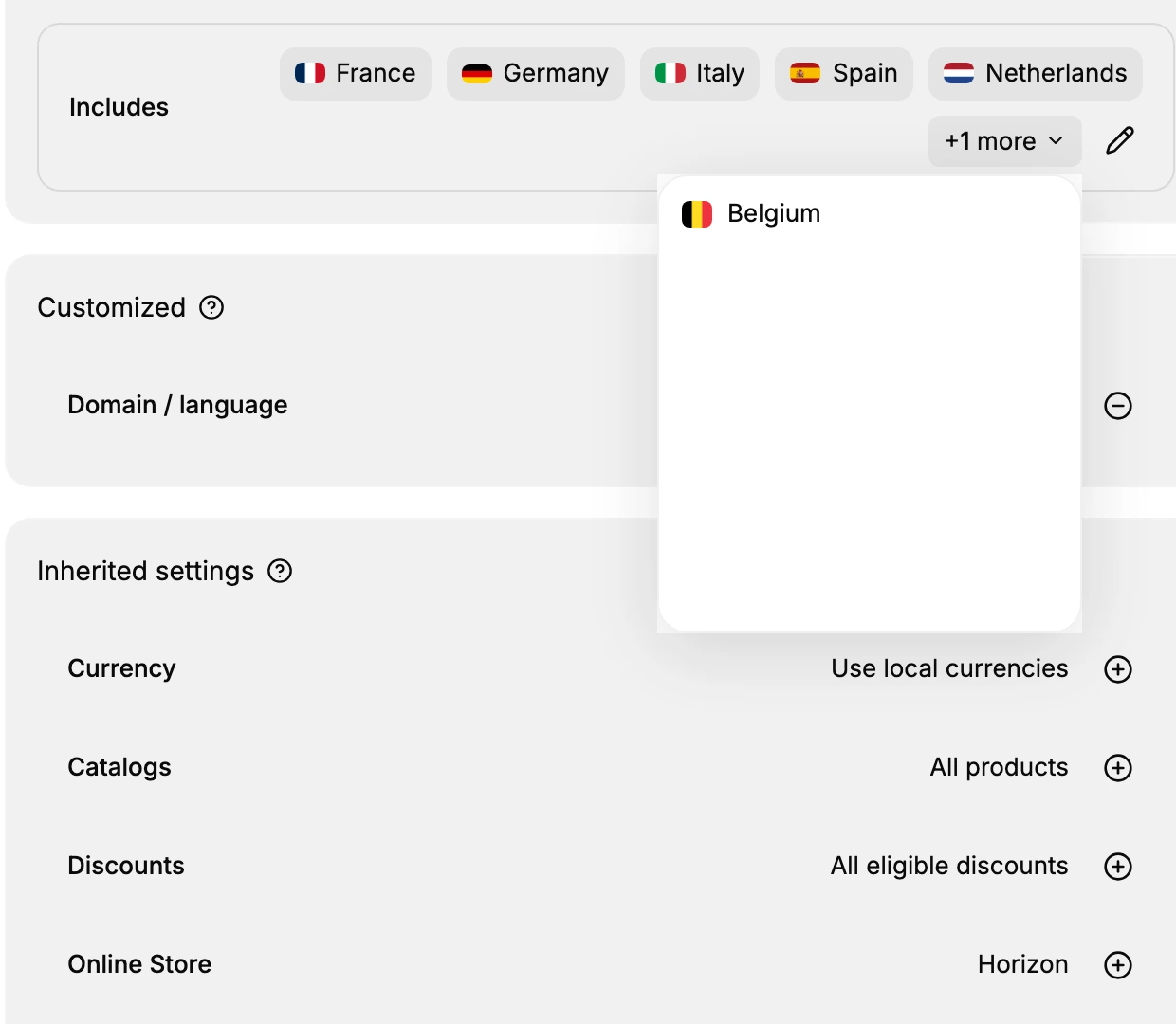
| Part | What it is |
|---|---|
| Region flags | The regions the market covers that fit in the row, each with its flag |
| +N more | The count of regions not shown in the row; select it to reveal them |
| Revealed list | The remaining regions the market covers, shown when you select +N more |
Seeing the full coverage
Between the flags in the row and the regions behind "+N more", you can see every region the market covers. To change which regions a market covers, use the edit control on the Includes row rather than this view, which only shows them.
Tip: The row shows only the regions that fit, so open "+N more" before you rely on the list to judge a market's coverage. This view is read-only; to add or remove regions, use the edit control on the Includes row instead. For the same summary from the Markets list, open a market's Includes there, covered in Market Info Panel.
Best practices
- Open +N more to confirm coverage. Do not assume the row shows every region; check the ones behind +N more too.
- Use it before editing. See exactly what a market covers before you change its regions.
- Check from the list too. The Markets list also shows a market's regions from its Includes column.
If something goes wrong
- You do not see a +N more control. The market's regions all fit in the row, so there are none hidden.
- You want to change the regions, not just view them. Use the edit control on the Includes row. See Edit Market Regions.
- A region you expected is missing. The market may not cover it; edit its regions to add it. See Add Regions to a Market.
- You cannot see a market's regions. Your role may not allow viewing markets. Ask an owner or admin.
Next steps
Related articles
Still stuck?
- Ask Tanqory AIAsk in your own words. It answers from these articles and links the ones it used.
- Ask in your adminThe assistant in your Tanqory admin answers and makes the change for you once you confirm.
- Contact TanqoryWrite to our privacy, security or legal teams, or talk to sales about a plan or a move.