Blog Metafields
Add custom fields to your blogs and blog posts with metafields. Define a fields name, type, and Storefront API access from the Metafields card.
On this page
Metafields let you add custom fields to your blogs and blog posts, beyond the built-in fields like title, content, and tags. You first create a definition that describes the field, its name, the kind of value it holds, and whether your storefront can read it, and then that field appears on every blog or blog post so you can fill in its value. Use them for structured extras such as a reading time, a series name, or a reference to another record.
Where blog metafields live
Metafield definitions are created from the Metafields card, which appears on both the blog form and the blog post form. The card on the blog post form creates fields for posts; the card on the blog form creates fields for blogs. Until you add one, the card reads "No blog post metafield definitions yet". Click Add definition to create a field, or View all to see the definitions you already have.
Before you begin
- Your role includes Edit content.
- You know what data the field should hold and where your theme will use it.
- Open Content > Blog Posts in the admin sidebar, then open a blog or a blog post, since the Metafields card sits on both forms.
Add a metafield definition
Open a blog post in the editor, find the Metafields card, and click Add definition (the same card is on the blog form if you want a field on blogs rather than posts; it is shown in Blog Post Form). This opens the definition dialog, where you describe the field.
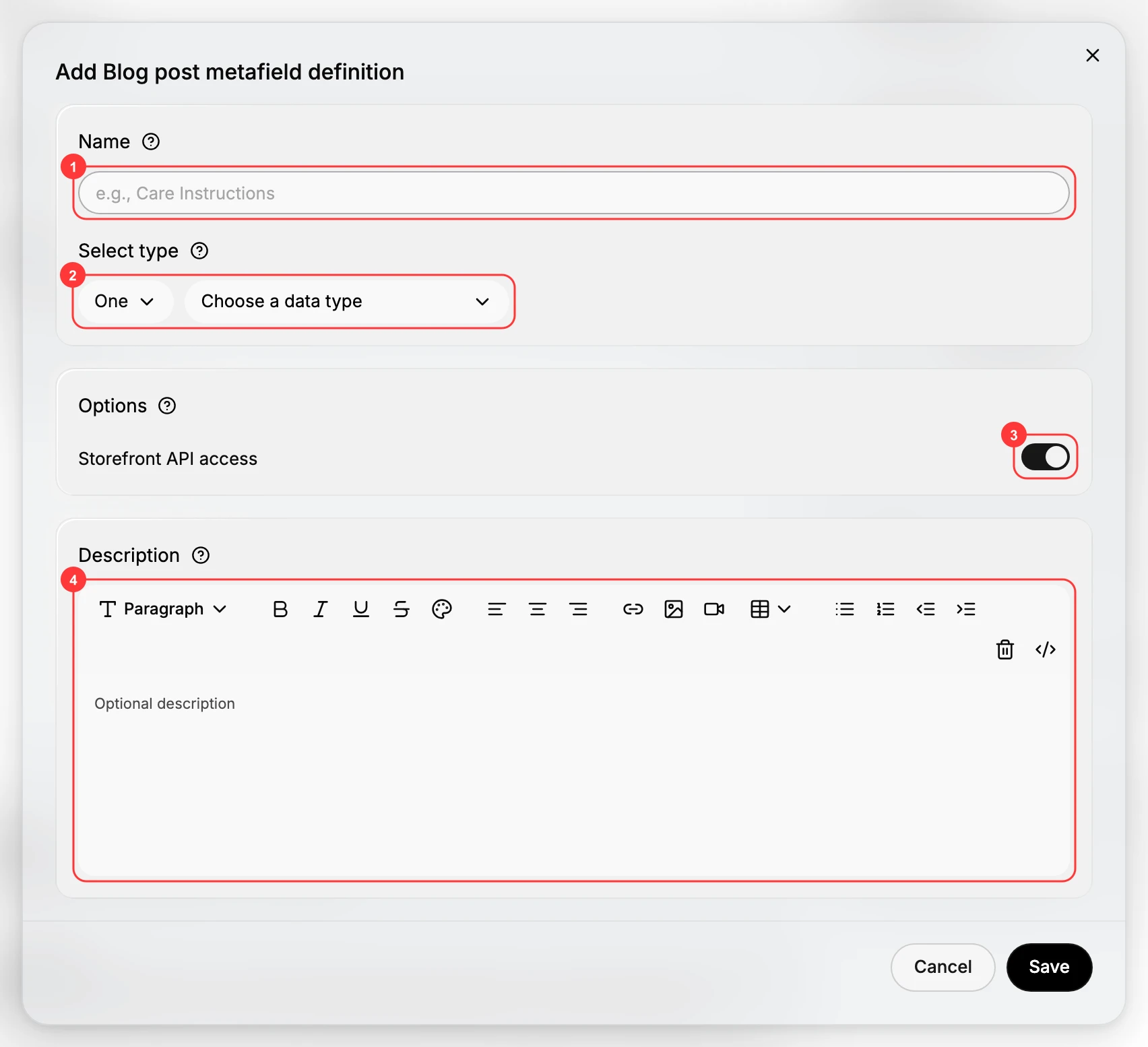
- Name (1) is the field's label, for example "Care Instructions" or "Reading time". It is shown wherever you enter the value, so make it clear to whoever fills it in.
- Select type (2) has two parts. The first chooses whether the field holds a single value (One) or a List of values. The second, Choose a data type, sets the kind of value, such as single line text, an integer, an image, a metaobject reference, or a choice list. Pick the type that matches the data you want to store.
- Storefront API access (3), under Options, controls where the value can be read. When it is on, the field's value is available to your storefront theme and the Storefront API, so the theme can display it. Leave it on if your theme needs to read the field; turn it off to keep the field for admin use only.
- Description (4) is an optional note that explains what the field is for. It guides whoever fills in the value later.
Click Save. The field now appears in the Metafields section of every blog post, or every blog, depending on where you created it, so you can enter its value on each one. To review or change your definitions later, use View all on the Metafields card.
Next steps
- Blog Post Form to see where you enter a metafield's value on a post.
- Blog Posts to write and publish the post itself.
- Metafields for how metafields work across the store.
Related articles
Still stuck?
- Ask Tanqory AIAsk in your own words. It answers from these articles and links the ones it used.
- Ask in your adminThe assistant in your Tanqory admin answers and makes the change for you once you confirm.
- Contact TanqoryWrite to our privacy, security or legal teams, or talk to sales about a plan or a move.