Add Custom Data with Metafields and Metaobjects
How the two kinds of custom data differ, how a metafield can reference a metaobject, and how to read the Metafields and metaobjects page: its summary cards, the Custom and Standard tabs, the definitions list, and the entries behind them.
On this page
Metafields and metaobjects are the two ways your store holds custom data beyond the built-in fields. A metafield adds an extra field to a record you already have, such as a product or a collection, so that record can carry one more piece of information. A metaobject is a separate, reusable record with its own fields that many records can point to, so the same content is written once and used in many places. Both are built the same way: you create a definition that describes the data, and only then can values or entries exist. You manage both from the Metaobjects page under Content, which opens the Metafields and metaobjects page.
Metafield compared with a metaobject
| Metafield | Metaobject | |
|---|---|---|
| What it is | An extra field added to an existing record | A standalone, reusable record with its own fields |
| Best for | A single value that belongs to one record, such as care instructions on a product | Structured content reused across many records, such as a fabric type or a size guide |
| Where it lives | On the record it extends | On its own, with its own entries |
| Where you create it | Under Manage, where definitions are grouped by resource | With Add definition on the Metafields and metaobjects page |
| What you fill in | A value on each record that has the field | An entry per item, reusable from any record that references it |
Definition first, then values
Nothing custom appears anywhere until a definition exists. A definition is the description of the data: its name, the kind of value it holds, and the options that decide where it can be read. Creating it does not add any content by itself, it only makes the field or the record type available.
Once the definition is saved, the field shows up where it belongs, on the product, collection, blog post, or other resource you defined it for, and you fill in a value on each record. A metaobject definition works the same way, except that you create entries for it rather than filling a field on an existing record. This is why a new definition often shows a count of zero entries at first.
Where to manage them
Open Content > Metaobjects. The page gathers your metaobject definitions, the entries created from them, and a shortcut to the metafield definitions, so you can see the state of your custom data in one place.
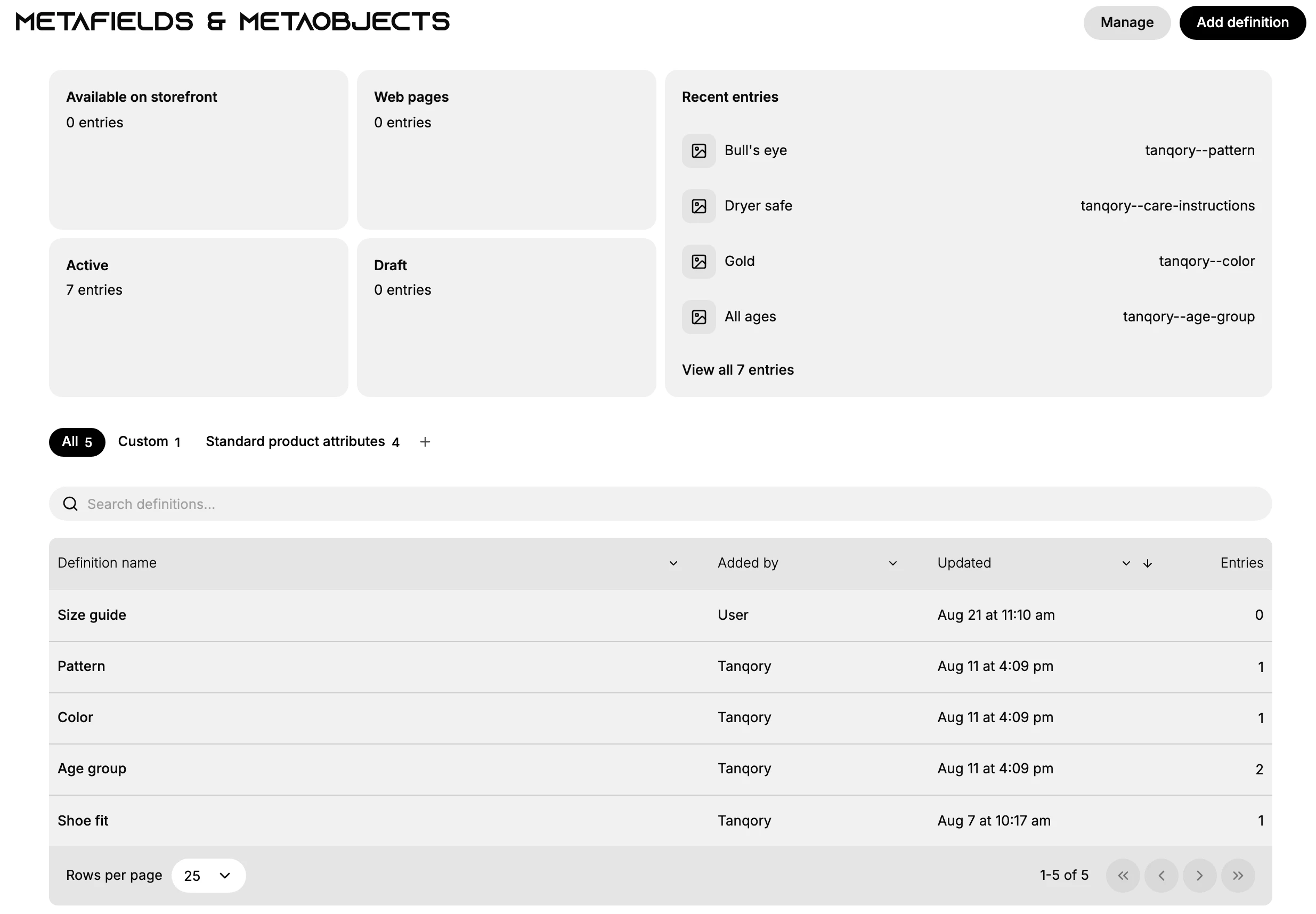
| On the page | What it does |
|---|---|
| Manage | Opens the custom data page, where metafield definitions are grouped by resource: Product, Variant, Collection, Customer, Order, Draft order, Location, Page, Blog, Blog post, Market, Shop, and Transfers. Metafield definitions are created here - the main page's Add definition makes metaobject definitions instead. |
| Add definition | Opens the Create metaobject definition form, where you name it, add the fields each entry will hold, and set the options for drafts, translations, web pages, and API access. |
| Summary cards | Count entries, not definitions: Available on storefront (entries the storefront can read), Web pages (entries published as their own page), and Active / Draft (entries split by state). |
| Recent entries | The entries changed most recently, each with the definition it belongs to; View all entries opens the full list. |
| Definitions list | Each definition with Added by, Updated, and Entries, so you can see who created it and whether anything is built from it. Search definitions finds one by name, and Manage columns picks the columns. |
Standard and custom definitions
The tabs above the list split your definitions by where they came from, and the count next to each tab tells you how many are in that group.
- Custom holds the definitions someone in your store created. They show User in the Added by column.
- Standard product attributes holds definitions that ship with Tanqory, such as Age group. They show Tanqory in the Added by column.
- All shows both together.
The difference matters when you plan your data. A standard definition is already understood by the platform, so prefer it when one fits, and create a custom definition only for something Tanqory does not already model.
Entries and where they are used
Entries are the records created from a metaobject definition. Open View all entries to see every entry in the store, or filter to one definition with All definitions.
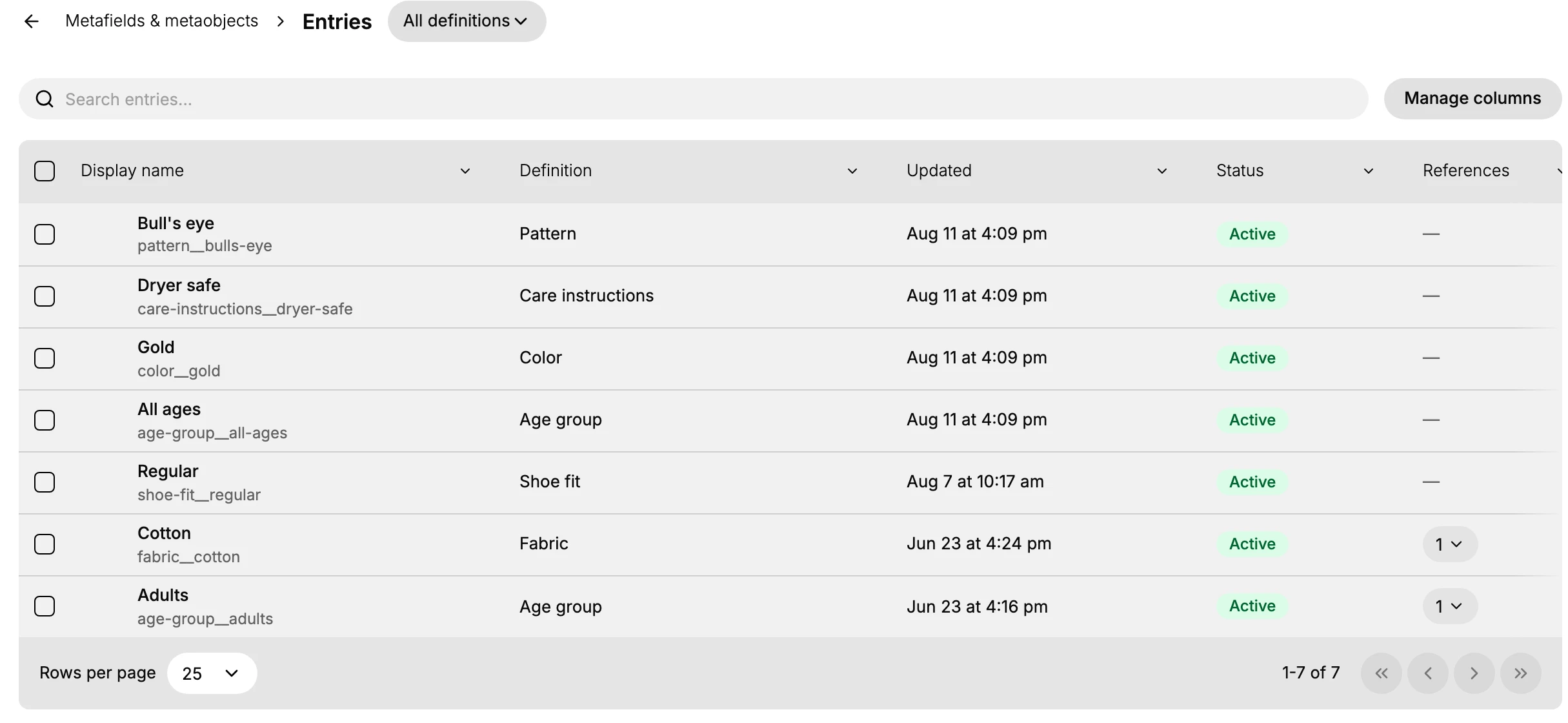
| Column | What it tells you |
|---|---|
| Display name | The entry's name, with its handle below it. The handle is the identifier a theme or the API uses |
| Definition | Which definition the entry was created from |
| Updated | When the entry last changed |
| Status | Active or Draft, so you can prepare an entry before it goes live |
| References | How many records currently point at the entry, which is what you check before you change or delete it |
Open an entry to edit its fields. The entry page also lists its references by name, for example the Cotton entry showing the product that uses it, along with the entry's status and handle. An entry with references is in use, so deleting it removes the value from every record in that list.
How a metafield references a metaobject
A metafield can reference a metaobject, so you define something once and reuse it everywhere. For example, a Fabric definition has an entry named Cotton, and the product Striped Cotton Overshirt points at that entry through its Fabric field, so the Cotton entry shows one reference.
The effect is that the details live in one place. Correct the Cotton entry once and every product that references it shows the correction, instead of the same text being retyped on each product and drifting out of step. That is the reason to reach for a metaobject when the same content repeats across records, and to stay with a plain metafield when the value belongs to a single record.
Showing custom data on the storefront
Custom data is not visible to your storefront until its definition allows it. On a metaobject definition, Storefront API access exposes the entries so your theme can read them, and the Available on storefront card counts what is currently exposed. Publish entries as web pages goes further and gives each entry a page of its own, which is what the Web pages card counts.
Two other options on the definition affect what visitors see. Active-draft status gives each entry a draft state, so work in progress stays hidden until you set it to Active, and Translations lets the entry's fields be translated into your other store languages. You set all of these on the definition, not in theme code.
Best practices
- Plan the fields before you create the definition, since changing a field's type later can affect entries that already use it.
- Use a standard definition when one fits, and keep custom definitions for data Tanqory does not already model.
- Reach for a metaobject as soon as the same content appears on more than one record, so there is a single place to correct it.
- Give definitions and entries names that read clearly in a list, because the display name is what everyone else sees later.
- Check the References count before you change or delete an entry, so you know which records are affected.
Common mistakes
- Creating a definition and expecting the data to appear, when the values or entries still have to be filled in.
- Using Add definition on this page when you wanted a metafield on a product or a customer. That button creates metaobject definitions; metafield definitions live under Manage, grouped by resource.
- Leaving Storefront API access off and then trying to fix the missing data in the theme.
- Leaving an entry in Draft and expecting the storefront to show it.
Next steps
Related articles
Still stuck?
- Ask Tanqory AIAsk in your own words. It answers from these articles and links the ones it used.
- Ask in your adminThe assistant in your Tanqory admin answers and makes the change for you once you confirm.
- Contact TanqoryWrite to our privacy, security or legal teams, or talk to sales about a plan or a move.