Blog Post Form
A detailed walkthrough of every field in the blog post editor: the blog it belongs to, title, content, excerpt, SEO, visibility, featured image, author, tags, and theme template.
On this page
The blog post form, titled New Article, is the editor you use to write and publish a single blog post. It is split into two sides: the left side is where you write the article, and the right side holds the settings that control how and where the post appears. This page explains every field in detail. Blog Posts is the shorter task version.
Open the form
Go to Content, then Blog Posts, and click Add blog post in the top right, or open an existing post from the list. The New Article editor opens with the writing fields on the left and the post settings on the right.
The writing fields
The left side of the editor is where you choose the blog and write the article.
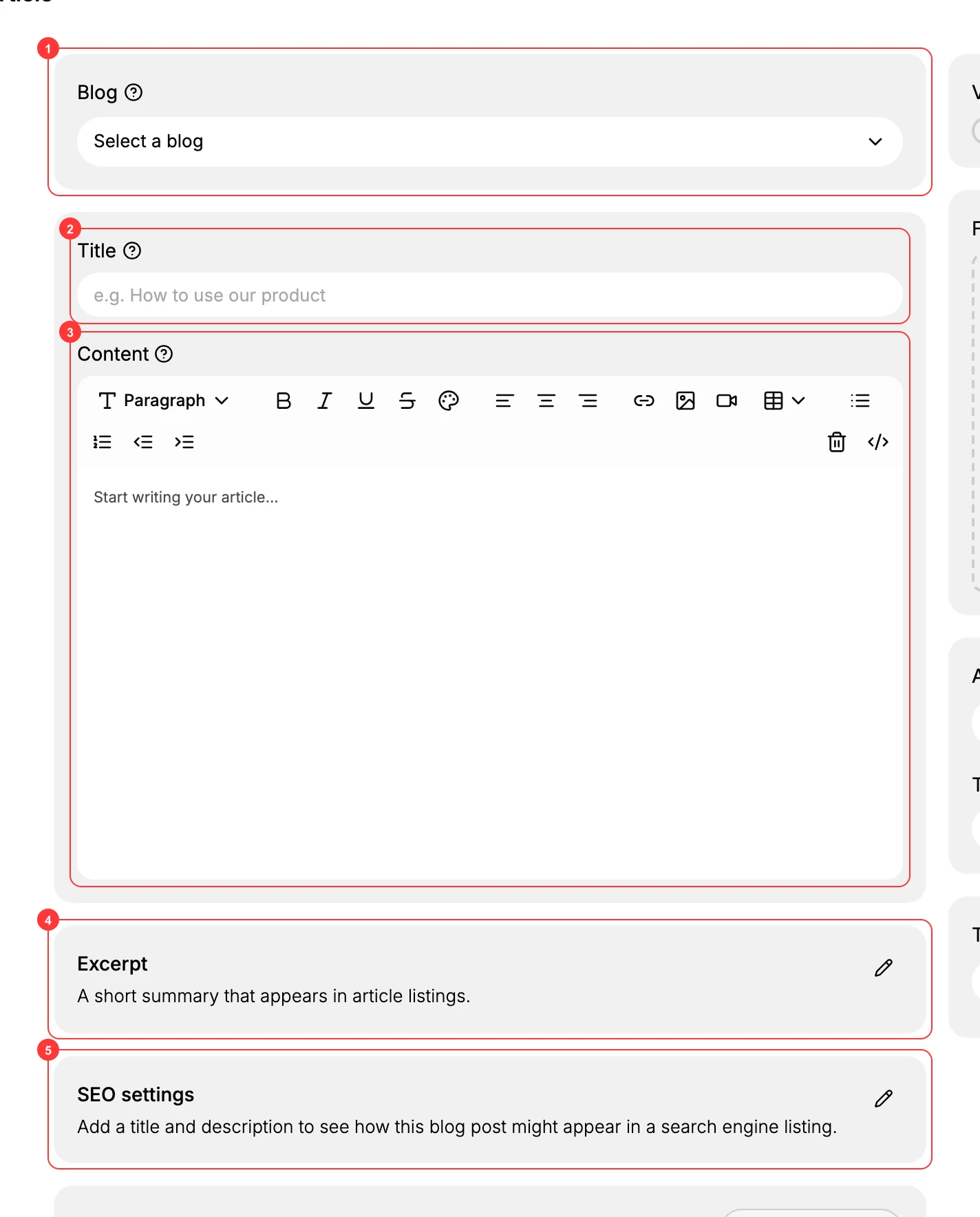
- Blog (1) is the blog this post belongs to. A post always lives in one blog, so you select it from the dropdown before publishing. The blog you pick decides the post's web address and the template its readers see. Blogs creates and manages the blogs themselves.
- Title (2) is the post's headline. It is shown as the heading on the published post and in your blog listings, and it is the starting point for the post's web address and search title. Write it as the real title of the article, for example "How to use our product".
- Content (3) is the body of the post. It is a rich text editor: the Paragraph dropdown switches between paragraph and heading styles, and the toolbar adds bold, italic, underline, and strikethrough, text color, left, center, and right alignment, links, images, video, tables, bulleted and numbered lists, and indentation. There is also a code view if you want to edit the underlying HTML. This is where the article itself is written.
- Excerpt (4) is a short summary that appears in article listings. Readers see it as a preview before they open the full post, so use one or two clear sentences. Click the pencil to edit it.
- SEO settings (5) control how the post appears in a search engine result. Click the pencil to add a page title and a description; if you leave them empty, search engines fall back to the post's own title and text.
Below these is a Metafields card. It is optional, for storing extra custom data on the post, and starts empty until you add a definition. See Metafields if you need it.
The post settings
The right side holds the settings that decide how the post is published and presented.
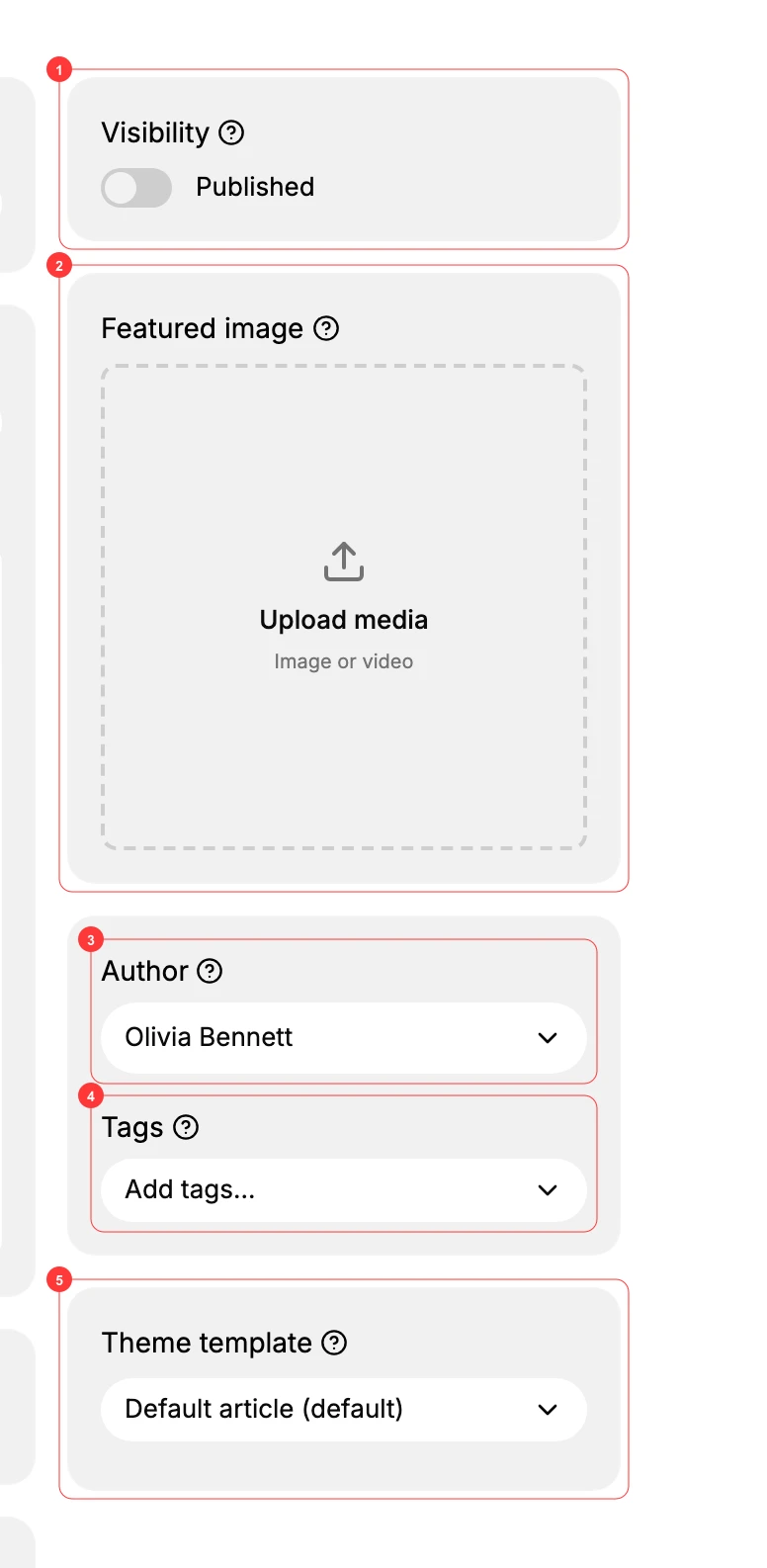
- Visibility (1) decides whether the post is live. Switch Published on to make the post appear on your storefront; leave it off to keep it as an unpublished draft that only you can see. This is the control that publishes or unpublishes the article.
- Featured image (2) is the main image for the post. Upload an image or video, and it is used at the top of the post and as the preview image in listings. A post without one still publishes, but the listing and link preview look plainer.
- Author (3) is who the post is credited to. Pick the author from the dropdown; their name shows as the byline on the published post.
- Tags (4) are labels you add to group related posts together. Type a tag and add it; tags help you and your readers find posts on the same topic.
- Theme template (5) sets which template the post renders with. Default article is used unless your theme provides another article template to choose from.
Save and publish
When the fields are filled in, save the post. If Published is on, the post goes live in its blog right away; if it is off, the post is saved as a draft you can finish and publish later. After publishing, add the blog to your storefront navigation in Menus so readers can find your posts.
Next steps
- Blog Posts for the step-by-step version of writing a post.
- Blogs to set up the blogs your posts belong to.
- Files to manage the images you add to a post.
Related articles
Still stuck?
- Ask Tanqory AIAsk in your own words. It answers from these articles and links the ones it used.
- Ask in your adminThe assistant in your Tanqory admin answers and makes the change for you once you confirm.
- Contact TanqoryWrite to our privacy, security or legal teams, or talk to sales about a plan or a move.