Translate Your Storefront Text
Adding a language to your store installs the Translate & Adapt app, and that app is where the wording customers read is translated, either by hand or with auto-translate. This explains where translation happens and what to decide before you start.
On this page
Selling in another language means more than listing that language in your settings. Every piece of wording a customer reads, from your product titles to the buttons in the cart, has to exist in that language before the storefront is genuinely usable. Tanqory splits this into two steps: you add the language in your settings, and you translate the content in the app that adding it installs. This article explains where that translation work happens and what to settle before you begin, so you do not add a language and leave customers reading a half-translated store.
Store Languages adds the language itself and describes what the Languages page holds.
Before you begin
- Decide who will do the translating, since the wording is your brand voice and auto-translate will not match it on its own.
- Add only languages you can maintain. Every language you add is a second copy of your content that has to be kept current when the first one changes.
- Open Settings > Language in the admin sidebar, which is where languages are added.
Where translation actually happens
Adding a language does not translate anything by itself. The Add a language dialog says so directly: adding a language installs the Translate & Adapt app, and you then translate your store content manually or with auto-translate.
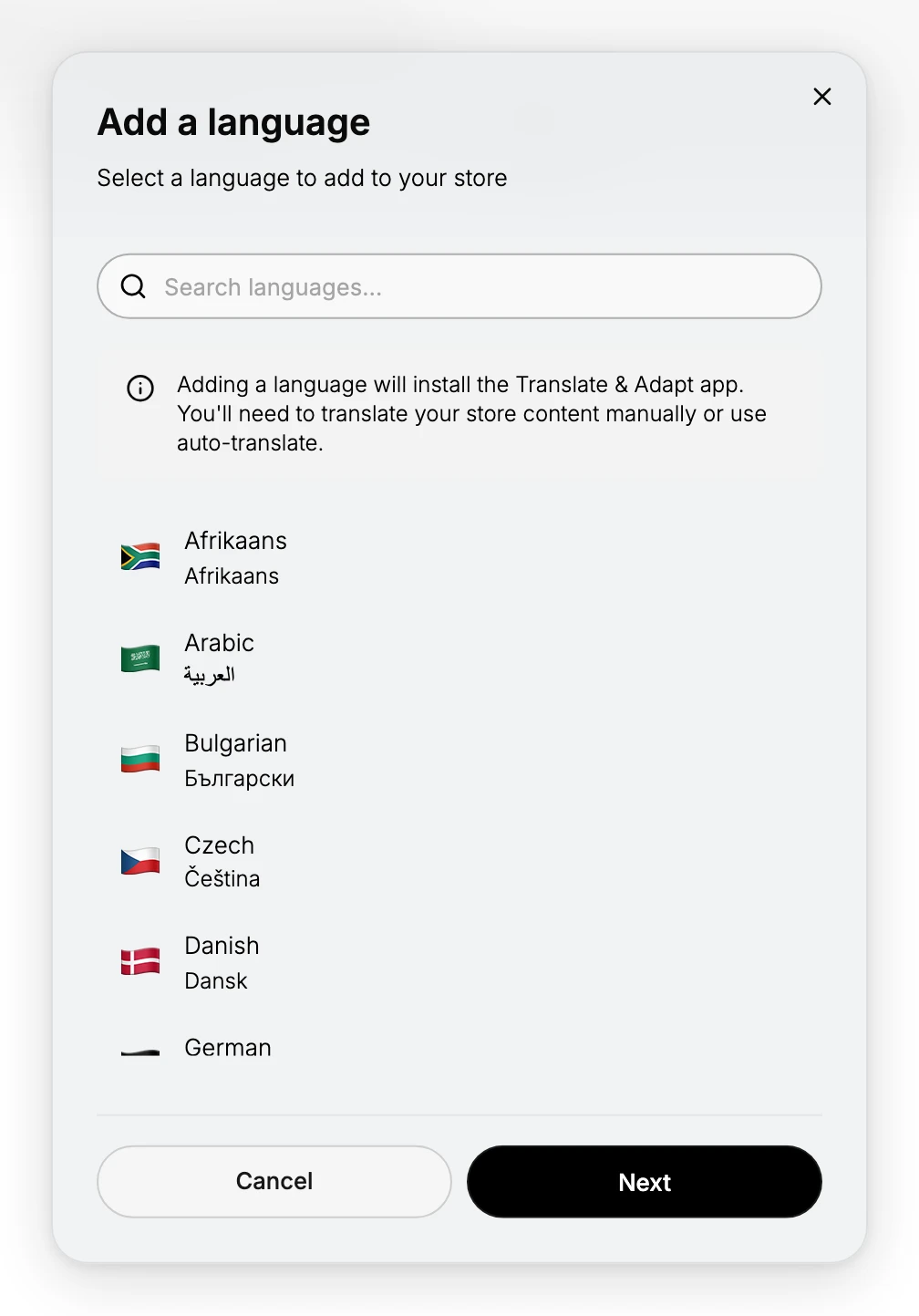
So the division of work is this. Your admin settings decide which languages exist on the store and whether each is available to customers. Translate & Adapt holds the actual words. If you are looking for a screen in the main admin that lists your storefront text for editing, there is not one, because that job belongs to the app.
What has to be translated
It helps to know the scale before you start, because the work is larger than most people expect. Translation covers the text you wrote and the text the storefront supplies.
| Kind of text | Examples |
|---|---|
| Your own content | Product titles and descriptions, collection text, pages, blog posts, menu labels |
| Search settings | The Meta title and Meta description on each item, which is what search results show in that language |
| Storefront wording | The fixed text your theme supplies, such as cart, checkout, and account labels |
| Notifications | The emails a customer receives about their order |
Your own content is the part that grows over time. Every product you add later is untranslated until someone translates it, which is why adding a language is an ongoing commitment rather than a one-time task.
Choosing between auto-translate and writing it yourself
Both routes are offered, and the sensible approach is usually a mix rather than picking one for everything.
- Auto-translate is the practical choice for volume, such as a large catalog, where leaving text untranslated would be worse than an imperfect translation.
- Writing it yourself is worth the time for the wording that carries your brand or costs you money when it is wrong: your home page, your key product pages, and anything in checkout.
- Reviewing auto-translated text is the middle path. Generate it, then have someone who reads the language check the pages that matter most.
The risk with auto-translation is not usually that it is wrong, but that it is flat. It renders the meaning of a sentence without the tone you chose, and industry terms and product names are where it slips most often.
Best practices
- Add a language only when you can support it. A half-translated storefront reads as neglected, and customers notice it on the pages where they were deciding to buy.
- Translate checkout and cart wording first. Text a customer reads while paying is where confusion costs you the sale.
- Have a native reader check the important pages, since a translation can be technically correct and still read oddly to someone who speaks the language.
- Translate the search settings too, or your pages will appear in search results in the wrong language even though the page itself is translated.
Common mistakes
- Assuming adding a language translates the store, when it only installs the app that lets you translate it.
- Leaving new products untranslated, so the store drifts back toward one language as the catalog grows.
- Auto-translating everything and reviewing none of it, which is how brand names and industry terms end up mistranslated.
- Forgetting notification emails, so a customer who browsed in their own language is then emailed in another.
Next steps
Related articles
Still stuck?
- Ask Tanqory AIAsk in your own words. It answers from these articles and links the ones it used.
- Ask in your adminThe assistant in your Tanqory admin answers and makes the change for you once you confirm.
- Contact TanqoryWrite to our privacy, security or legal teams, or talk to sales about a plan or a move.