Manage Multiple Stores
Use the account-level Your stores page to see every store you belong to, create new ones, switch between them, and check your role, members, plan, and status for each store.
On this page
One Tanqory account can hold more than one store. The Your stores page is where you see every store you belong to, create new ones, switch between them, and check the role you hold on each. It works at the account level, above any single store, so it stays the same no matter which store you were last working in.
Where to manage your stores
The Your stores page lives in your account, not inside one store's admin. You land on it after signing in, and you can return to it at any time from the account area. It lists every store where you are a team member, along with the role you hold and the store's current status, so it is the one place that gives you a view across all of your stores at once.
What the Your stores page shows
The page puts your stores in a single table, with controls above it for filtering and for adding a store.
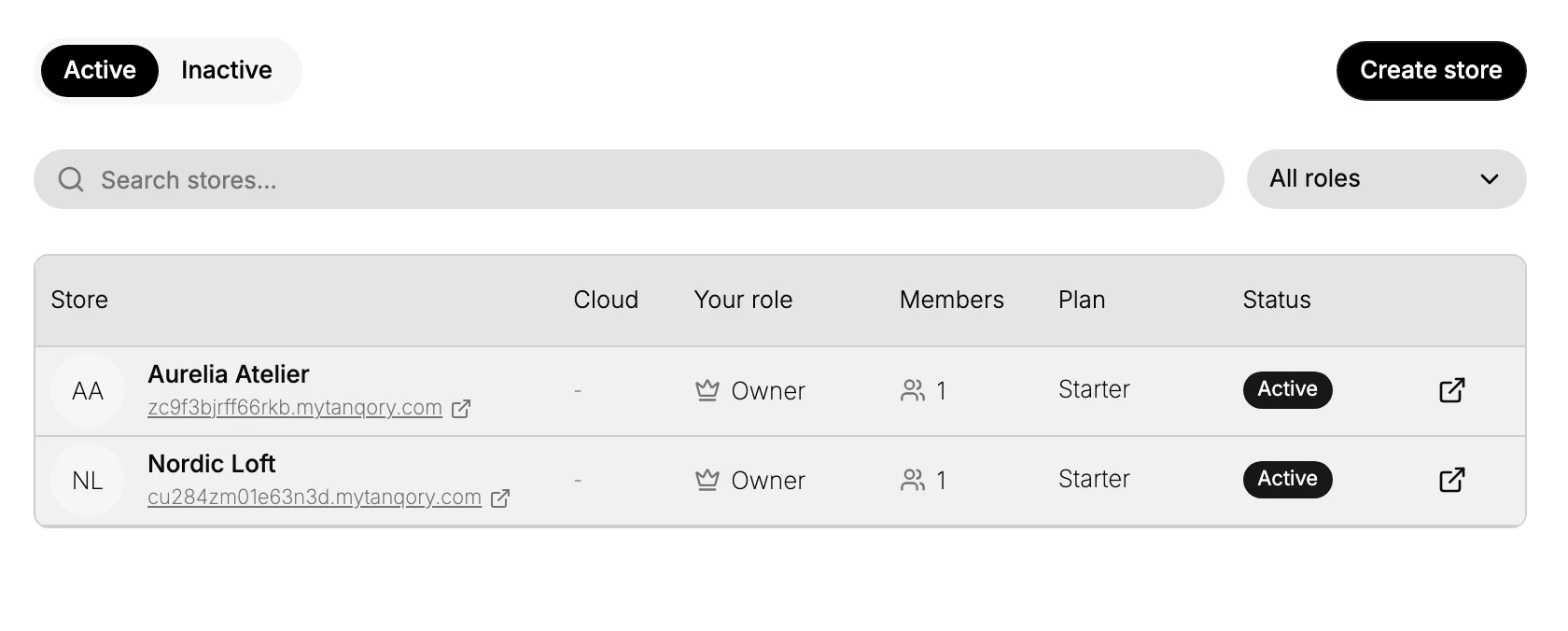
- Active and Inactive tabs filter the list by store status, so you can focus on stores that are live or look back at ones that are not.
- Search stores filters the list by name when you belong to many stores.
- All roles narrows the list to stores where you hold a particular role.
- The table gives one row per store, showing the store name and its mytanqory.com address, the Cloud, Your role (such as Owner), the number of Members, the Plan, and the Status.
- The open icon at the end of a row takes you into that store's own admin, which is how you switch from one store to another.
Create a new store
The Create store button starts setting up an additional store under the same account. A new store is fully separate from your existing ones, with its own products, orders, customers, settings, and storefront, so work in one store never affects another. After you create a store, you set it up from scratch, and the Setup Checklist walks through the first steps.
Your role and team on each store
Roles are granted per store, not once for your whole account, which is why the table shows Your role on every row. You might be the Owner of one store and have a more limited role on another. The Members column shows how many people are on each store's team. To change who can do what on a given store, manage that store's team from inside it, as described in Manage Team.
When a separate store is the right choice
A separate store makes sense when you run a genuinely distinct brand or business that needs its own catalog, orders, and settings kept apart. If instead you sell the same brand in more regions, currencies, or languages, that is usually better handled with Markets inside a single store, which avoids the work of running two separate admins.
Note: Switching stores opens that store's own admin. Your sign-in carries across, but each store keeps its data, settings, and storefront separate, so always confirm which store you are in before you make changes.
Next steps
- Setup Checklist to configure a newly created store.
- Manage Team to set roles and permissions on a store.
- Markets to sell one brand across regions without a second store.
Related articles
Still stuck?
- Ask Tanqory AIAsk in your own words. It answers from these articles and links the ones it used.
- Ask in your adminThe assistant in your Tanqory admin answers and makes the change for you once you confirm.
- Contact TanqoryWrite to our privacy, security or legal teams, or talk to sales about a plan or a move.