Contact Information
Add the contact details customers use to reach you. Contact information is a required written policy in Settings > Policies, and it links from the checkout footer and can be added to your online store menu.
On this page
Contact information is one of the written policies you manage on the Policies page in your store settings, and it is marked Required. It holds the details customers use to reach you, such as a business email address and a phone number. Adding it gives customers a clear way to ask questions, raise problems, or follow up on an order.
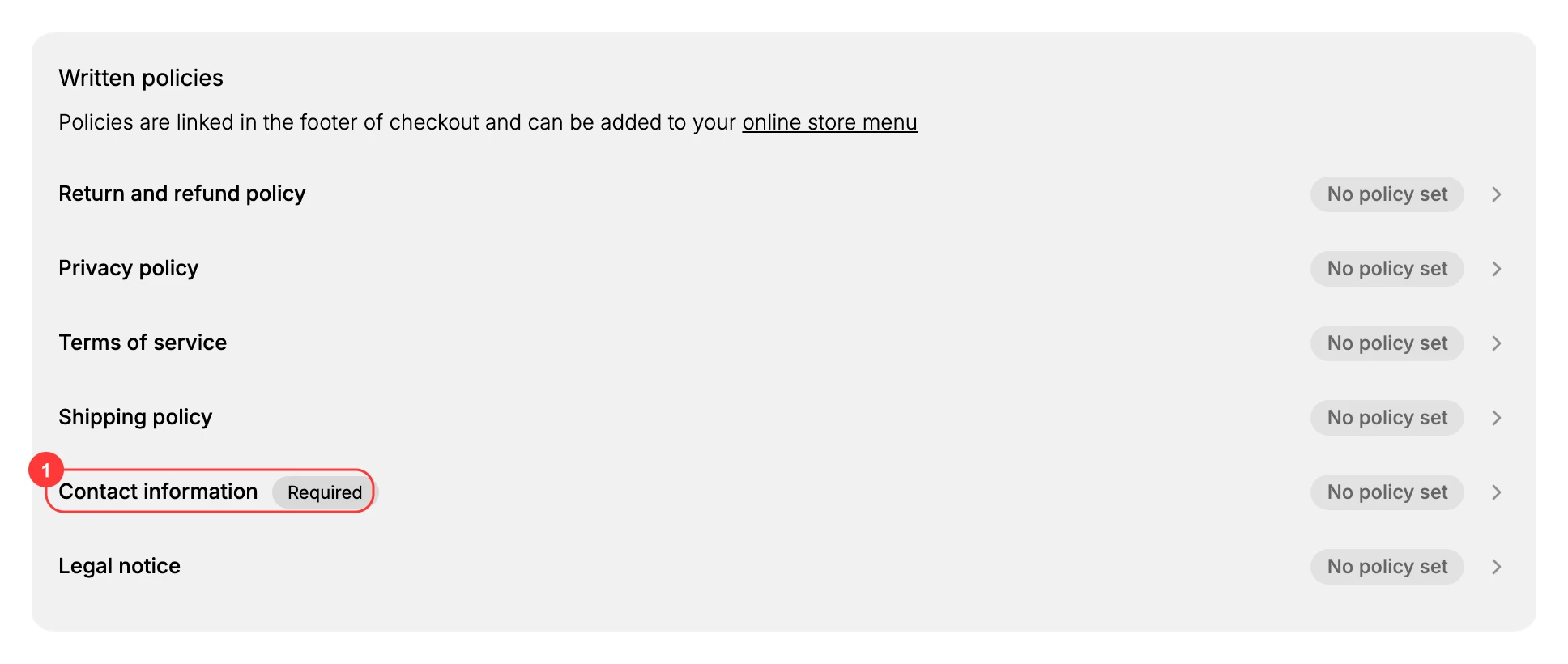
Note: You need a role that can manage settings to open Settings > Policies. Until you add details, Contact information shows No policy set.
Set your contact information
Open Settings > Policies. Under Written policies, select Contact information. It sits alongside your other store policies, such as the Return and refund policy, Privacy policy, Terms of service, Shipping policy, and Legal notice. Add your details in the editor and save. Its status then changes from No policy set to show that the information is in place.
List the ways customers can reach you, such as a business email address, a phone number, your business address, and your support hours, so they know how and when to get a reply.
Writing the policy
The editor does not start you with a blank page unless you want one. Under Policy content you choose between Use template, Generate with AI, and Start from scratch. Whichever you pick, the draft is a starting point rather than a finished contact section. Templates arrive with bracketed placeholders that have to be replaced, and the editor carries a legal disclaimer stating the template is for information only and is not legal advice.
Writing the contact section itself is covered in Contact Information Policy, which goes through what it should say and how to check it. This article stays with where the policy lives and how customers reach it.
How customers see it
Once your Contact information has details, the storefront links to it in two ways:
- It is linked in the footer of checkout, so customers can reach you before they place an order.
- It can be added to your online store menu, such as a footer menu, so it also appears on your regular storefront pages. See Menus to add the link.
Best practices
- Use an email address you monitor so customer messages are seen and answered, rather than a generic inbox no one checks.
- Give a phone number that is answered or that routes to voicemail, so customers are not left without a reply.
- Keep the details current, and update them right away after a move or a change of phone number or email.
Next steps
Related articles
Still stuck?
- Ask Tanqory AIAsk in your own words. It answers from these articles and links the ones it used.
- Ask in your adminThe assistant in your Tanqory admin answers and makes the change for you once you confirm.
- Contact TanqoryWrite to our privacy, security or legal teams, or talk to sales about a plan or a move.