Discount Creation Form Walkthrough
The discount form has the same set of sections from top to bottom: Method, the code or title, Discount value, Applies to, Eligibility, Purchase requirements, Usage limits, Combinations, and Active dates. This walkthrough describes each section in order and links to its full article.
On this page
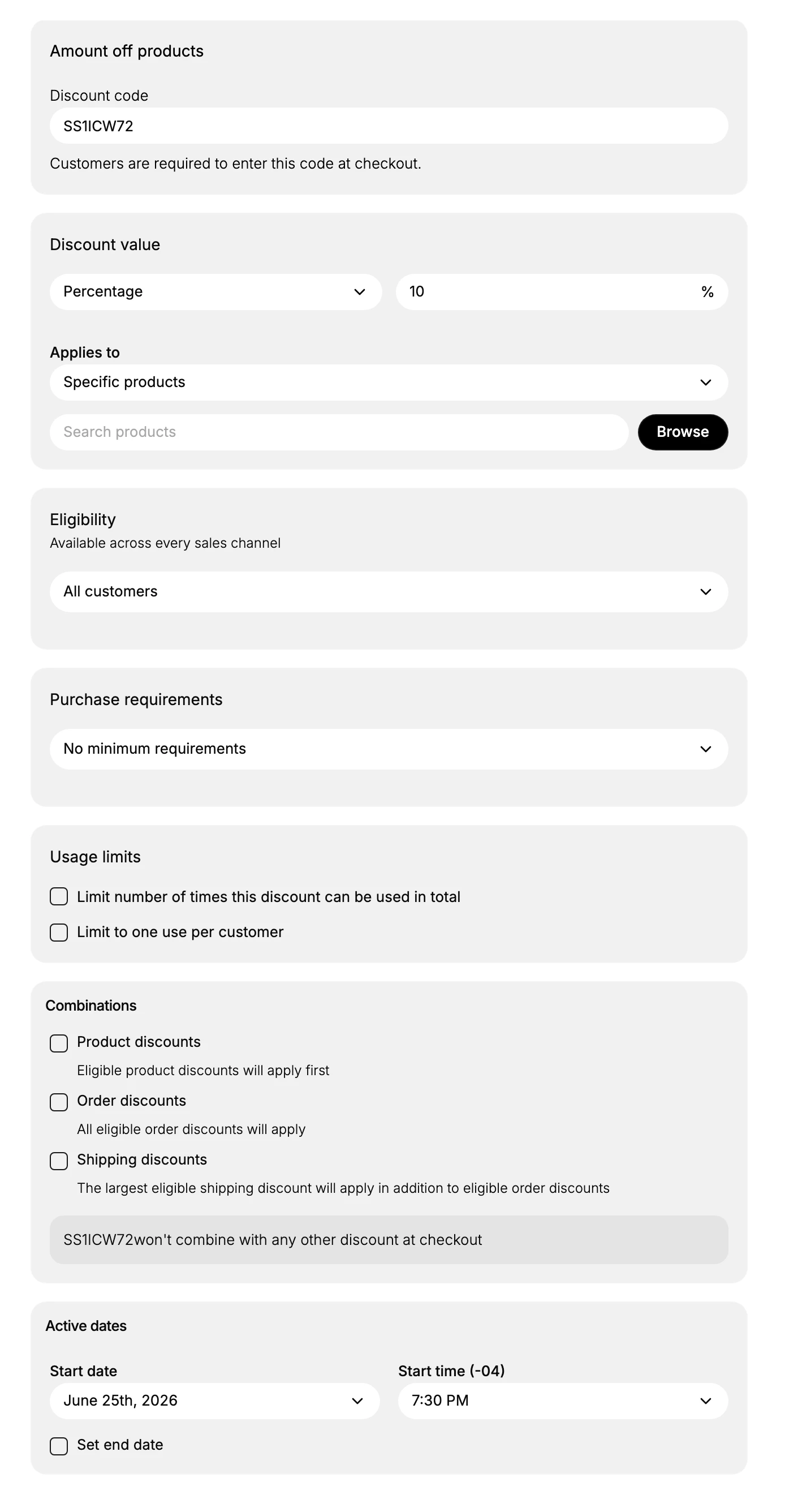
After you pick a discount type, the discount form opens with the same set of sections from top to bottom, so once you know the form for one type you know it for the others. This walkthrough describes each section in the order it appears, so you can fill the form from top to bottom, and links to the full article for each section when you want more detail. Create a Discount Code creates one with a code, start to finish.
Some sections change with the type you chose. An Amount off products discount has the sections below; a Free shipping discount replaces Discount value and Applies to with Countries and Shipping rates, and a Buy X get Y discount replaces them with Customer buys and Customer gets. Eligibility, Purchase requirements, Usage limits, Combinations, and Active dates are the same across the types. On the right of the form, a Summary panel restates the discount as you build it, and there are Sales channel access and Tags sections.
The form sections, top to bottom
| Section | What you set | Article |
|---|---|---|
| Method | Discount code or Automatic discount | Create a Discount Code |
| Discount code or Title | The code customers enter, or a title for an automatic discount | Automatic Discounts |
| Discount value | A percentage or a fixed amount | Discount Types |
| Applies to | Specific products or collections | Limit a Discount to Specific Products |
| Eligibility | Who can use the discount | Apply a Discount to a Customer Segment |
| Purchase requirements | A minimum amount or quantity, or none | Discount Usage Limits |
| Usage limits | A total cap and one use per customer | Discount Usage Limits |
| Combinations | Whether it stacks with other discounts | Configure Discount Combinations |
| Active dates | When it starts and ends | Schedule Discounts |
Before you begin
- Your role includes Edit discounts.
- Open Discounts in the admin sidebar, then select Create discount.
Steps
1. Set the Method
At the top, set Method to Discount code or Automatic discount. For a code, enter one or use Generate random code; for an automatic discount, enter a title that customers see. See Create a Discount Code and Automatic Discounts.
2. Set the Discount value and what it applies to
Set Discount value to a percentage or a fixed amount, then use Applies to to choose specific products or collections. On a Free shipping discount these are replaced by Countries and Shipping rates, and on a Buy X get Y discount by Customer buys and Customer gets. See Discount Types and Limit a Discount to Specific Products.
3. Set Eligibility and Purchase requirements
Use Eligibility to choose who can use the discount, such as all customers or a segment, and Purchase requirements to add a minimum purchase amount or quantity, or leave it with no minimum. See Apply a Discount to a Customer Segment.
4. Set Usage limits and Combinations
Under Usage limits, cap the total uses or limit one use per customer. Under Combinations, choose whether the discount stacks with product, order, or shipping discounts. See Discount Usage Limits and Configure Discount Combinations.
5. Set Active dates and save
Under Active dates, set the start date and time, and optionally an end date, then save. Check the Summary panel on the right to confirm the discount reads the way you intend. See Schedule Discounts.
Verify the result
- The Summary panel restates the sections you filled in.
- The new discount appears in the Discounts list with the method and type you chose.
- At checkout the discount applies according to the sections you set.
Best practices
- Fill the form top to bottom, since the sections build on each other from the value to the dates.
- Read the Summary panel as you go, so you can confirm each section before you save.
- Open a section's article when you need detail, rather than guessing at a setting.
Common mistakes
- Skipping Purchase requirements or Combinations, so the discount applies more widely or stacks in a way you did not intend.
- Leaving Active dates without an end, so a promotion runs longer than planned.
If something goes wrong
- A section is missing from the form. It may be replaced for the type you chose, such as Countries on a Free shipping discount.
- The discount does not apply as expected. Read the Summary panel and open the matching section to check the setting.
- You cannot create a discount. Your role may not have permission to manage discounts.
Next steps
Related articles
Still stuck?
- Ask Tanqory AIAsk in your own words. It answers from these articles and links the ones it used.
- Ask in your adminThe assistant in your Tanqory admin answers and makes the change for you once you confirm.
- Contact TanqoryWrite to our privacy, security or legal teams, or talk to sales about a plan or a move.